
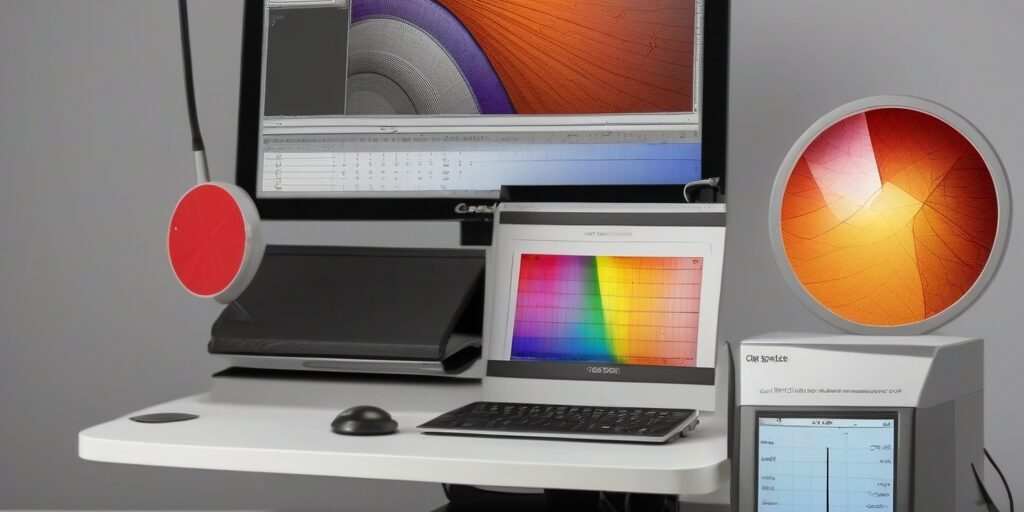
For professionals in design, photography, video editing, and digital art, screen calibration is essential to ensure colour accuracy. If you’ve ever noticed that your printed photos or final design looks different from what you saw on your screen, it’s likely due to improper calibration.
The solution? A colorimeter for screen calibration. This device is a game-changer for anyone needing precise colour on their monitor. By using a colorimeter, you can achieve consistency in your work, ensuring that what you see on your screen matches the colours in the final output—whether that’s a printed document or a digital project.
In this guide, we’ll walk you through the process of using a colorimeter for screen calibration, explain the importance of accurate colour, and provide helpful tips for achieving the best results. Whether you’re a photographer working on editing images or a graphic designer fine-tuning your work, calibrating your monitor is essential for achieving the most accurate colour representation.
Why Screen Calibration is Important
1. Understanding Colour Accuracy
Colour accuracy is critical for any profession that requires precise visual representation—whether that’s digital art, graphic design, photography, or video editing. A monitor that is not calibrated properly can display colours that are overly bright, dull, or completely misrepresented, making it difficult to produce accurate, high-quality work.
When you calibrate your monitor, you’re essentially making sure that the colours you see on your screen are a true reflection of the colours that will appear in the final output, whether it’s print or on another device. Without proper calibration, there is a risk of colour discrepancies, which can lead to costly mistakes and rework.
2. The Impact of Incorrect Calibration on Your Work
If you’re a graphic designer, an incorrectly calibrated screen might result in designs that don’t match the brand’s true colours when printed. If you’re a photographer, an uncalibrated screen can cause your photos to look too bright or too dark when shared or printed, which can affect your professional credibility.
For video editors, colour accuracy is crucial to ensure that the final video looks good across all devices, especially when dealing with HD or 4K content. Without proper calibration, the colours may look different on various screens, which can cause problems for both clients and viewers.
What is a Colorimeter and How Does It Work?
1. Definition and Function of a Colorimeter
A colorimeter is a device designed to measure the colours displayed on your monitor. It helps determine how accurately your screen is displaying various colour tones, including reds, greens, blues, and whites. Using a colorimeter, you can adjust your monitor settings to ensure that it displays true colours.
The colorimeter works by measuring the light emitted from the screen and comparing it to standard colour values. The device then communicates with calibration software to make adjustments, allowing for more accurate colour representation.
2. How a Colorimeter Helps with Calibration
When you use a colorimeter for screen calibration, the device measures the screen’s output in real-time, using a sensor that reads the light patterns. Calibration software interprets this data and adjusts your monitor’s settings, including brightness, contrast, gamma, and colour balance. The result is a monitor that displays colours that are consistent with a reference standard, providing you with an accurate visual representation of the colours you’re working with.
Types of Colorimeters Available
1. Affordable vs. Professional Colorimeters
When choosing a colorimeter, there are several options available depending on your needs and budget. Here’s a breakdown of the different types:
- Affordable Colorimeters: These are great for casual users or professionals who need basic calibration. They tend to be easy to use and come with intuitive software. While they provide good results, they may not offer the same level of precision as professional-grade tools.
- Professional Colorimeters: Designed for professionals, these devices provide more advanced features and superior accuracy. They often come with advanced calibration profiles and allow for more granular control over your monitor settings. If you work in a high-stakes environment like photography or design, investing in a professional colorimeter is recommended.
2. Best Colorimeters for Different Needs
- For Designers: The X-Rite i1Display Pro is a top choice, offering advanced calibration capabilities and fast, accurate results.
- For Photographers: The Datacolor SpyderX Pro offers high precision and is well-suited for those working with both photography and design.
- For Video Editors: The X-Rite i1Display Pro and Datacolor SpyderX Elite both offer professional-grade features necessary for accurate video editing calibration.
Step-by-Step Guide to Using a Colorimeter for Screen Calibration
1. Preparing for Calibration
Before you begin using your colorimeter, it’s important to ensure that your monitor is in the best condition for calibration:
- Warm up your monitor: Let your monitor warm up for at least 30 minutes to ensure the colours are consistent.
- Set your monitor to default settings: This ensures the colour settings aren’t altered by any previous custom adjustments.
- Turn off ambient lighting: Bright light from windows or lamps can affect the calibration process, so it’s best to work in a controlled lighting environment.
2. Connecting the Colorimeter
- Attach the colorimeter to the monitor: Most colorimeters come with a stand or a clip that allows you to position the device at the centre of your screen.
- Install the Calibration Software: The colorimeter will usually come with software that helps guide you through the calibration process. Install it and connect the device to your computer.
3. Running the Calibration Software
- Start the Calibration Process: Follow the on-screen instructions to begin calibration. The software will guide you through various settings such as brightness, contrast, and colour temperature.
- Perform the Measurement: The colorimeter will measure your screen’s colour output. The software will then adjust the settings to match the ideal colour profile.
4. Saving and Applying the Calibration Profile
- Save the Calibration Profile: After calibration, the software will save a profile that adjusts the colour settings of your monitor. This profile ensures that the correct colours are displayed, even if you restart your computer or monitor.
- Apply the Profile: The profile can be applied automatically, or you can manually select it in your monitor’s settings.
Best Practices for Using a Colorimeter
1. Regular Calibration: Why It’s Necessary
Monitors can lose their calibration over time due to factors like temperature fluctuations and aging hardware. To maintain consistent colour accuracy, it’s important to calibrate your monitor regularly—ideally every 1–2 months.
2. Optimising Your Workspace for Calibration
Ensure that your workspace is set up for optimal calibration conditions:
- Control your lighting: Avoid direct sunlight and bright overhead lights.
- Ensure consistent lighting: Use soft, indirect lighting for best results during calibration.
3. Keeping Your Calibration Consistent
After calibrating your monitor, make sure to avoid significant environmental changes, such as moving the monitor to a different room or changing the lighting in your workspace.
Common Issues and Troubleshooting
1. Calibration Failure and Fixes
If calibration fails, ensure that:
- The colorimeter is properly positioned on the screen.
- The monitor is functioning well and free from any technical issues.
2. Dealing with Colour Drift Over Time
Even after calibration, colours can shift over time. If this happens, recalibrate your monitor. If colour drift is frequent, it may be time to consider a hardware upgrade.
The Benefits of Regular Screen Calibration
1. Maintaining Colour Accuracy in Different Environments
With regular calibration, your monitor will continue to display accurate colours across various devices and environments, ensuring consistency in your work.
2. Enhancing Workflow and Efficiency
Accurate calibration saves time and reduces errors, leading to higher productivity and better overall results.
Conclusion and Call to Action
Using a colorimeter for screen calibration is essential for achieving accurate colour representation, whether you’re a designer, photographer, or video editor. By regularly calibrating your monitor, you ensure that your work remains consistent and professional across all devices.
If you need help with screen calibration or selecting the best tools for your needs, our experts at Perth Computer Experts are here to assist. Contact us today for support in improving the colour accuracy of your monitors and optimising your workflow for superior results!
