
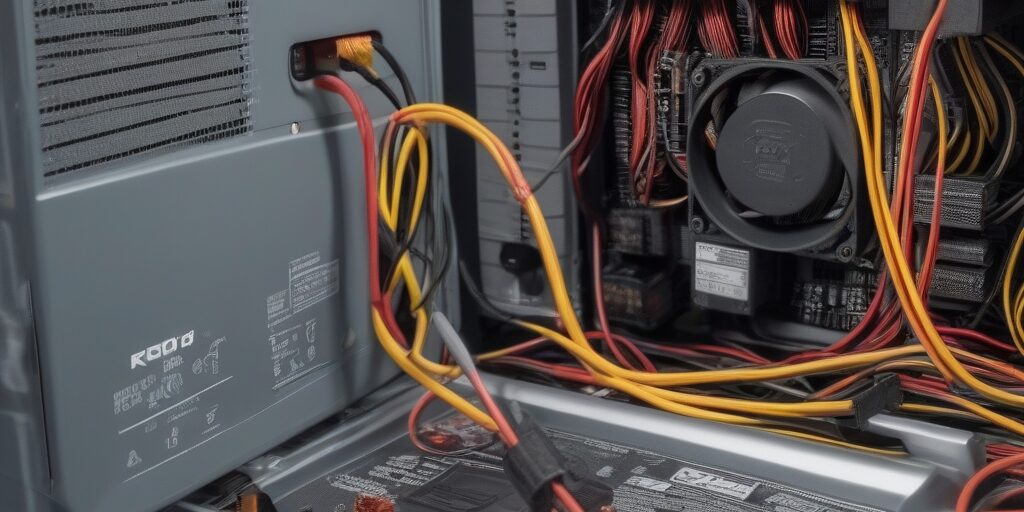
A computer’s power supply unit (PSU) is one of the most crucial components for its proper functioning. It delivers the necessary power to all of your system’s components, ensuring everything runs smoothly. However, like all components, power supplies can wear out over time. Recognising the signs of a failing power supply early can prevent you from experiencing unexpected system crashes, data loss, or even hardware damage.
In this guide, we’ll walk you through the most common signs of a failing power supply, how to troubleshoot these issues, and the best ways to fix or replace your PSU. Whether you’re dealing with a random shutdown, system instability, or strange noises, this article will help you pinpoint the problem and get your computer back to peak performance.
Why the Power Supply is Crucial for Your Computer
Before diving into the signs of a failing power supply, it’s important to understand the role of the PSU. The power supply unit is responsible for converting the AC (alternating current) power from your wall outlet into the DC (direct current) power that your computer components require. Without a functioning PSU, your computer wouldn’t be able to power on or operate.
A good quality PSU provides stable power, protects against power surges, and ensures that each component gets the right amount of energy it needs to perform optimally. If the PSU starts to fail, however, it can cause system instability, potential damage to components, and other issues that can disrupt your work or entertainment.
Signs of a Failing Power Supply
Recognising the signs of a failing PSU early on can save you from more serious issues down the road. Below are some of the most common symptoms to look out for:
1. Sudden Shutdowns or Restarts
One of the most noticeable signs of a failing power supply is your computer unexpectedly shutting down or restarting without warning. This can happen while you’re using the system, or it may occur during boot-up.
- Cause: An underpowered PSU or one that is deteriorating may not be able to maintain a stable current for all the components, leading to a power cut.
- Solution: Try unplugging some non-essential peripherals to see if the problem resolves itself. If it doesn’t, it’s a good indication that your PSU is struggling.
2. Random Freezes or Crashes
If your computer freezes or crashes randomly, especially under load (like when gaming or running heavy applications), it could be a sign that your PSU is failing. A weak or failing power supply cannot consistently provide the necessary power to the CPU, GPU, and other components, leading to system instability.
- Cause: This may occur when the PSU is unable to supply the required power, causing components to underperform or shut down.
- Solution: Perform a stress test on your system to see if the crashes are tied to high power usage. If the crashes are consistent during high-load situations, replacing the PSU may resolve the issue.
3. Overheating and Excessive Noise
An overheating PSU or one that is producing unusual noise (like buzzing or whirring sounds) is another sign of a failing power supply. PSUs have built-in fans that help keep them cool, but if the PSU is aging or malfunctioning, it may overheat.
- Cause: Dust accumulation, a failing fan, or deteriorating components can lead to overheating. Excessive noise could be a sign of a fan on its way out or internal parts failing.
- Solution: Ensure your PC is clean and well-ventilated. If noise persists or the PSU is still overheating despite good airflow, you may need to replace the unit.
4. Burning Smell or Visible Damage
If you detect a burning smell coming from your PSU or notice visible damage such as scorch marks or bulging capacitors, it’s a clear sign that your PSU is in critical condition. This is a serious issue and requires immediate attention.
- Cause: Overheating or electrical failure can cause components inside the PSU to short circuit or burn out.
- Solution: If you notice a burning smell or see any visible damage, immediately power down your system and unplug it. You will need to replace the PSU as soon as possible to avoid further damage.
5. Failure to Power On
If your computer refuses to power on at all, it’s a strong indicator that the PSU is no longer functioning. This could be due to an internal failure, such as a blown fuse or failed capacitor, that prevents the unit from supplying power.
- Cause: This is usually due to a complete failure of the PSU’s internal components.
- Solution: You can attempt to test the PSU with a multimeter or a PSU tester to check if it’s delivering power. If there’s no output, the PSU will need to be replaced.
6. Dim or Flickering Lights on the PC
Dim or flickering lights, especially on the power button or internal LED indicators, may indicate that your power supply is failing to provide stable power.
- Cause: A failing PSU may not be able to supply a consistent current, causing the lights to flicker or dim.
- Solution: This could be due to an issue with the PSU or other components like the motherboard. It’s best to check the PSU first by performing some tests.
How to Test a Failing Power Supply
If you’re experiencing any of the signs above, you can test your power supply to determine if it’s the root cause of the issue.
1. Using a Multimeter
A multimeter can help you measure the output voltages of your PSU to see if it’s functioning properly. To do this:
- Set the multimeter to DC voltage.
- Insert the multimeter’s probes into the PSU’s 24-pin connector (or other relevant connectors, depending on the type of PSU).
- Compare the readings to the standard voltages for each pin (for example, 12V, 5V, and 3.3V).
- If the readings are significantly lower or unstable, it’s likely that your PSU is failing.
2. The Paperclip Test
This is a simple test you can perform without needing a multimeter. By shorting the green wire to any black wire on the 24-pin connector, you can trigger the PSU to turn on.
- Steps:
- Unplug the PSU from the wall.
- Use a paperclip to connect the green wire to any black wire.
- Plug the PSU back into the wall and switch it on.
- If the fan inside the PSU doesn’t start spinning, it’s a clear sign that your power supply has failed.
What to Do If Your Power Supply is Failing
If you’ve confirmed that your PSU is failing, there are a couple of options for addressing the issue.
1. Fixing the Power Supply Yourself
While it’s not recommended to repair a PSU yourself unless you’re an experienced technician, some minor fixes (like cleaning dust or replacing a fan) can be done. However, attempting to repair a PSU can be dangerous, as it involves high-voltage components.
2. Replacing the Power Supply
If the PSU is beyond repair, replacing it is the best course of action. When shopping for a replacement, make sure to choose one with adequate wattage, efficiency, and quality. Look for reputable brands with good warranty policies.
When to Call a Professional
If you’re unsure about testing or replacing the PSU yourself, it’s always a good idea to consult with a professional technician. They can quickly diagnose the problem and ensure that the issue is resolved safely.
How to Prevent Power Supply Failure
Preventing power supply failure involves regular maintenance and monitoring of your system.
- Keep your system clean: Dust buildup can cause overheating and premature failure.
- Use a surge protector: Protect your PSU from power surges and voltage spikes.
- Monitor system health: Use software to track your PSU’s voltage outputs and system stability.
Conclusion and Call to Action
Recognising the signs of a failing power supply early can save you from a lot of headaches and potential damage to your system. If you’re experiencing any of the symptoms mentioned, it’s important to take action before the issue worsens.
If you’re unsure about diagnosing or replacing your PSU, don’t hesitate to contact our team at Perth Computer Experts. Our technicians are ready to help with PSU troubleshooting, replacements, and other computer-related services. Get in touch today to keep your system running smoothly!
