
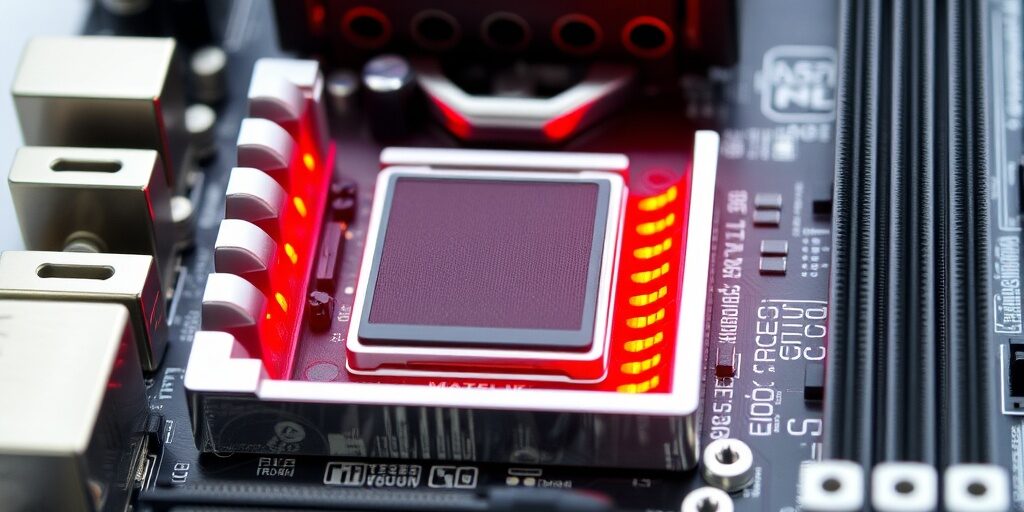
Motherboard overheating is one of the most common but dangerous issues that computer owners face. If not addressed, it can lead to significant performance degradation, system instability, and even permanent damage to your components. However, diagnosing the cause of motherboard overheating is not always straightforward, as multiple factors can contribute to the problem.
In this comprehensive guide, we’ll walk you through the essential steps for diagnosing overheating issues on your motherboard. From identifying the symptoms to using the right tools, we’ll provide you with everything you need to resolve the problem and keep your system running smoothly. By the end of this article, you’ll have the knowledge to detect overheating issues and apply the most effective solutions to protect your motherboard and other components.
What Causes Motherboard Overheating?
Motherboard overheating can occur due to various factors. Understanding the underlying causes will help you identify and resolve the issue effectively. Here are the most common causes of motherboard overheating:
1. Poor Airflow and Ventilation
A lack of proper airflow is one of the most frequent causes of overheating in a computer. If your computer case is cluttered with cables or lacks sufficient fan placement, the internal temperature will rise, affecting the motherboard and other components. Proper ventilation is crucial to ensure that heat is efficiently expelled from the case.
2. Inadequate Cooling Solutions
While most motherboards come with basic cooling solutions such as heatsinks, high-performance systems—especially gaming PCs—require more robust cooling methods, such as additional fans or liquid cooling systems. If your cooling setup is inadequate, the motherboard may overheat, leading to instability and potential damage.
3. Dust Build-Up
Over time, dust can accumulate inside your computer case, particularly on the motherboard and cooling components like heatsinks and fans. This dust acts as an insulator, preventing heat from escaping efficiently and leading to increased temperatures. Regular cleaning is essential to maintain proper airflow.
4. Faulty or Failing Components
Overheating can also be caused by a malfunctioning component, such as a damaged capacitor, voltage regulator, or CPU. These faulty parts can generate excessive heat and compromise the motherboard’s overall temperature management, potentially leading to system instability.
5. Overclocking
Overclocking pushes the motherboard, CPU, and other components to run at higher speeds than they were originally designed for. This increases power consumption and generates more heat. If the cooling system isn’t able to handle the additional heat generated by overclocking, it can lead to motherboard overheating.
6. Age and Wear of Thermal Paste
Thermal paste helps facilitate heat transfer between the CPU and the heatsink. Over time, thermal paste can dry out or degrade, which significantly reduces its effectiveness. Without adequate thermal paste, the CPU may overheat, and the heat may transfer to the motherboard, causing overall system instability.
How to Identify Symptoms of Overheating Motherboards
Recognising the symptoms of motherboard overheating is crucial to preventing long-term damage. Below are some key signs that your motherboard may be overheating:
1. System Instability and Crashes
If your computer crashes unexpectedly or experiences frequent restarts, it could be due to motherboard overheating. As the temperature increases, the motherboard may struggle to handle the system’s demands, leading to instability and random shutdowns.
2. Performance Drops and Throttling
When the motherboard overheats, the CPU may automatically throttle its performance to prevent further damage. This results in a noticeable drop in system performance, especially during intensive tasks like gaming, video editing, or running multiple applications simultaneously.
3. High CPU and GPU Temperatures
Overheating in the motherboard often correlates with higher-than-usual CPU and GPU temperatures. If you notice that your system’s temperatures are unusually high, it may indicate that your motherboard is not adequately dissipating heat, leading to overheating.
4. Unusual Noises
Fans that are running at higher speeds than usual or making strange noises could be a sign of an overheating issue. Cooling fans may work harder to compensate for higher temperatures, which can produce more noise. Over time, this strain can also lead to fan failure.
5. System Fails to Boot
In extreme cases, the motherboard will prevent the system from booting if it detects excessive temperatures. This is a protective mechanism designed to prevent further damage to the motherboard or CPU. If your system fails to power on, it could be a result of overheating.
Tools for Diagnosing Overheating on Your Motherboard
Diagnosing overheating problems requires the right set of tools to monitor temperatures and pinpoint the root cause. Here are the key tools you’ll need:
1. Using Temperature Monitoring Software
Temperature monitoring software allows you to track the temperature of various components within your computer. Many modern motherboards have built-in sensors that provide real-time temperature readings of the CPU, motherboard, and GPU.
- Popular Software Options:
- HWMonitor
- CoreTemp
- MSI Afterburner
- SpeedFan
These programs provide a quick way to monitor the temperature and help you identify if overheating is happening.
2. External Temperature Probes
For more accurate readings, external temperature probes can be attached directly to the motherboard. These probes allow you to measure the temperature in specific areas of the motherboard, such as around the CPU socket or power regulators.
- Why Use Them:
- Direct temperature measurement
- More precise than relying on software sensors
3. Infrared Thermometers
Infrared thermometers are non-contact devices that allow you to check the temperature of various components on the motherboard. These thermometers are easy to use and provide instant temperature readings.
- How They Work:
- Simply point the thermometer at different components of the motherboard and monitor the temperature.
- Ideal for quickly diagnosing hot spots on the motherboard.
How to Fix an Overheating Motherboard
Once you’ve diagnosed that your motherboard is overheating, it’s essential to take steps to fix the issue. Here are the most effective solutions:
1. Improving Airflow and Case Ventilation
Proper airflow is critical to preventing overheating. Here’s how you can improve ventilation:
- Organise cables to reduce airflow obstruction.
- Add more case fans to promote air circulation.
- Clean the fans and vents to prevent dust accumulation.
2. Reapplying Thermal Paste
Old or degraded thermal paste can significantly reduce the effectiveness of heat transfer between the CPU and heatsink. Reapply thermal paste to ensure better heat dissipation.
- Steps to Reapply Thermal Paste:
- Remove the heatsink.
- Clean off old thermal paste.
- Apply a thin, even layer of fresh thermal paste.
3. Upgrading Your Cooling System
If your current cooling system isn’t cutting it, consider upgrading to a more powerful solution. Some options include:
- Upgrading the CPU cooler to a higher-performance air or liquid cooler.
- Adding extra case fans for increased airflow.
4. Replacing Faulty Components
If a specific component, such as a capacitor or voltage regulator, is causing the motherboard to overheat, it may need to be replaced. Contact a professional if you suspect component failure.
Preventing Future Overheating Issues
To ensure that your motherboard remains cool in the long term, consider the following preventive measures:
- Regularly clean your system to remove dust build-up.
- Use temperature monitoring software to keep track of internal temperatures.
- Invest in high-quality cooling solutions to prevent overheating in the future.
Conclusion and Call to Action
Diagnosing and fixing overheating problems on your motherboard is essential for maintaining system stability and prolonging the life of your computer. By understanding the causes, recognising the symptoms, and using the right tools, you can effectively manage your motherboard’s temperature and prevent damage.
If you’re experiencing overheating issues or need assistance with repairs, the team at Perth Computer Experts is here to help. Contact us today for expert support and advice on keeping your computer running smoothly and efficiently.
