
Types of Hard Drive Failure and How to Recover Your Data
Learn the signs of physical and logical hard drive failure, what to stop doing, safe recovery options, and how to protect your files.
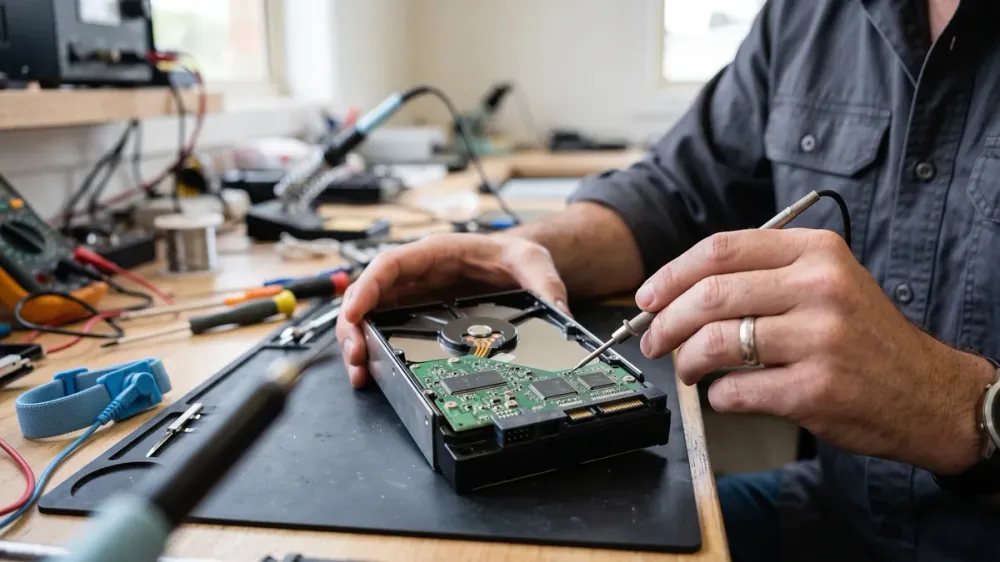
A clicking hard drive and a folder that suddenly will not open can both look like data loss, but they are not the same problem. One can indicate damage to moving parts inside the drive; the other may be corruption in the file system. The wrong response can reduce the chance of getting important files back.
This guide explains the main types of hard drive failure, the warning signs that matter, and the safest recovery path for a traditional hard disk drive (HDD). It also shows how backups and sensible handling can make the next drive failure an inconvenience instead of a crisis.
Key takeaways
- Stop using a drive that clicks, grinds, smells burnt, was dropped or suffered liquid damage.
- Logical problems may be recoverable with software, but recovery files must be saved to a different healthy drive.
- Do not format, initialise or run repair tools on the only copy of important data before assessing the failure.
- Backups, including a disconnected or offsite copy, protect data more reliably than trying to prevent every hardware fault.
- RAID can improve availability, but it does not replace an independent backup.
What happens when a hard drive fails
A traditional HDD stores data magnetically on spinning platters. A motor turns those platters while read/write heads move across them. Electronics and firmware control the mechanism and communicate with the computer. Failure can therefore occur in the mechanism, electronics, firmware, platter surface or the logical structures used to organise files.
This guide is specifically about mechanical hard drives. Solid-state drives (SSDs), USB flash drives and memory cards have no spinning platters or heads. They can fail through controller faults, worn flash memory, damaged connectors and other mechanisms, so a silent SSD should not be diagnosed by listening for HDD noises.
The practical distinction is whether the drive may be physically unstable or whether its hardware appears normal and the problem is logical. That decision determines whether software is reasonable or whether further power-on time is an unnecessary risk.
Physical hard drive failures
Physical failure means a mechanical or electronic part of the drive is damaged or no longer operating correctly. Software cannot repair scratched platters, failed heads or burnt electronics.
Mechanical failure and head crashes
Motors, bearings and the head assembly can wear out or be damaged by shock. A head crash occurs when a read/write head contacts the platter surface. Repeated clicking, grinding, scraping or buzzing can indicate that the mechanism cannot position or read correctly. A drive may also disappear, stall the computer during access or make the computer take an unusually long time to start.
Normal drive sounds vary, and a fan or optical drive can be mistaken for the HDD. However, if a new or repeated abnormal sound coincides with missing files or freezing, do not keep restarting the computer to investigate. Each spin-up and read attempt may worsen damage.
Electrical and controller failure
A power fault can damage the drive's circuit board or internal electronics. Signs include a drive that will not spin, is never detected, smells burnt or has visible scorching. Switch the computer off and disconnect power if it is safe to do so. Do not power it again, swap circuit boards or probe live electronics. A burning smell, smoke or sparks is an immediate stop condition for professional help.
Circuit boards are not generally interchangeable even between drives that look identical. Drive-specific calibration data may be stored on the board, and an unsuitable replacement can add another fault.
Firmware failure
Firmware is the drive's internal control software. A fault can prevent correct identification or access even when the visible electronics and mechanism appear intact. Symptoms can overlap with mechanical, cable and controller problems, so firmware work is not a safe trial-and-error task. Use only manufacturer-approved updates for an otherwise healthy drive; do not attempt a firmware update on a failing drive that contains the only copy of important data.
Heat, liquid and impact damage
Excess heat can contribute to component stress, while a drop during operation can damage heads or platters. Liquid exposure can affect the drive, its connectors and the rest of the computer. After a drop, spill or flood, do not test the drive repeatedly. Do not dry it with heat or open its sealed cover. If the files matter, keep the device powered off and arrange an assessment.
Logical failures and bad sectors
A logical failure affects the information used to locate and interpret files rather than the drive's moving parts. Causes can include accidental deletion, file-system corruption, an interrupted write, malware or damaged partition information. The drive may still sound normal and be detected by the computer, yet files, folders or a volume are missing or unreadable.
Bad sectors need extra care. A sector is a small storage area. Some unreadable sectors result from deterioration of the physical medium; others may be managed or remapped by the drive. A growing number of read errors, very slow access or repeated disconnections can mean the hardware is degrading even if the initial symptom looks logical. Treat those signs as a reason to minimise use, not as an invitation to run repeated full scans.
Common logical symptoms include:
- files deleted accidentally or folders that no longer appear;
- a volume shown as unreadable or with an unexpected file-system status;
- errors affecting particular files while the drive remains quiet and stable; and
- a computer that starts normally but cannot open data from a secondary drive.
These clues are not a guaranteed diagnosis. Important data, uncertain symptoms or a drive that becomes worse during access justify stopping early.
Warning signs and the safest first response
Start with observation rather than repair. Note what happened immediately before the problem, whether the drive was dropped or exposed to liquid, the exact noise or error, and whether the drive is detected. If it is an external drive, a reversible check of a known-good cable, power adaptor or USB port can rule out a connection fault—but stop if the drive makes abnormal noises or repeatedly disconnects.
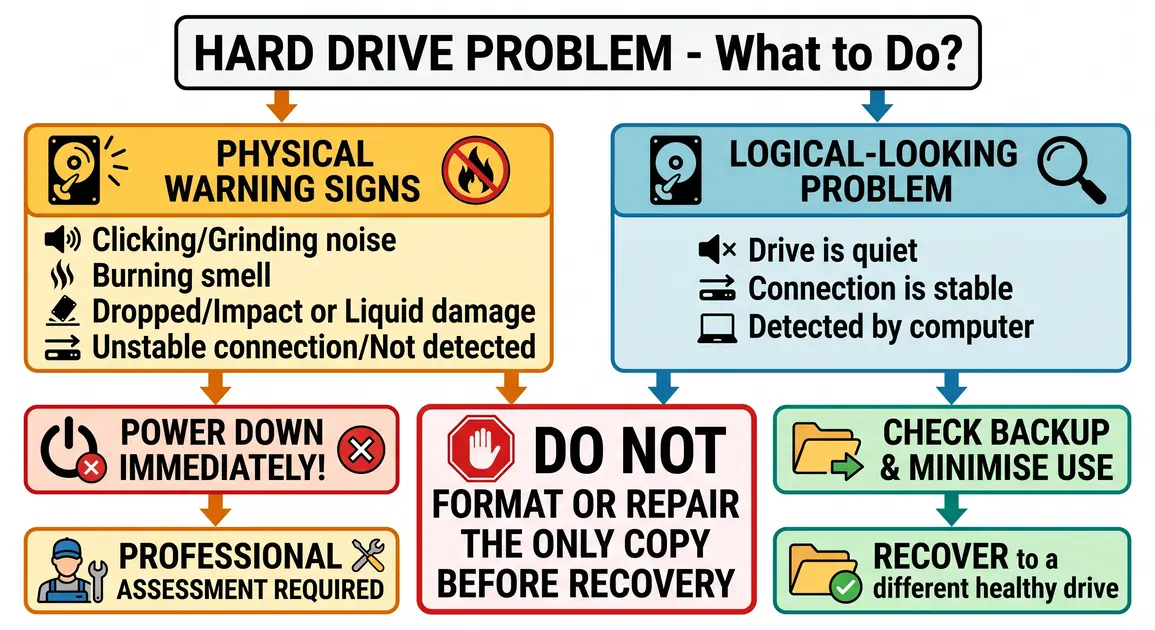
Use this decision path:
- Physical warning signs: clicking, grinding, scraping, burning smell, smoke, impact, liquid exposure, no spin or repeated drop-outs. Shut down and seek qualified assessment.
- Drive is quiet, stable and readable: copy the most important irreplaceable files to a healthy destination before running extended tests. A current verified backup is better than a fresh copy from an unstable disk.
- Drive is quiet and detected but data is missing: check the Recycle Bin and existing backups first. If recovery software is appropriate, stop normal use and recover to a different physical drive.
- Diagnosis is uncertain: do not experiment with repairs on the only copy. The value of the data—not the value of the drive—should guide the risk you take.
S.M.A.R.T. (Self-Monitoring, Analysis and Reporting Technology) and manufacturer diagnostics can provide useful health evidence, but they are not a guarantee that a drive is healthy or recoverable. Seagate describes SeaTools as a drive-health diagnostic utility. Run diagnostics only when the drive is stable and the data is already backed up or expendable; an extended scan increases drive activity.
Recovery techniques for logical data loss
Before using recovery software, make sure the drive has no physical warning signs. Software recovery reads large areas of the disk and may be inappropriate for a degrading mechanism.
Restore from a backup first
A known-good backup is normally the safest recovery route. Confirm the backup date and preview or restore a sample file to another location before changing the affected drive. Cloud synchronisation alone may not be a complete backup: deletions or corruption can synchronise too, although version history may help depending on the service.
Recover deleted files without writing to the source
When a file is deleted, its space may be marked available before the underlying data is overwritten. Microsoft advises minimising computer use to improve the chance of recovery. Its current Windows File Recovery tool supports Windows 10 and 11 and requires the source and destination to be different drives. See Microsoft's Windows File Recovery guidance before deciding whether its command-line workflow suits you.
Safe principles apply to any recovery tool:
- install and run the tool from a healthy drive, not the affected one;
- save recovered files to a different physical drive;
- prefer a read-only scan or disk image where the tool and situation support it;
- recover the most valuable files first; and
- stop if the drive slows severely, disconnects or develops a new noise.
Do not assume a scan result means every file is intact. Open recovered documents, photos and archives from the destination and check them before doing anything destructive to the original.
Why CHKDSK, formatting and reinitialising can wait
File-system repair tools are designed to make a volume structurally usable, not to preserve every recoverable fragment. They can change metadata and discard damaged references. Formatting or initialising prepares storage for use and writes new structures. If recovery is the priority, do not perform these operations on the only copy until the data has been recovered or a suitable sector-by-sector image has been made by someone who understands the risks.
Microsoft also warns that some Windows recovery options can cause data loss and recommends backing up before proceeding. Reinstalling or resetting Windows is not a hard drive data-recovery technique.
When professional recovery is the safer choice
Stop DIY recovery when:
- the drive clicks, grinds, scrapes or smells burnt;
- it suffered a drop, liquid exposure, surge or overheating event;
- it is not detected consistently or causes the computer to hang;
- important data has no verified backup;
- the drive is encrypted and the BitLocker or other recovery key is uncertain;
- software scans make the drive slower or less stable; or
- the next proposed step is formatting, resetting, opening the drive or altering firmware.
A specialist may first create a controlled image of a marginal drive or, for physical faults, work with matched parts and an appropriate clean environment. Opening a sealed HDD at home exposes its internal surfaces to contamination and can make later recovery harder. Professional recovery is not guaranteed, so explain the symptoms, previous attempts, encryption status and importance of the data before approving work.
For Perth households and small businesses, the immediate decision is often whether an ordinary computer repair assessment is enough or whether the drive should go directly to a specialist recovery laboratory. If the files are irreplaceable and the signs are physical, avoiding another power-on attempt is the conservative choice.
How to reduce the impact of the next failure
No maintenance routine can guarantee that a hard drive will not fail. A good protection plan assumes that any single drive can stop working. The Australian Cyber Security Centre recommends regular backups, protecting backup devices, disconnecting backup media when it is not in use, keeping an offline copy, and storing a copy offsite where appropriate. Its backup guidance for homes and small businesses also stresses choosing a schedule that matches how often important data changes.
Build a backup routine you can restore from
Use at least two suitable destinations for important files where practical—for example, an external backup drive plus a reputable cloud backup service. Keep one copy separated from the computer so a failed device, theft, fire or ransomware incident cannot affect every copy at once. Disconnect an external backup after completion if it is intended to be the offline copy.
Automation reduces missed backups, but it is not proof that a backup works. Check job notifications and periodically restore a sample of important files. Small businesses should identify the calendars, email, financial records, customer information and working documents needed to resume operations, then set backup frequency and retention around how much recent work they could tolerate losing.
A NAS or RAID array can keep data available after some single-drive failures, depending on its design and state. It does not protect against accidental deletion, malware, theft, fire, controller failure or multiple-drive problems. Keep an independent backup outside the array.
For a practical setup walkthrough, see the PCE guide to external backup drive setup.
Handle and maintain drives sensibly
- Keep computers ventilated and clear dust from external vents without opening a power supply.
- Avoid moving or knocking an HDD while it is running.
- Use surge protection appropriate to the equipment and have recurring power faults checked.
- Keep portable drives dry and use a protective case during transport.
- Leave working space on a drive for system performance and updates, but do not claim that freeing space repairs mechanical wear.
- Replace a drive after persistent health warnings rather than trusting it with the only copy.
Windows may optimise HDDs by defragmenting them, which can improve file-access efficiency. It is not a dependable way to prevent physical failure, and SSD optimisation works differently. Leave scheduled optimisation to the operating system rather than repeatedly running manual defragmentation on a suspect drive.
Choose the next step based on the data, not the drive
If the HDD is quiet, stable and the loss appears logical, check backups and use a careful read-only recovery approach with a separate destination. If there is noise, electrical damage, impact, liquid exposure or worsening behaviour, power it down.
The drive itself can usually be replaced; the files may not be. If you are in Perth and cannot confidently classify the fault, arrange an assessment before a well-meant repair attempt turns a recoverable problem into permanent loss.