
External Backup Drive vs Cloud Storage: Which Is Best for You?
Compare external backup drives and cloud storage, understand their limits, and build a practical backup plan for your home or small business.
A backup only proves its value when something goes wrong. Your laptop may fail, a file may be deleted, an account may be compromised or a device may be stolen. The real question is not simply where you can store files, but which option will let you recover the right version when you need it.
An external backup drive is usually fast, private and economical for large amounts of data. Cloud storage provides off-site protection and convenient access from multiple devices. Each also has weaknesses. For many Perth households, remote workers and small businesses, the safer answer is a planned combination rather than choosing only one.
This guide compares external backup drives and cloud storage by recovery, cost, speed, security and convenience. It also explains how to choose a drive, protect it with encryption, handle several devices and test that your backups can actually be restored.
Key takeaways
- An external drive suits fast local backup and recovery, but it can fail, be stolen or be damaged with the computer.
- Cloud storage provides an off-site copy and multi-device access, but recovery depends on the service, account security and your internet connection.
- Synchronisation is not automatically a complete backup because deletions or unwanted changes may also synchronise.
- A strong plan uses automatic backups, protects one copy from the same incident as the computer and tests restoration.
- For important files, combining local and off-site copies is usually safer than relying on either alone.
First, separate backup from storage and synchronisation
A backup is a separate copy designed for recovery. A useful backup keeps enough history to restore a deleted, damaged or older version. Cloud storage is a location on a provider's systems. It may include backup-like features, depending on the product and plan. Synchronisation keeps files aligned across devices; it is excellent for access and collaboration, yet a deletion or corruption can also synchronise.
Before buying anything, ask: What data must be recoverable? How much recent work could you afford to lose? How quickly would you need it back? Which events must the copy survive: device failure, theft, fire, accidental deletion, ransomware or account loss?
The Australian Cyber Security Centre advises organisations to scope backups around the information needed for recovery and test restoration. It also says some Microsoft 365 versioning and recovery features are insufficient for every cyber incident, particularly administrator compromise (ACSC). The household lesson is similar: seeing a file in a cloud folder does not prove you have an independent, recoverable copy.
External backup drive: strengths and limitations
An external hard disk drive (HDD) or solid-state drive (SSD) connects directly to a computer, usually by USB. Backup software can copy selected files automatically and retain earlier versions.
External drives are strong when you need a fast first backup or restore, hold a large photo or video library, want a predictable hardware cost, or prefer physical control. Windows File History and Apple Time Machine can automate versioned backups, avoiding unreliable drag-and-drop routines. A drive disconnected after a successful backup is also less exposed to ransomware running on the computer.
The weaknesses are physical and procedural. A drive beside the computer can be affected by the same burglary, fire, liquid damage or electrical incident. Drives fail, manual backups are forgotten, and automatic backups cannot run while a drive is absent. A connected, writable drive may be reached by malware. An unencrypted drive can expose its contents to whoever finds it. Encryption helps, but losing the password or recovery key can make the backup useless.
Cloud storage: strengths and limitations
Cloud services store data in a provider's infrastructure and make it available through an app or browser. Some synchronise working folders; some are dedicated backup services; others combine storage, version history, deleted-item recovery and sharing. Evaluate the actual recovery features rather than the word “cloud”.
Cloud is strongest for automatic off-site protection, access from several devices and locations, and scalable capacity. It avoids the risk of one physical drive being damaged with the computer and is convenient for current documents and collaboration.
Its weaknesses are dependency and control. Large uploads and full restores depend on internet speed. Fees continue while you retain the data. Recovery relies on the provider's retention rules and on your ability to access the account. Use a unique passphrase and multi-factor authentication. Check how long deleted files and versions remain, whether mass deletion can be rolled back, which folders are included and how you could export everything. Online-only placeholders are not local copies.
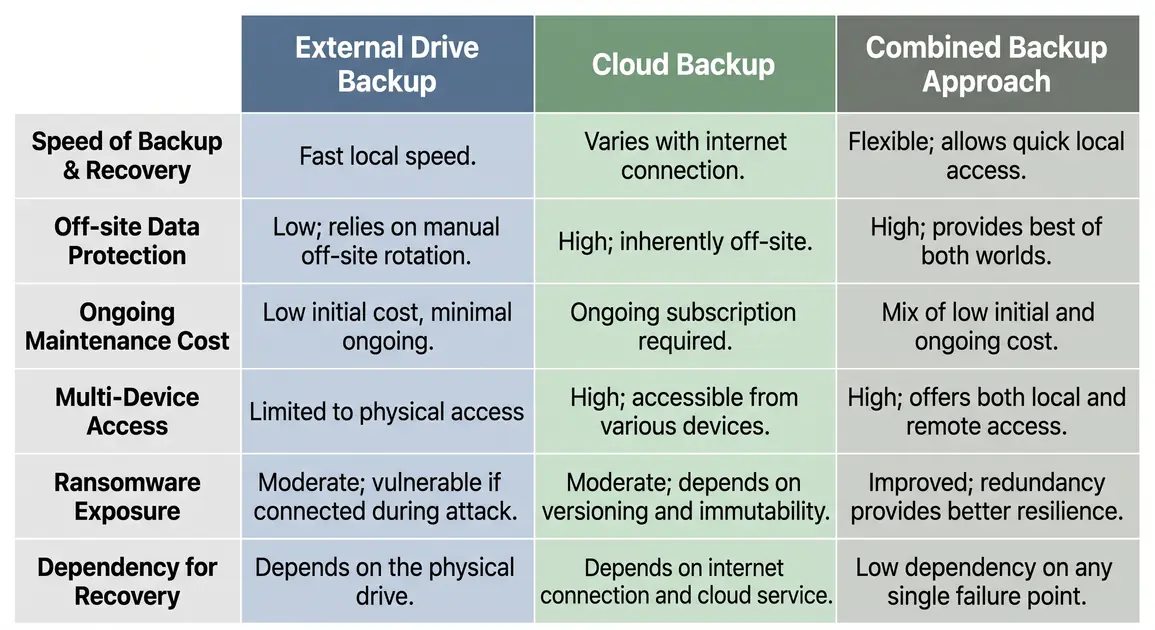
External drive vs cloud storage at a glance
| Factor | External drive | Cloud storage or backup |
|---|---|---|
| Large backup and restore | Usually faster locally | Limited by upload/download speed |
| Off-site protection | Only if rotated elsewhere | Normally inherent, subject to account risks |
| Cost | Purchase and eventual replacement | Continuing subscription |
| Multi-device access | Move drive or use a network target | Usually convenient |
| Physical risk | Loss, damage and drive failure | Provider manages infrastructure |
| Ransomware | Lower when disconnected | Depends on versioning and account protection |
| Privacy | Physical control; encrypt it | Depends on provider and account controls |
Neither option is universally best. A photographer moving terabytes may favour local speed. A traveller with a modest document library may favour automatic off-site access. A small business that cannot tolerate losing recent work or waiting days for a download should plan for both recovery speed and off-site resilience.
Which option fits your situation?
Choose an external drive as the main method when you have a large collection, limited upload capacity, need fast restoration or want to avoid a continuing subscription. Do not let “main backup” become “only copy”: rotate a second drive off-site or add a separate cloud copy for irreplaceable files.
Choose cloud backup as the main method when you need automatic off-site protection, work from several locations or are unlikely to connect a drive consistently. Confirm that the service protects all important folders and offers suitable version history and restore options. Cloud-only can be slow for a very large restore, so add a local backup when recovery time matters.
For important data, combine them. The local drive provides quick recovery from hardware failure or accidental deletion. The cloud or another off-site copy protects against incidents affecting the premises. This resembles the 3-2-1 design pattern: multiple copies, on more than one storage type, with one elsewhere. It is not a guarantee; automation, access controls and restore testing still matter.
For a Perth home office or small business, consider what happens during an NBN outage or local power interruption. A local copy can be available without internet, while an off-site copy protects against an incident at the premises.
How to choose an external backup drive
Add the data on every device you intend to protect, then allow capacity for growth and older versions. Apple suggests a Time Machine disk with at least twice the Mac's storage capacity (Apple Support); for Windows or third-party tools, follow the software requirements and your retention needs.
Choose an HDD when capacity and value matter most. Choose an SSD when portability and faster transfer matter. Neither is immune to failure, and a USB flash drive is a poor sole backup for an important computer. Check ports, cables, operating systems and backup software. NTFS is primarily for Windows; APFS is normal for new Time Machine disks. exFAT can exchange ordinary files between Windows and macOS, but is not automatically right for system backup tools.
Formatting erases existing contents. Do not format, repartition or repurpose a drive until you have identified it correctly and verified that its files exist elsewhere. If important data is present and you are uncertain, stop and get help.
Set up automatic backups safely
Windows 11 and Windows 10
Microsoft still documents File History for Windows 11 and Windows 10. Connect the drive, open Control Panel, choose System and Security, then Save backup copies of your files with File History, select the drive if needed and turn it on (Microsoft Support). Verify every important folder is included; folders outside normal libraries may need adding to a library.
Windows Backup is a separate Microsoft-account cloud feature. A Windows recovery drive is different again and does not contain personal files. Windows 10 reached end of normal support on 14 October 2025, so having a backup does not remove the security need to use a supported system.
macOS
On macOS Ventura 13 or later, connect the drive, open System Settings > General > Time Machine, select Add Backup Disk and finish setup. Apple says Time Machine can automatically protect apps, music, photos, email and documents and recommends dedicating the backup volume to Time Machine.
If macOS asks to erase the disk, pause: erasing permanently removes its files. Select another disk or copy verified data elsewhere first. Enable encrypted backups and store the password securely because it is required for restoration.
Several computers and mobile devices
One portable drive can protect several computers if it has capacity and each computer has its own correctly configured destination. Keep backup sets separate and check file-system, software and encryption compatibility. The drive cannot protect one computer while connected elsewhere.
A supported network-attached storage (NAS) device can be more convenient for several computers. Apple supports compatible Time Machine destinations over SMB, while File History supports a network location. A NAS is still local, not automatically off-site. Perth Computer Experts has a verified page about NAS setup and shared storage.
Phones and tablets are normally best protected through their supported iCloud or Google account features, with important photos or exports included in the wider plan. Direct USB copying varies by device and often captures selected files, not a restorable device backup.
Encrypt backups without locking yourself out
Encryption makes data unreadable without the key. It is valuable for portable drives, business records and backups containing identity, financial, health or client information. It does not prevent failure or replace another copy.
On Mac, choose encryption when adding the Time Machine disk. Apple also documents encrypting a local backup disk through Finder and warns that changing some network backups from unencrypted to encrypted can erase the existing set (Apple Support). On supported Windows editions, BitLocker To Go can encrypt removable data drives; availability varies by edition and policy.
Store the password or recovery key separately from the drive, such as in a trusted password manager. Test that an authorised person can unlock and restore it. Do not repeatedly guess credentials or reformat an encrypted drive when the only copy is inside.
Make the backup recoverable, not merely present
Periodically check the last successful backup, review errors and restore a sample file to a different folder. Open it to confirm it works. Small businesses should test the full recovery path for critical systems and document who can access backups. The ACSC recommends coordinated restoration testing rather than assuming backups work.
Keep one backup protected from routine user access and from the same physical incident as the computer. Disconnect an intended offline copy cleanly after backup. Microsoft and Apple advise ejecting storage before unplugging it. If a drive clicks, repeatedly disconnects, smells burnt, has liquid damage or contains the only copy of important data, stop using it. Repeated power cycles and repair attempts can reduce recovery prospects.
If files have disappeared, avoid writing new data to the affected drive. Check known-good backups and cloud version history first. When data is irreplaceable or the device shows physical failure, professional assessment is safer than experimenting with formatting or recovery software.
A practical decision checklist
- Which folders, email stores, photo libraries and application data must be recoverable?
- Are files downloaded, or are some cloud placeholders only?
- How many devices and users need protection?
- How much recent work could you tolerate losing?
- How quickly must a full restore finish?
- Does one copy survive theft, fire, ransomware and account compromise?
- Are credentials and recovery keys protected and recoverable?
- When was the last successful test restore?
For most people with important data, the balanced answer is an automatic local backup plus a genuinely separate off-site copy. If you are unsure which folders are protected, need to combine Windows, Mac and mobile devices, or want a restore test before relying on the system, Perth Computer Experts can help configure an appropriate backup arrangement for a Perth home or small business.