
Windows 10 Support Has Ended: What Should You Do With an Older PC?
Windows 10 no longer gets security updates. Here's how to decide between upgrading to Windows 11, using ESU, or replacing an older home PC.
Windows 10 stopped receiving security updates from Microsoft on 14 October 2025. If your PC is still running it, nothing dramatic happened on that date — it keeps working exactly as it did the day before. What's changed is that Microsoft no longer fixes newly discovered security flaws in Windows 10, so the operating system becomes a slightly easier target every month that passes without a patch.
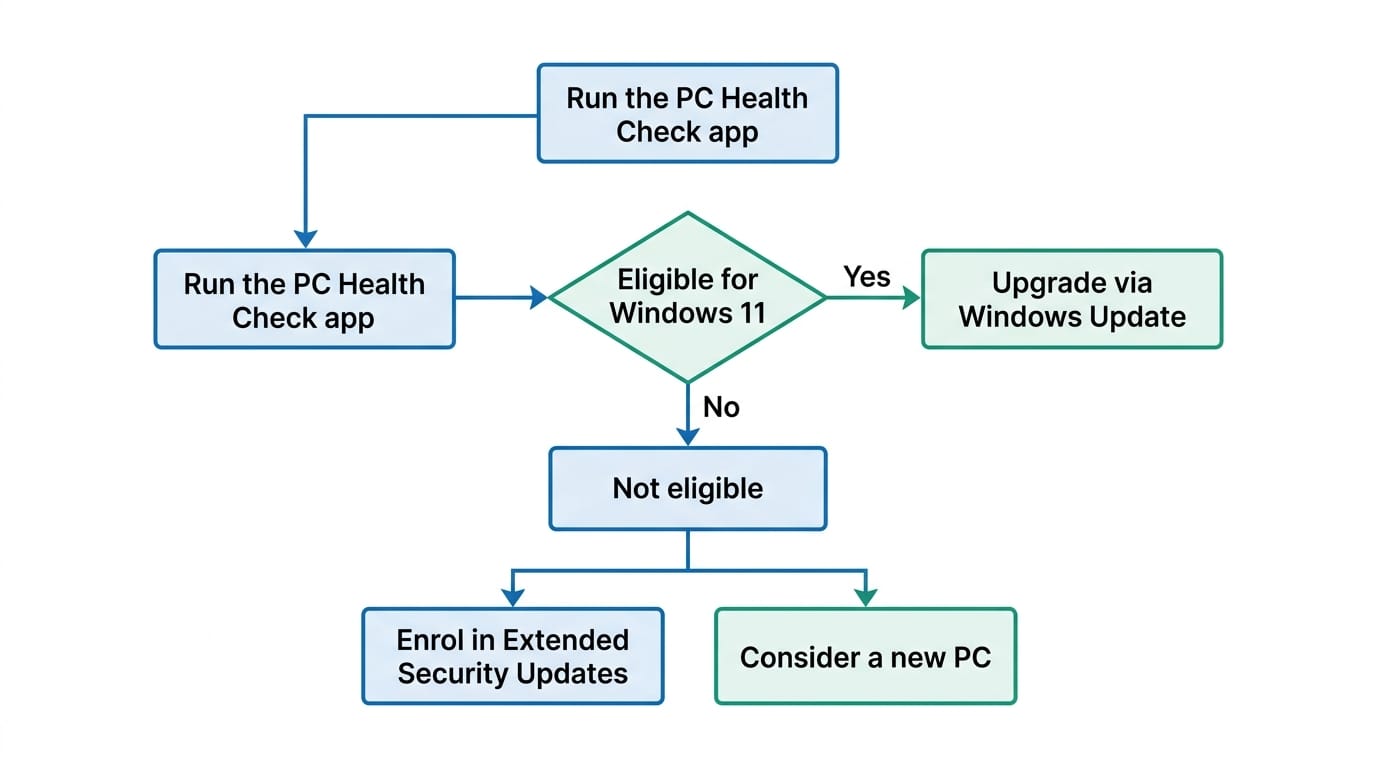
What you should actually do depends on one question: can your PC run Windows 11? If it can, upgrading is usually the straightforward option. If it can't, you have a few reasonable paths — a short-term Extended Security Updates (ESU) subscription, a new PC, or continuing carefully with extra precautions. None of them need to be decided in a panic, but they are worth deciding on deliberately rather than ignoring.
What losing Windows 10 support actually changes
After 14 October 2025, Microsoft no longer provides technical support, software updates, or security updates and fixes for Windows 10. The PC itself doesn't stop working, and none of your files or programs disappear. The practical risk is that any security vulnerability discovered in Windows 10 from now on simply won't be patched, so a PC left on Windows 10 indefinitely becomes progressively more exposed the longer it goes without protection.
This matters most for a PC that's used for everyday things — email, online banking, browsing, saved passwords. It matters much less for something used offline or for a single low-risk task.
Check whether your PC can run Windows 11
Before deciding anything else, find out if your PC is actually eligible for Windows 11. The most reliable way is Microsoft's free PC Health Check app, which checks your specific PC against Windows 11's requirements and tells you exactly what, if anything, is blocking the upgrade.
The two requirements that trip up most older PCs are:
- TPM 2.0 — a small security chip (or firmware equivalent) that Windows 11 requires. On many PCs built in the last several years, TPM 2.0 is physically present but switched off in the UEFI/BIOS settings as "fTPM" (AMD) or "PTT" (Intel). Turning it on can sometimes make an otherwise-blocked PC eligible.
- A supported processor — Windows 11 only runs on CPUs from Microsoft's approved list, which excludes most processors older than roughly 2017–2018. Unlike TPM, this one can't be fixed with a settings change.
Changing UEFI/BIOS settings is generally safe, but the menu layout and exact option names vary between manufacturers, and it's easy to change the wrong thing by accident in there. If you're not confident finding the TPM/fTPM/PTT setting yourself, it's reasonable to get help rather than experiment.
Option 1: Upgrade to Windows 11, if your PC is eligible
If PC Health Check says your PC is eligible, upgrading through Windows Update is free and is Microsoft's own recommended path. It's still a major operating system change, so back up your files first (see below) before starting it, and expect the update itself to take a while and require a few restarts.
Option 2: Enrol in Extended Security Updates for more time
If your PC isn't eligible for Windows 11 but is otherwise working fine, Microsoft's consumer Extended Security Updates (ESU) program buys time. It's available to devices running Windows 10 version 22H2, and covers security patches only — it does not include feature updates or technical support.
You can enrol for free in either of two ways: by keeping your PC settings synced to a Microsoft account, or by redeeming 1,000 Microsoft Rewards points. If neither suits you, there's also a one-off paid option of US$30 (or the local currency equivalent, plus tax). Enrolling requires signing in with a Microsoft account that has administrator rights on the device. Coverage under the consumer ESU program runs until 12 October 2027.
ESU is a genuinely useful stop-gap — it's not a long-term fix. Treat the extra time as an opportunity to plan your next step, not as a reason to stop thinking about it.
Option 3: Move to a new Windows 11 PC
If your PC isn't eligible for Windows 11 and it's already old enough that performance, battery life or reliability have been an issue anyway, replacing it may be the more sensible option compared with paying for ESU on hardware you were going to replace soon regardless. A new PC also comes with a fresh warranty and none of the accumulated wear of years of daily use.
If you go this way, our new device setup and transfer service can move your files, settings and accounts across so you're not starting from a blank machine.
Option 4: Keep using Windows 10 without ESU, and know the trade-off
You can simply keep using an unsupported Windows 10 PC as-is. It will keep working, but the Australian Cyber Security Centre notes that unsupported software becomes an increasingly attractive target once security patches stop, because known flaws are never fixed and new ones are never addressed either.
This is a reasonable choice for a PC used for something specific and low-risk — an offline media player, a device with no personal accounts on it — but it's not a good long-term choice for a general household PC used for browsing, email or online banking. If you do choose to keep going on Windows 10 without ESU, reduce the exposure where you can: keep a good, updated antivirus running, keep your web browser itself updated (browsers are typically updated separately from Windows), and avoid entering banking or account passwords on that PC.
Back up your data before you do anything
Whichever option you choose — upgrading, enrolling in ESU, or replacing the PC — back up anything you'd be upset to lose first. Photos, documents, browser bookmarks and saved logins are the things people most often realise too late they didn't have a copy of. This matters even for a "safe" step like a Windows 11 upgrade, since any major update carries some small risk of something going wrong partway through.
A proper backup means a copy that exists somewhere other than the PC itself — an external drive, cloud storage, or both. Our data backup setup service can set this up properly if you don't already have something reliable in place.
What to do with the old PC if you replace it
If you end up replacing the PC rather than upgrading it, don't just hand it over, sell it or put it in the bin with your files still on it.
Wipe it properly first. Deleting files, or even doing a quick format, doesn't reliably remove them — the data can often still be recovered with the right tools. Sign out of your Microsoft account and any other services first, then use a proper secure-erase option before the PC leaves your hands. Our secure data deletion service handles this if you'd rather not do it yourself, and our IT asset disposal service can take care of the whole process, including responsible recycling.
Recycle it rather than bin it. Computers contain materials that shouldn't go into general landfill. TechCollect, the free national recycling service backed by Australia's computer and TV recycling scheme, has drop-off points around the country where old computers can be recycled at no cost.
Which option actually makes sense for you
There's no single right answer — it depends on the PC and how you use it:
- Eligible for Windows 11 and happy with the PC — upgrade, after backing up.
- Not eligible, but the PC is otherwise fine and used daily for everything — enrol in ESU now, and use the time to plan a replacement rather than treat it as solved.
- Not eligible and rarely used, or used for one low-risk task — ESU is optional; continuing carefully may be reasonable.
- Not eligible and already showing its age in other ways — this is usually the point where a new PC makes more sense than paying to extend the old one.
When a second opinion is worth getting
If you're not sure whether your PC genuinely fails Windows 11's requirements, whether a BIOS setting could change the answer, or whether ESU or a new PC is the better use of your money, that's a reasonable thing to get checked rather than guess at. Perth Computer Experts can assess your PC and talk you through the options based on what your specific machine can actually do.
Frequently Asked Questions
Will my computer stop working now that Windows 10 support has ended?
No. Your computer will keep running exactly as before. What's changed is that Microsoft no longer releases security fixes for newly discovered vulnerabilities in Windows 10, so the operating system becomes progressively less safe to use for everyday tasks like banking, email and browsing the longer it goes without patches.
How do I find out if my PC can be upgraded to Windows 11?
Download Microsoft's free PC Health Check app and run it. It checks your processor, TPM version, secure boot support, RAM and storage against Windows 11's requirements and tells you exactly which requirement, if any, your PC fails. If TPM 2.0 is the only issue, it's sometimes disabled rather than missing, and can be turned on in the PC's UEFI/BIOS settings.
Is the Windows 10 Extended Security Updates (ESU) program actually free?
It can be. Microsoft's consumer ESU program offers free enrolment if you sync your PC settings with a Microsoft account, or by redeeming 1,000 Microsoft Rewards points. There's also a one-off paid option, around US$30 converted to local currency, if neither free method suits you. ESU covers security patches only, with no feature updates and no technical support, through 12 October 2027.
Is it safe to keep using an unsupported Windows 10 PC?
It's riskier than it was, and the risk increases over time as new vulnerabilities are found and never patched. It can be a reasonable short-term choice for a PC used for something low-risk and offline-ish, but it isn't recommended for a general household PC used for email, banking or browsing without at least enrolling in ESU or adding extra safeguards.
What should I do with my old PC if I replace it?
Back up anything you want to keep, then securely wipe your personal data before selling, donating or recycling it, since simply deleting files often leaves them recoverable. Old computers can usually be recycled for free through Australia's national computer recycling scheme rather than put in general rubbish.