
What to Do When Your Hard Drive Asks to Format
Learn why Windows asks to format a hard drive, what not to do, which checks are safe, and when to stop and seek data recovery help.
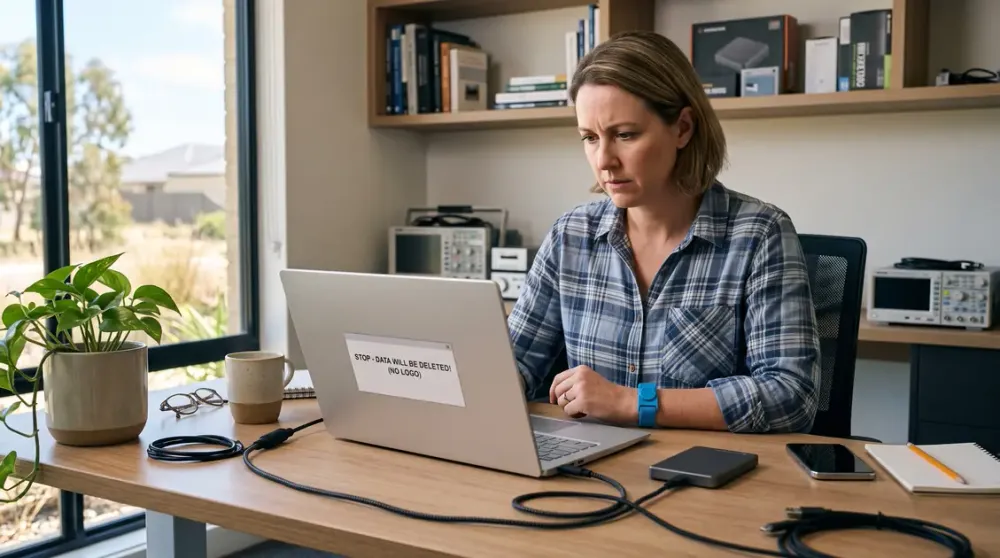
A message saying ‘You need to format the disk before you can use it’ is not permission to format the drive. It means Windows cannot currently read the volume in the way it expects. Formatting writes a new file-system structure and can make recovery of the existing files more difficult.
If the drive contains the only copy of family photos, business records or other important files, click Cancel and minimise further use. This guide explains what the warning can mean, which checks are genuinely low risk, how HDD and SSD recovery differ, and when a Perth home user or small business should stop troubleshooting and arrange help.
Key takeaways
- Cancel the format prompt until important files are recovered or confirmed in a working backup.
- Start with non-invasive checks; repair tools change the disk and are not the first step for irreplaceable data.
- Clicking, grinding, liquid exposure, overheating or repeated disconnects are reasons to power down and seek professional advice.
- HDDs and SSDs store data differently, and SSD features such as TRIM can reduce recovery options.
- After recovery, replace a suspect drive and build a tested backup routine rather than trusting it again.
First response: cancel and protect the data
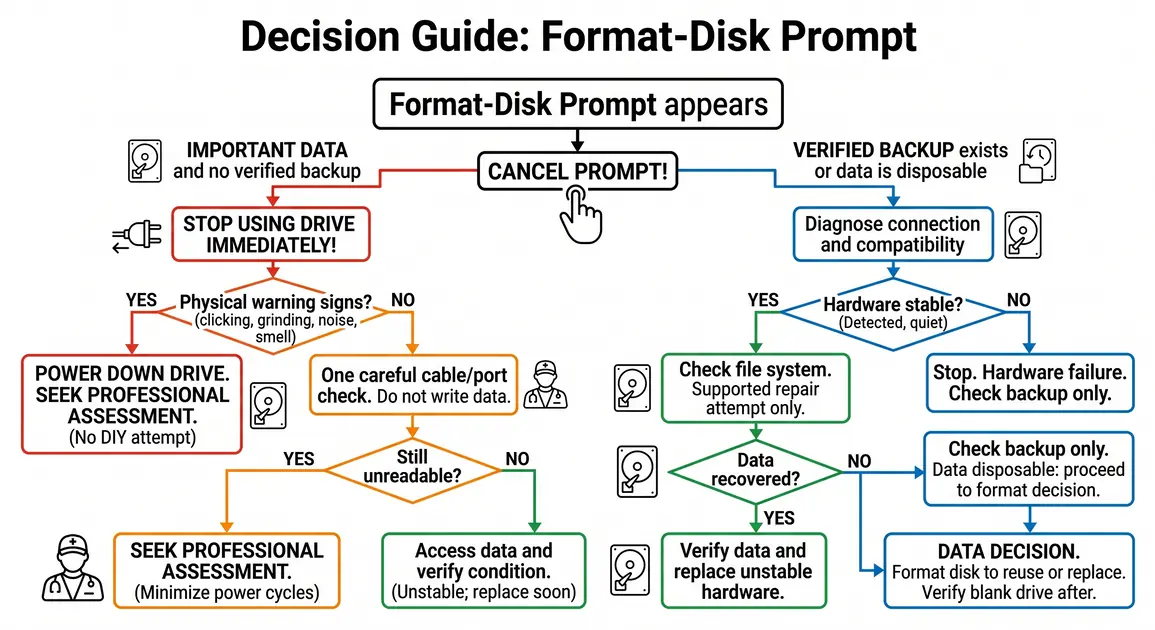
Choose Cancel, not Format disk. Do not initialise the disk in Disk Management, create a new partition, erase it in Disk Utility, run a full format, or copy new files to it. Each write can alter filesystem information or overwrite space that may still contain recoverable data.
Then decide how valuable the contents are. If they are irreplaceable and no verified backup exists, the safest useful action is usually to stop. Repeated experiments are not free: a mechanically failing hard disk can deteriorate while powered, and an SSD may process background housekeeping commands.
If the drive is external and silent, cool, undamaged and consistently detected, one careful connection check is reasonable:
- Note the exact message and drive letter, but do not accept any repair or format offer.
- Close programs that may be trying to access the drive.
- Eject it if Windows permits, then disconnect it once.
- Try a known-good cable and a different direct USB port. Avoid an unpowered hub.
- If practical, test it once on another compatible computer without allowing that computer to repair or format it.
This can separate a cable, port or computer problem from a drive problem. If the disk repeatedly disconnects, disappears, stalls the computer or returns the same prompt, stop there. Do not keep power-cycling it.
Why Windows may ask to format a drive
The prompt appears when Windows sees a storage device but cannot mount a readable filesystem on the expected volume. Several very different faults can lead to that same symptom:
- A damaged filesystem or partition record. An interrupted write, unsafe removal, sudden power loss or another fault can leave the structure inconsistent.
- An unsupported filesystem. A drive prepared for macOS, Linux, a camera, recorder or NAS may contain valid data that Windows does not understand. Formatting it for Windows would destroy that existing structure.
- A connection or enclosure fault. A failing USB cable, insufficient power, damaged port or faulty USB-to-drive bridge can corrupt communication.
- Media or hardware failure. Unreadable sectors, an HDD head or motor fault, an SSD controller problem, or failing flash memory can prevent access.
- Encryption or missing recovery information. An encrypted volume may look unreadable if it is locked or its normal software is unavailable. If BitLocker is involved and the recovery key is uncertain, stop before changing anything.
- Malware or broader system trouble. Less commonly, malicious activity or a damaged operating system can disrupt access. If files were renamed or encrypted and a ransom note appeared, disconnect the affected device from networks and follow current Australian cyber incident guidance rather than treating it as an ordinary disk fault.
A driver update is rarely the right opening move when Windows already detects the physical device and specifically reports an unreadable volume. It may help only where the controller, enclosure or device is not being recognised correctly. Likewise, the format prompt alone does not prove that the disk is physically dead.
Check whether the problem is physical or logical
A logical problem affects how data is organised: the filesystem, partition table, directory records or encryption state. The hardware may still operate normally. A physical problem affects the device itself. The distinction matters because software may be appropriate for some stable logical cases but can stress damaged hardware.
Stop immediately for physical warning signs
Power the drive down and do not run scans or repair tools if you notice any of these signs:
- clicking, grinding, scraping or repeated spin-up sounds from an HDD;
- a drive that was dropped, crushed or exposed to liquid;
- a burning smell, smoke, sparks or unusual heat;
- repeated disconnections, severe slowdowns or a computer freezing whenever the drive is attached;
- visible connector or circuit-board damage; or
- important data on a drive that is no longer detected reliably.
For unusual HDD noises, manufacturer guidance advises against utility software because continuing to operate the device can worsen a physical failure (Seagate data-loss guidance). Never open a hard drive. Its internal components require controlled specialist handling, and an ordinary room is not suitable.
For smoke, sparks or a burning smell, disconnect external power only if it is safe to do so and keep the device off. Do not open a power supply or perform live electrical tests.
Signs more consistent with a logical or compatibility issue
A logical problem is more plausible when the drive is quiet, stays connected, reports the expected capacity, and the issue followed unsafe removal or an interrupted write. A drive that works normally on the system that created it but not on Windows may simply use an unsupported format. These are clues, not a diagnosis; important data still justifies caution.
Safe checks before any repair
Begin by checking whether another usable copy already exists. Look in your normal backup application, cloud service, another computer, a disconnected backup disk, or a small-business backup system. Open several restored files rather than assuming that a green status means the backup is complete.
Next, gather observations without changing the problem disk:
- In Windows Disk Management, identify the disk by capacity and connection, not drive letter alone. Do not initialise it, create a volume or format it. A mistaken selection could alter the wrong disk.
- If BitLocker appears, locate the correct recovery key before proceeding. Do not guess repeatedly or erase the volume to get around encryption.
- If the drive originated on a Mac or another device, check its expected filesystem and use a compatible system.
- If the problem followed suspected ransomware, isolate the affected computer and keep backups disconnected. The Australian Cyber Security Centre advises checking that backups are unaffected before restoring them (Cyber.gov.au ransomware recovery).
If the files are important, stop after observation and connection checks. A technician can assess whether the next step should be a sector-by-sector image, logical recovery or specialist laboratory work.
Should you run CHKDSK or Disk Utility First Aid?
Filesystem repair tools are designed to make a volume consistent, not to preserve every recoverable fragment. They write changes to the disk. That is why CHKDSK should not be the first response when the drive contains the only copy of important data, especially if its health is unknown. Do not copy a command from a forum and run it against an uncertain drive letter.
If the data is already backed up, the hardware is stable, and you accept that repair may discard damaged filesystem records, Windows’ supported graphical error checking can be reached through the drive’s Properties > Tools > Error checking. Interface wording can vary by Windows version. Confirm the correct drive by capacity and label before starting.
On a Mac, Disk Utility First Aid can check and repair formatting and directory-structure errors, but Apple says to have a current backup first. Apple also notes that First Aid cannot detect or repair every problem; if Disk Utility says a disk is about to fail, back it up and replace it (Apple Disk Utility guidance).
If a repair tool reports failure, the drive drops offline, or the scan becomes abnormally slow, do not repeat it in a loop. Reassess the value of the data and escalate. Formatting is not a repair for physical damage.
Data recovery software: when it may be reasonable
Recovery software is sometimes appropriate for a stable, healthy device with a logical problem, such as accidental deletion or a damaged directory. It is not a safe cure for clicking, intermittent or physically damaged storage.
Before attempting software recovery:
- make sure the affected device is not the computer’s actively used system drive where possible;
- install and run the recovery program from a different healthy drive;
- save recovered files to a separate destination, never back to the source;
- avoid tools that promise guaranteed results or ask to ‘repair’ the only copy before previewing recoverable files; and
- consider creating a read-focused sector image first if you have the skills and stable hardware, or ask a professional to do so.
A scan can read the entire device for hours. That may be acceptable for healthy media but harmful for an unstable HDD. If the data has high personal, legal or business value, the risk of reducing later recovery options may outweigh the saving from a DIY attempt.
HDD and SSD recovery are not the same
An HDD stores information magnetically on rotating platters and uses moving heads. Mechanical damage can produce audible symptoms, and specialist physical recovery may require controlled facilities and donor components. Software cannot repair a damaged head or platter.
An SSD stores data in flash memory managed by a controller. It has no moving parts, so it will not click like an HDD, but controller, firmware, electronics and flash failures can still make data inaccessible. The controller may also use encryption and complex mapping between logical addresses and physical memory.
TRIM is a particularly important difference. Windows can tell an SSD that deleted ranges are no longer needed, allowing the device to purge or reuse them. Microsoft describes TRIM as a hint that previously allocated sectors can be discarded (Microsoft Learn). This can make recovery of deleted SSD data much less likely than recovery of equivalent data from a conventional HDD.
Do not disable TRIM as a general precaution. It is a supported part of SSD space management, and changing it after loss may not restore data already processed. The practical response is to stop writing to the SSD, check backups and obtain informed advice promptly. Recovery outcomes depend on the failure, device design, encryption, commands already completed and subsequent use; no provider can responsibly guarantee a result before assessment.
When professional data recovery makes sense
Professional assessment is sensible before DIY repair when:
- the files are irreplaceable or essential to a small business;
- there is no verified backup;
- an HDD clicks, grinds or was dropped;
- the device has liquid, heat or electrical damage;
- the drive is intermittent, extremely slow or not detected consistently;
- an SSD has a controller or electronics failure;
- BitLocker or another encryption key is uncertain;
- a previous recovery or repair attempt failed; or
- the issue may involve ransomware or sensitive information.
A general computer technician may handle diagnosis and stable logical recovery, while physical media damage can require referral to a specialist data-recovery laboratory. Ask the provider to explain that boundary rather than assuming every workshop opens drives.
Useful questions include:
- Will the assessment or recovery write anything to the original device?
- Do you create an image or clone before logical work where appropriate?
- Is physical work performed in-house or referred to a specialist?
- How will you protect confidential files and dispose of temporary copies?
- What charges apply for assessment, unsuccessful recovery and replacement media?
- How will recovered files be verified, and which folders or file types should be prioritised?
- Will recovered data be returned on a separate healthy device?
Get fees, scope and handling terms in writing. Be cautious with universal success-rate claims, guaranteed recovery, unexplained ‘clean-room’ claims, and pressure to authorise destructive work.
When it is safe to format the drive
Formatting is appropriate only after you have recovered the required files, verified a usable backup, or consciously accepted that the remaining data can be lost. It creates a new filesystem; it does not cure failing hardware.
Before proceeding, confirm the disk by model, capacity and connection—not just its drive letter. Disconnect other removable drives if that reduces the chance of selecting the wrong device. A quick format still changes filesystem structures and is not a harmless test. A full format performs more work and can further reduce recovery possibilities.
After formatting, do not trust a drive that showed physical symptoms, SMART or manufacturer diagnostic warnings, recurring errors, or unstable connections. Replace it. If the prompt was caused by a compatibility mismatch, choose a filesystem supported by the devices that genuinely need to share the drive rather than repeatedly reformatting it.
Prevent the next format prompt from becoming a crisis
Backups are what turn storage failure from a recovery emergency into a replacement job. The Australian Cyber Security Centre recommends choosing cloud storage, physical media or a combination, keeping an offline copy where appropriate, protecting cloud backup accounts with a strong password and multi-factor authentication, and testing restores (Cyber.gov.au backup guidance).
For a Perth household or small business, a practical routine can include an automatic versioned cloud backup for everyday files plus a separate backup that is disconnected when not in use. Keep at least one copy away from the computer so theft, fire, electrical damage or ransomware cannot affect every copy at once. Synchronisation alone is not necessarily a backup: deletions and corruption may synchronise too.
Also eject portable drives properly, protect them from knocks, heat and moisture, replace damaged cables, and investigate recurring errors rather than repeatedly repairing them. Our guide to protecting data and preventing drive failures covers longer-term backup and storage care.
If your drive is asking to format and the files matter, the useful next step is not another experiment. Keep the device off, write down what happened, locate any backups and recovery keys, and arrange an assessment that matches the drive type and symptoms.