
Windows Blue Screen Errors: 10 Safe Troubleshooting Tips
Learn what a Windows blue screen means, what to record, and 10 safe ways to isolate drivers, updates, storage, memory and hardware faults.
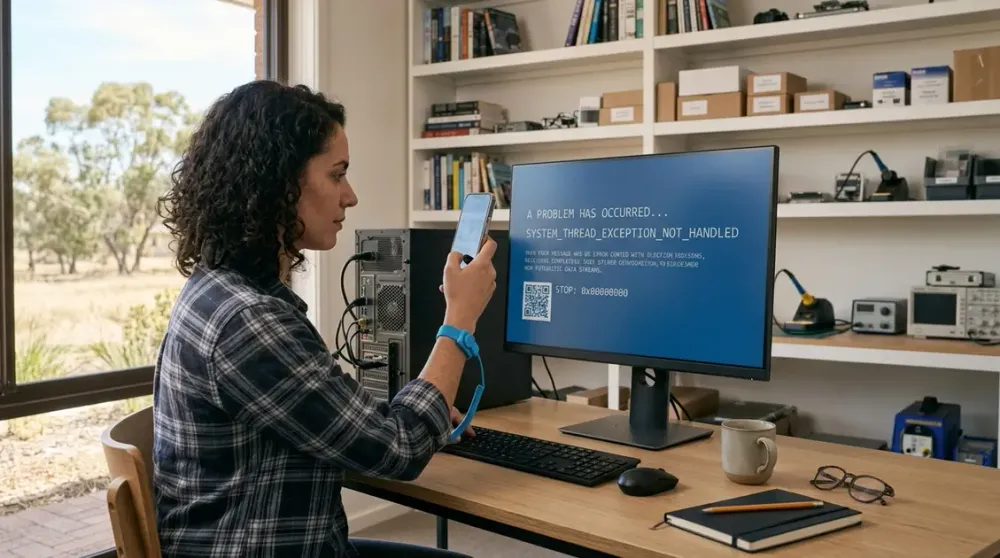
A Windows stop error can turn a normal workday or gaming session into an unexplained restart. The screen may disappear before you can read it, and the first proposed fix online may be far riskier than the problem itself.
A blue screen—also called a BSOD, stop-code error, bug check or kernel error—means Windows encountered a serious condition and stopped or restarted. On Windows 11 version 24H2 and later, the stop screen may be black rather than blue, but the troubleshooting principle is the same. Microsoft says the trigger may be hardware, a device driver or software, and the displayed stop code or failed-module name can help narrow it down (Microsoft Support).
The safest approach is evidence first, one reversible change at a time. This guide gives home users, remote workers, gamers and small businesses a practical sequence for diagnosing recurring Windows crashes without gambling with important files.
Key takeaways
- Record the stop code and what changed before trying fixes; one isolated crash may need no further action.
- New hardware, drivers, Windows updates, low free space, heat, unstable settings and failing components are common investigation paths.
- Back up important data and confirm your BitLocker recovery key before recovery or reset options.
- Safe Mode helps distinguish a normal-startup driver or service problem from a more fundamental fault.
- Stop DIY work if there are signs of electrical, thermal or storage failure, or if the next step risks irreplaceable data.
What a Windows stop error is telling you
A stop error is a controlled Windows shutdown after the operating system detects a condition it cannot safely continue through. That does not identify one universal cause. The same symptom can follow a faulty driver, unstable RAM, storage corruption, overheating, a badly seated new component, an incompatible utility or damage to Windows system files. Malware is possible, but a blue screen by itself is not proof of infection.
The pattern matters more than the colour. A single crash that never returns may have been transient. Repeated crashes with the same code, crashes that began immediately after a change, or failures during the same workload offer much stronger clues. A blank black display with no stop code is a different symptom and should not automatically be diagnosed as a BSOD.
Before troubleshooting, save what you can and protect important files. If the computer is making clicking or grinding noises, repeatedly losing access to files, or failing to detect its drive, minimise further use; repeated restarts can worsen a failing-storage situation.
Before you start: record the evidence
Use your phone to photograph the screen. Record:
- the exact stop code, such as
MEMORY_MANAGEMENTorPAGE_FAULT_IN_NONPAGED_AREA; - any “What failed” module or driver name;
- the approximate time and what the computer was doing;
- whether the crash occurs during startup, gaming, video calls, sleep/wake or another repeatable task; and
- anything recently installed, updated, connected, upgraded or overclocked.
Do not assume a file named on the screen is automatically the guilty component. It can be where Windows detected the failure rather than its root cause. Search results for a code can suggest categories, but avoid downloading registry cleaners, mystery driver tools or random replacement system files.
If Windows restarts too quickly to read the message and is trapped in a failure loop, Windows Startup Settings includes Disable automatic restart on system failure. Use that option only to capture the error; it does not repair it (Microsoft Support).
10 safe ways to troubleshoot blue screen errors
Work down this list until the evidence points elsewhere. Test after each change so you know what affected the result.
1. Restart once and look for a pattern
For an isolated stop error, let Windows restart, save open work and observe the computer. Microsoft notes that many one-off unexpected restarts need no further action. If the same error returns, record it and move through the remaining checks.
Do not repeatedly force the power off. If Windows is writing an update or the drive is failing, repeated hard shutdowns add risk and erase useful diagnostic context.
2. Reverse the most recent change
A strong time correlation is valuable. If crashes began after connecting a new USB device or adding internal hardware, shut the computer down and disconnect the new device before testing again. Microsoft lists removing newly added hardware as an early troubleshooting step.
For an internal graphics card, RAM module or power-supply change, do not open the case unless you are competent to work safely and the computer is fully shut down and unplugged. Never open a power supply. If there is smoke, a burning smell, sparks, liquid exposure, a swollen battery or exposed mains electricity, switch off power only if safe and arrange professional help.
3. Install supported Windows updates
On Windows 11, open Settings > Windows Update, check for updates, install them and restart when prompted. Updates can deliver operating-system fixes and some tested drivers. Pause if the drive is nearly full or the computer cannot remain stable long enough to complete an update; an interrupted update can make recovery harder.
Windows 10 reached end of normal support on 14 October 2025. It still runs, but standard security fixes and technical support have ended. Microsoft recommends moving to Windows 11 on compatible hardware, using an eligible Extended Security Updates option as a temporary bridge, or replacing an incompatible device (Microsoft Support). Do not treat an unsupported Windows 10 installation as a sound long-term fix for recurring crashes.
4. Check or roll back the relevant driver
Open Device Manager by right-clicking Start. A warning icon can identify a device needing attention, but the absence of an icon does not prove every driver is healthy. If the problem followed a driver update, open the device’s Properties > Driver tab and use Roll Back Driver when that option is available. Otherwise, obtain the correct driver through Windows Update or the PC/component manufacturer’s official support page.
Avoid bulk “driver updater” utilities. They can install inappropriate packages and make it difficult to know which change caused a crash. For a custom gaming PC, check the motherboard, graphics card and chipset models rather than assuming a similarly named driver is compatible.
5. Test in Safe Mode
Safe Mode starts Windows with a limited set of services and drivers. If the crashes stop there, that points towards something loaded during normal startup rather than proving the hardware is good. Microsoft’s current route is Windows Recovery Environment > Troubleshoot > Advanced options > Startup Settings > Restart, then select Safe Mode (Microsoft Support).
Before entering recovery: confirm you can access the device’s BitLocker recovery key. Microsoft warns that encrypted devices may require it. If the key is unknown, important files are not backed up, or the menus do not match your device, stop rather than experimenting with recovery options.
In Safe Mode, remove only software or a driver clearly linked to when the crashes began. Do not disable driver-signature enforcement or anti-malware protection as a general workaround.
6. Check storage space and drive warning signs
Windows needs free space for updates, temporary files and virtual memory. Microsoft gives 10–15% free space as a useful troubleshooting guideline, while noting that the exact need varies by configuration. Check Settings > System > Storage and remove or move files you recognise; do not use an aggressive cleaner that deletes unknown system content.
Low space can contribute to instability, but it does not explain physical warning signs. If a drive disappears, reports errors, becomes extremely slow, makes unusual noises or contains the only copy of important data, prioritise data preservation over repair attempts. Do not run repeated intensive tests on a drive that may be mechanically failing.
7. Run Windows Memory Diagnostic
Search Start for Windows Memory Diagnostic, choose to restart and check for problems, then allow the test to finish. Microsoft documents the result under Event Viewer’s System log as MemoryDiagnostics-Results (Microsoft Support). Save work first because the test restarts the computer.
A reported memory fault needs attention. A pass is useful but does not rule out every intermittent RAM, memory-controller or motherboard problem. If crashes occur only with a recently added memory kit, restore the manufacturer-supported settings and have compatibility and seating checked.
8. Return overclocks and tuning to supported settings
CPU, GPU and memory overclocks—including aggressive memory profiles—can become unstable under heat or a specific workload even if the computer boots normally. Return tuning to manufacturer-supported defaults, then test the workload that usually triggers the crash. Remove third-party tuning utilities from the startup path if the timing matches their installation.
Changing BIOS or UEFI settings incorrectly can prevent startup or affect drive encryption. If you do not know which settings were changed, or BitLocker recovery access is uncertain, do not guess. A competent technician can document the present configuration and test stability safely.
9. Check cooling and power without taking electrical risks
Crashes during gaming, rendering or sustained work can justify checking temperatures, blocked vents and fan operation. Shut down before removing external dust, keep vents clear and make sure fans are spinning normally. In Perth’s hotter months, room temperature and airflow can expose a marginal cooling system, but heat should be measured rather than assumed to be the cause.
Do not open a power supply, probe live circuits or continue running a computer that smells hot, sparks, smokes or repeatedly shuts down from heat. Power-supply faults, damaged cooling hardware and internal electrical work belong with a competent repairer.
10. Repair Windows files, then consider recovery carefully
If the evidence points to damaged Windows components and the computer remains stable enough to work, Microsoft’s supported sequence is to open Command Prompt as administrator, run DISM.exe /Online /Cleanup-image /Restorehealth, wait for it to complete, then run sfc /scannow. DISM supplies files needed for the repair; System File Checker scans protected system files (Microsoft Support). Do not close the window while SFC is running.
System Restore, uninstalling an update, resetting Windows and reinstalling Windows have different consequences. Some recovery options can remove applications, settings or data. Before using any recovery option, make a verified backup and confirm account passwords, software licences and the BitLocker recovery key. Microsoft recommends starting with the least disruptive option and explicitly warns that recovery can cause data loss (Microsoft Support). If a reset or reinstall is the next proposed step and the data is not safely backed up, stop and seek help.
How to use Event Viewer and crash information
Event Viewer can provide context, but it contains many routine warnings. Open it by right-clicking Start, choosing Event Viewer, then reviewing Windows Logs > System around the recorded crash time. Look for a critical or error event that repeats at the same time as each failure. Kernel-Power after an unexpected restart confirms the shutdown was abnormal; by itself, it does not identify why power was lost.
Memory dump analysis can identify a suspect driver or subsystem, but it is advanced work and dump files may contain fragments of information that was in memory when the crash occurred. Microsoft treats detailed dump analysis as an IT-professional or developer task. For most users, the stop code, timing, recent changes, Safe Mode result and hardware tests are a safer diagnostic bundle than installing an unverified dump-viewing utility.
Should you scan for malware?
Run a malware scan when there are supporting signs—unexpected pop-ups, browser redirects, security settings changing, unknown programs, or a suspicious download—not because every BSOD implies malware. Open Windows Security > Virus & threat protection, update protection information and run an appropriate scan. Microsoft Defender Offline restarts into the recovery environment, so save open work first (Microsoft Support).
Do not disable real-time protection to make a crash disappear. If you suspect an active compromise, disconnect the affected computer from networks where practical, use a known-clean device for important password changes, and seek security help rather than continuing ordinary troubleshooting.
When a blue screen needs professional diagnosis
Arrange help when the computer cannot stay running long enough to back up files, the same stop code keeps returning after reversible checks, crashes occur under load with heat or power symptoms, Windows cannot start outside recovery, memory testing reports an error, or you suspect the storage device is failing. Business computers also deserve earlier escalation when downtime, customer records or access to shared systems is at risk.
Professional diagnosis is most useful when it separates software from hardware methodically: preserving data, correlating crash evidence, testing known-compatible components, checking temperatures and power safely, and confirming the repair under the workload that used to fail. That is more defensible than replacing parts at random.
For Perth home users and small businesses, home computer repairs and troubleshooting can be useful when the problem needs physical inspection or the safe DIY steps have not isolated it. If you contact a technician, bring the photos, stop codes, times and list of recent changes; that evidence can shorten the diagnostic path.
Reducing the chance of another stop error
Keep Windows and manufacturer-supported drivers current, maintain enough free storage, and avoid unnecessary tuning. Use a surge-protected power setup appropriate to the equipment, keep vents unobstructed, and check cooling before demanding workloads. When upgrading a desktop or gaming PC, verify CPU, motherboard, RAM, graphics-card, case-cooling and power-supply compatibility as a complete system.
Most importantly, maintain a backup that is separate from the computer and periodically verify that files can be restored. A backup does not prevent a blue screen, but it turns a difficult repair decision into a safer one. If crashes recur, return to the evidence rather than repeating every fix: the same code, timing and trigger are often the clearest route to the real fault.