
10 Steps to Secure Your Bank Accounts After Laptop Malware
Suspect laptop malware has exposed your banking details? Follow these 10 steps to contain the threat, protect your money and recover safely.
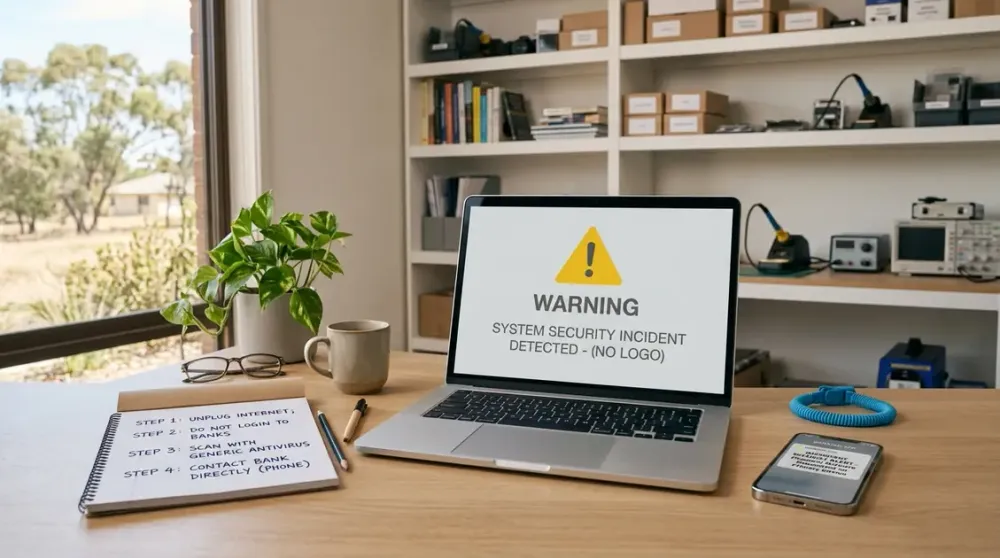
If you suspect that malware on your laptop has exposed your banking details, treat it as two connected problems: a financial incident and an infected device. You do not need to prove exactly what the malware stole before taking protective action.
The safest response is to stop using the affected laptop for sensitive tasks, contact your bank through an independently verified channel and secure important accounts from a device you trust. This guide explains the order to follow, what evidence to preserve and when a scan is not enough.
Key takeaways
- Contact your bank promptly from a known-clean phone or computer; do not log in again on the suspected laptop.
- Disconnect the laptop from networks and storage devices, but preserve useful evidence before cleaning it.
- Change banking and email credentials from a clean device, use unique passwords or passphrases, and enable multi-factor authentication.
- A clean antivirus result reduces risk but does not always prove the laptop is safe; persistent signs may require professional assessment or a backup-protected reinstall.
- Continue checking transactions, account recovery details and identity misuse after the immediate incident.
First, decide whether this is an emergency
You may have discovered an unfamiliar bank transaction, a login alert, a fake banking page, unexpected software, browser redirects or a remote-access program you did not knowingly install. Other possible malware signs include persistent pop-ups, new programs, repeated security errors, files becoming unavailable, unusual overheating or a sudden drop in performance. These signs are not proof on their own, but banking activity you do not recognise is enough reason to act.
If money is moving now, someone is remotely controlling the laptop, or you are being pressured on the phone, stop interacting with the caller. Disconnect the laptop and call your bank immediately using the number printed on your card, shown in the bank's official app, or found by typing the bank's official website address yourself. Do not use a number, link or search advertisement supplied by the person who contacted you. Scamwatch advises Australians whose financial information or money has been stolen to contact their bank or card provider straight away (Scamwatch).
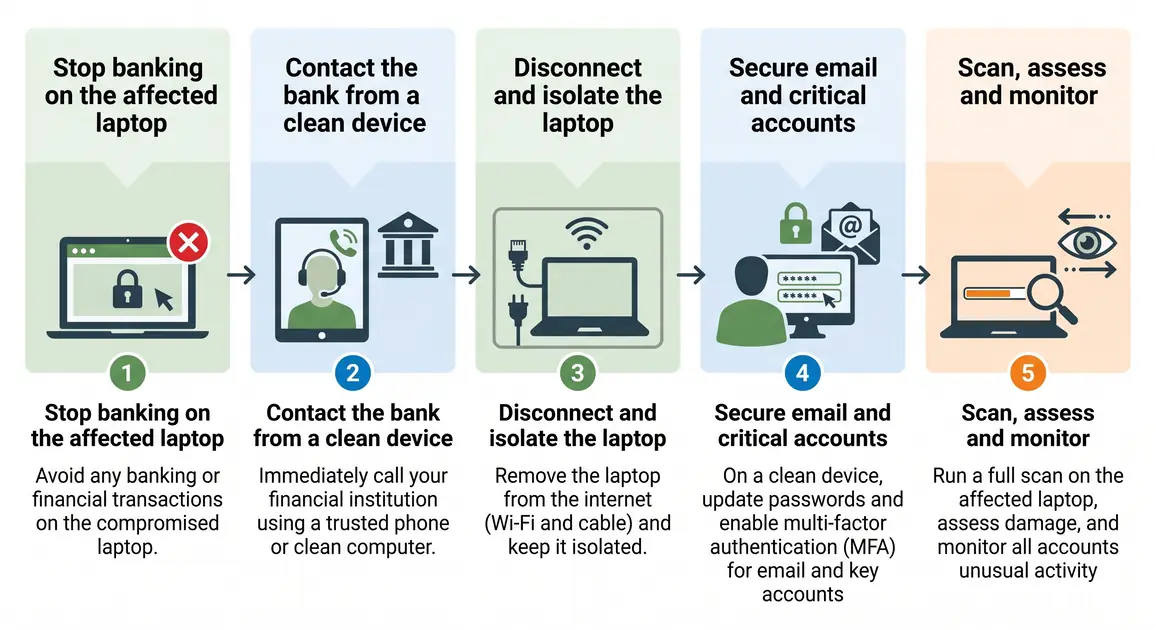
1. Stop banking on the suspected laptop
Do not type another password, verification code, card number or recovery answer into the laptop. Information-stealing malware can record keystrokes or capture what appears in a browser. Closing the banking tab is not enough if the operating system itself may be compromised.
Use a separate device you have good reason to trust, such as a fully updated phone using the official banking app or another computer that has not shared the suspicious downloads or remote-access session. If no clean device is available, call the bank rather than trying to fix the laptop first. The Australian Cyber Security Centre specifically recommends avoiding sensitive information on an infected device and changing passwords only from a device that is clean of malware (ASD's ACSC).
2. Contact your bank and protect affected accounts
Tell the bank's fraud team that you suspect malware or remote access may have exposed your online banking. Describe what happened, when it happened, which device was used and every transaction or account change you do not recognise. Follow the bank's instructions; the appropriate controls depend on the account and incident. The bank may block transactions, secure digital access, replace cards or apply extra monitoring. Do not assume a freeze or refund is automatic.
Ask for a case or reference number and write down the time, channel and advice given. Preserve transaction details, alerts and relevant messages. Moneysmart says to contact the bank as soon as possible about an unauthorised transaction; prompt reporting can help the bank stop further transactions and may improve the chance of recovery (Moneysmart).
For a small business, also notify the person responsible for payments or IT. Review payment limits, recent payee changes and any other staff account that was used on the laptop. Do not send customer or staff details to an unverified helper.
3. Disconnect and isolate the laptop
Turn off Wi-Fi and Bluetooth, unplug any Ethernet cable, and disconnect USB drives, external hard drives and network storage. This reduces the chance of malware communicating externally or reaching connected devices. You normally do not need to switch off the household router, which could interrupt other people trying to contact the bank or obtain help.
If a suspected scammer still has remote control, disconnect immediately. Do not reconnect because they claim they need to complete a refund, remove a virus or reverse a payment. If the laptop displays a ransom note or files have suddenly become encrypted, leave it isolated and seek specialist advice before taking recovery steps.
4. Preserve evidence without spreading the infection
From the clean device, photograph the laptop screen if it shows a ransom note, fake bank page, remote-access software or relevant error. Keep suspicious emails, text messages, phone numbers, transaction records and bank reference numbers. Note when the problem began and any software you were persuaded to install.
Avoid opening suspicious attachments again or copying unknown programs to another computer. Do not reconnect an existing backup drive to the infected laptop. A backup that was connected during the incident may also need assessment. Evidence can help your bank, ReportCyber, an IT technician or police understand the sequence, while careless copying can spread malicious files.
5. Secure email, banking and other critical accounts
From the clean device, follow your bank's directions for resetting online banking access. Then secure the email account used for password resets, followed by payment services, cloud storage, government services, shopping accounts and any other important account used on the laptop. Review recovery email addresses, mobile numbers, trusted devices, recent sessions, forwarding rules and security notifications. Remove anything you do not recognise and sign out other sessions where the service provides that option.
Use a different password or passphrase for every account. A reputable password manager can generate and store unique credentials, reducing the damage if one service is breached. Prioritise accounts that reused the same or a similar password; changing only the bank password leaves those other routes open.
Do not change everything from the suspected laptop after a single scan. If malware is still present, the new credentials may be captured too.
6. Strengthen sign-in and recovery controls
Enable multi-factor authentication wherever the bank or service supports it. Use the strongest option the service offers and that you can reliably recover, such as an authenticator app, passkey or hardware security key; an SMS code is still an additional barrier where stronger choices are unavailable. Save recovery codes somewhere secure and separate from the laptop.
MFA makes a stolen password less useful, but it is not a reason to approve an unexpected prompt. Reject unrequested login approvals and never read a one-time code to someone who called you. The ACSC recommends MFA for important accounts and explains that it adds another authentication layer (ASD's ACSC MFA guidance).
If your mobile suddenly loses service during the incident, contact your mobile provider from another phone. A service interruption can have innocent causes, but the provider should check for an unauthorised SIM change when financial accounts are at risk.
7. Scan the laptop using supported security tools
Once the financial accounts are being protected, assess the laptop. On Windows, confirm Windows Security or your established security product is enabled and updated, then run a full scan. Microsoft documents Windows Security > Virus & threat protection > Scan options for a full scan. If malware returns or hides while Windows is running, Microsoft Defender Offline can scan after a restart; save open work first because the computer will restart (Microsoft Support).
Do not install several competing antivirus products or download a cleaner from an advertisement or pop-up. Obtain tools only from the operating-system vendor or a provider's official site. On a Mac, built-in protections such as XProtect operate automatically, but persistent symptoms still warrant professional assessment; do not assume a lack of alerts proves there was no compromise.
Quarantine or remove detections according to the trusted product's instructions and record their names. Then restart and scan again. A scan can detect and remove many threats, but no scan can reconstruct exactly what an attacker saw or guarantee that every credential remains safe.
8. Decide whether cleaning is enough
Cleaning may be a reasonable first response when the scan completes normally, detected items are removed, the laptop behaves normally and there is no evidence of ongoing remote access. Keep monitoring it and avoid banking until you have completed updates and are reasonably confident the threat is gone.
Stop self-help and seek professional assistance if security tools will not run, malware returns after restart, browser redirects continue, an unknown administrator account appears, remote-access software cannot be explained, files are encrypted, or important data is inaccessible. Also stop if the storage drive makes unusual mechanical noises or the laptop has liquid damage, smoke, sparks, a burning smell or a swollen battery. Repeatedly starting failing storage can make data recovery harder.
A factory reset or clean operating-system installation can erase applications, settings and personal files. It is a last resort, not a routine first step. Before any wipe, confirm that important data and recovery keys are safely backed up and that the backup itself is not infected. If you do not have a verified backup, or you are unsure about BitLocker or FileVault recovery access, get help before proceeding. System Restore alone should not be treated as proof that malware has been removed.
9. Monitor money, identity and connected accounts
Check bank and card activity frequently for transactions, new payees or account changes you do not recognise. Turn on the bank's available alerts and respond through official channels. Transactions can appear under an unfamiliar trading name or post later, so investigate rather than assuming, and report genuine concerns promptly.
Watch the secured email account for password-reset messages, changed recovery details and unfamiliar sign-ins. If identity documents, tax details or other personal information may have been exposed, follow tailored recovery advice. The ACSC directs Australians to ReportCyber for cybercrime reporting and identifies IDCARE as a national identity and cyber support service when personal information is at risk (ASD's ACSC). A credit report may help in an identity-theft response, but it is not a substitute for monitoring bank transactions.
If your bank's complaint process does not resolve a dispute, Moneysmart identifies the Australian Financial Complaints Authority as the free, independent next step after the financial institution has considered the complaint. Time limits can apply.
10. Report the incident and reduce the chance of a repeat
Report scam-related contact to Scamwatch and cybercrime through ReportCyber when appropriate. Reporting does not replace contacting the bank, and it does not guarantee that money will be recovered, but it provides the relevant Australian authorities with information about the incident. Keep your reference numbers together.
After the laptop is clean or rebuilt, install operating-system, browser and application updates. Remove software you do not need, especially unexplained remote-access tools. Keep antivirus protection enabled, use standard rather than administrator access for everyday work where practical, and back up important files regularly. Disconnect removable backup drives when they are not in use; the ACSC recommends this to reduce the risk of malware reaching the backup (ASD's ACSC malware prevention guidance).
Phishing messages can arrive by email, text, social media or phone. Instead of trusting a link, QR code or caller-supplied number, open the official app or type the organisation's known website address. Public Wi-Fi is not the central issue in most malware incidents: the priority is using a patched device, an authentic banking app or site, MFA and sound account controls. A VPN does not make an infected laptop safe.
When to get professional help in Perth
Banking fraud and computer repair are separate responsibilities. Your bank controls accounts, cards, transactions and disputes; an IT technician can assess the laptop, remove malware, help preserve data and advise whether a clean installation is justified. An IT provider cannot promise recovery of stolen funds or act as a regulated financial or identity-response service.
Professional computer help is sensible when you cannot establish a clean device, scans fail, malware persists, remote-access abuse is suspected, ransomware appears, or a wipe is being considered without a verified backup. Perth home users and small businesses can ask Perth Computer Experts for help assessing and cleaning the computer. For urgent financial action, contact the bank first.
The most useful next step is the one that contains the active risk: call the bank from a clean device, keep the laptop isolated, and preserve enough information for the right people to help.