
Computer Won't Turn On? 10 Causes and Safe Fixes
Computer won’t turn on? Identify the startup stage, work through 10 likely causes safely, protect your data and know when to arrange a repair.
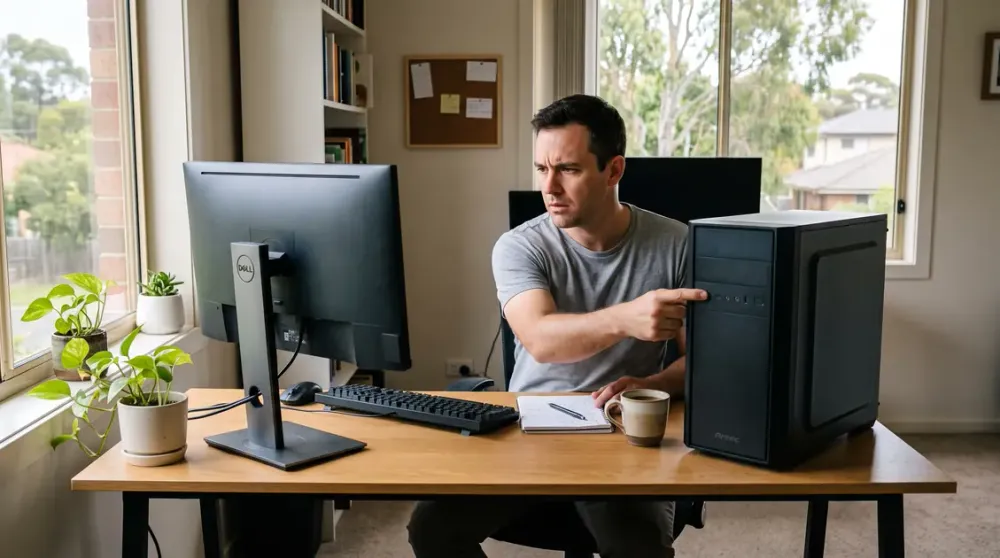
A computer that “won’t turn on” can mean several very different things. It may be completely silent, briefly light up and switch off, run with a black screen, or reach a logo but never load Windows. Those symptoms point to different stages of startup, so replacing parts before identifying the stage can waste money and put your files at unnecessary risk.
Start with the checks that do not require opening the computer. This guide then moves through ten likely causes in a safe order, covering desktops and laptops, no-power faults, failed startup checks and Windows boot problems. You will also see where home troubleshooting should stop and professional diagnosis becomes the sensible next step.
Key takeaways
- First identify whether the problem is no power, no display, failed POST or Windows failing to boot.
- Check the wall socket, powerboard, cable, charger and external devices before opening the computer.
- Do not open a power supply, use an unverified charger or repeatedly power a machine that smells burnt or has liquid damage.
- Back up important files and locate your BitLocker recovery key before using recovery or reset options.
- If testing requires live electrical measurements, motherboard work or repeated part-swapping, professional diagnosis is safer.
First identify what “won’t turn on” means
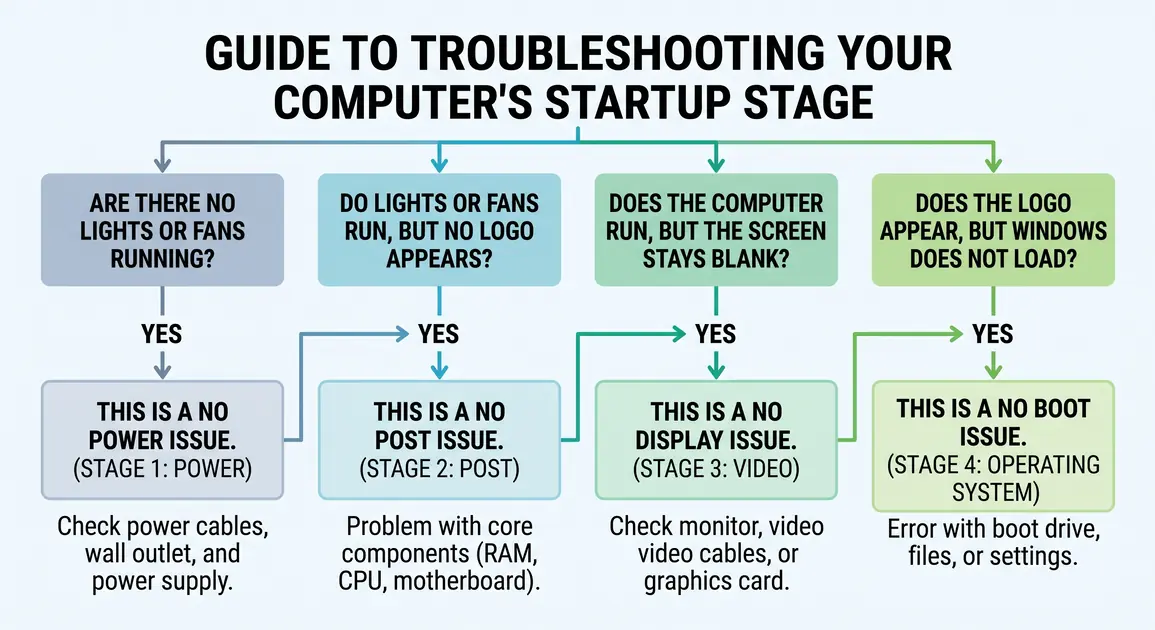
The most useful first step is to observe exactly what happens after you press the power button. Manufacturers separate startup faults into four broad categories because each needs a different path:
- No power: no lights, fan movement or sound.
- No POST: the computer receives power but cannot complete its power-on self-test. You may hear beeps or see a repeating diagnostic-light pattern.
- No display: lights and fans operate, but the screen remains blank.
- No boot: the manufacturer logo appears, but Windows does not load or shows an error.
Dell’s current startup guidance uses these distinctions to keep power, hardware-test, display and operating-system faults from being confused. The same diagnostic idea is useful for other brands, although lights, beep codes and built-in tests vary by model.
Write down what you see and hear: whether charging lights illuminate, how long fans run, any beep sequence, any words on screen and whether the fault followed a storm, move, upgrade, spill or update. A photo of an error or light pattern can be more useful than a general description later.
Safe checks before troubleshooting inside the computer
Disconnect USB drives, printers, docks, memory cards and other non-essential accessories. A failed peripheral or damaged USB connection can interfere with startup, and simplifying the setup makes the result easier to interpret. Leave only power, the display and the basic keyboard and mouse connected to a desktop.
Check the power point with another appliance you know works. Reseat the computer’s power cable at both ends, confirm the powerboard is on, and look for a tripped overload switch. On a desktop, check that the rocker switch beside the power cable is set to I, not O. For an all-in-one or laptop, inspect the charger, detachable mains lead and charging port for looseness, heat, fraying or bent pins.
If there is a burnt smell, scorch mark, crackling sound, swollen laptop case or recent liquid spill, unplug the machine and stop. Do not keep trying the power button. Do not open the metal enclosure of a power supply or charger: those units are not safe DIY repair items.
With the computer unplugged and accessories disconnected, some manufacturers recommend a residual-power drain by holding the power button before reconnecting power. The exact duration and process can be model-specific; Dell’s desktop instructions are one example. Follow your own manufacturer’s support page rather than assuming one sequence suits every computer.
1. The outlet, powerboard or cable is not supplying power
This is the simplest cause and should be ruled out first. A wall switch can be off, a powerboard can trip, or a detachable IEC cable can work loose during cleaning or moving.
Try a known-working wall socket and, temporarily, connect the computer directly rather than through a powerboard or UPS. If the monitor uses the same type of removable cable, swapping the two cables can be a useful test after confirming their ratings and connectors match. If the computer then starts, replace the faulty cable or powerboard rather than continuing to use it.
After a storm or building power event, do not assume a surge protector saved every connected component. A new no-power fault, burning smell or visible damage after such an event warrants inspection.
2. The laptop battery or charger has failed
A flat or failed battery can look like a dead laptop, but the charger, charging port and internal charging circuit are equally possible causes. Look for a charging indicator and note whether it changes when the connector is moved gently. Stop if the plug or port becomes unusually hot.
Use only the laptop manufacturer’s specified charger or a reputable compatible unit with the correct connector, voltage and power-delivery rating. A connector that fits is not proof of electrical compatibility. If the battery is externally removable, follow the model manual before removing it; many modern laptops have internal batteries and should not be opened casually.
Where the manufacturer supports operation without the removable battery, testing on mains power can separate a battery fault from a broader power fault. If there is still no charging light or response with a known-good correct charger, the charging socket, internal battery, power circuit or motherboard may need diagnosis.
3. Residual power or a connected device is blocking startup
Controllers can occasionally remain in an abnormal state after a crash or power interruption. Disconnecting power and accessories, then performing the manufacturer-approved power-drain or reset procedure, can clear that state without touching stored files.
Reconnect power only and test once. If the computer starts, shut it down normally and reconnect one accessory at a time. A damaged USB device, cable or hub that makes the fault return has probably identified the trigger. Do not repeatedly insert a damaged connector.
4. The power button or internal power connection is loose
On a desktop, the case button sends a small signal to pins on the motherboard; it does not deliver mains power directly. A damaged button, disconnected front-panel lead, loose 24-pin motherboard connector or loose CPU power connector can therefore leave the machine apparently dead.
Before opening a desktop, shut it down if possible, switch it off at the wall, unplug it and press the power button briefly to discharge residual energy. Work on a stable surface, avoid carpet, touch the bare metal chassis before components and handle boards by their edges. If the computer is under warranty, check the terms before opening it.
Use the exact motherboard manual to identify connectors. Firmly reseat only connections you can identify confidently; do not pull on wires or guess at header pins. Bypassing the case button with a screwdriver is commonly described online, but shorting the wrong pins can damage hardware. It belongs with an experienced technician unless the manufacturer’s manual explicitly documents the procedure and you are confident working inside a PC.
5. The power supply has failed or protection is tripping
A desktop power supply unit (PSU) converts mains electricity into several low-voltage outputs. A dead PSU can produce no response, while electrical protection may make the PC start for a moment and immediately switch off when it detects a short, overload or internal fault.
Some branded desktops include a built-in PSU self-test button and status light. Use it only as described for the exact model. A simple fan-spin or “paperclip” test is not a reliable all-clear because it does not prove stable output under load, and it exposes inexperienced users to avoidable connector mistakes. Never remove the PSU cover.
A workshop can test the supply under load or substitute a compatible known-good unit. Compatibility includes physical format, wattage, connectors and, on some branded systems, proprietary wiring. Do not install a random spare simply because its plug appears to fit.
6. RAM, graphics or another component is stopping POST
If lights and fans operate but there is no logo, the fault may occur during POST rather than at the wall. Listen for beeps and look for labelled diagnostic LEDs. Record the exact pattern and check the computer or motherboard manual; codes are not universal.
For a desktop you are comfortable opening, unplug it and reseat accessible RAM and the graphics card. Confirm any graphics-card power leads are secure. Test with one RAM module at a time only when the manual supports the slot arrangement, because many boards require a particular slot for a single module. Change one thing at a time so the result remains meaningful.
If the PC was recently upgraded, return to the last known-working configuration. A poorly seated card, incompatible RAM, inadequate PSU or misplaced cable is more likely immediately after internal work than an unrelated Windows problem.
7. The monitor or display path is the real problem
A running computer with a black screen is not a no-power computer. Confirm the monitor is on, its input matches the connected port, brightness is not at minimum and the display cable is secure. Test another cable or display if available.
On desktops with a separate graphics card, the monitor usually needs to connect to that card rather than the motherboard video socket. On laptops, try the manufacturer’s display-brightness and display-switch keys, then an external monitor if available. If you hear Windows sounds or keyboard lights respond while the screen stays blank, focus on the display, cable, graphics output or panel rather than the power supply.
8. Overheating or a cooling fault causes an immediate shutdown
Overheating usually does not explain a cold computer that is completely lifeless. It better fits a PC that was running, became hot or shut down, and will not restart until it cools—or one that starts and stops quickly because a CPU cooler or fan is disconnected.
Let the machine cool, keep vents unobstructed and check for heavy dust around external vents. Perth summer room temperatures can reduce the cooling margin of an already dusty or poorly ventilated computer, but heat alone should not be used as a diagnosis.
If a desktop has just been assembled or serviced, verify that the CPU cooler is properly mounted and its fan is connected to the designated header. Replacing thermal paste or removing a cooler can damage pins or disturb the seal if done incorrectly, so stop if you are unfamiliar with the hardware.
9. BIOS or UEFI settings need to be reset
BIOS or UEFI is the motherboard firmware that configures hardware before the operating system loads. A failed overclock, incompatible memory setting or corrupted configuration can prevent POST. An incorrect clock that returns after every shutdown more commonly suggests a depleted CMOS/RTC battery than a dead power supply.
Clearing CMOS restores firmware settings to defaults; it is not a general cure for every no-power fault. It can remove custom boot order, fan settings, memory profiles and other configuration, and a hardware change can trigger a BitLocker recovery prompt on an encrypted Windows device. Locate your recovery key before proceeding where possible.
Methods differ by board: some have a dedicated clear button, some use specific pins, and some require battery removal. ASUS documents all three methods for supported boards and begins by turning off the PC and removing the power cord. Use your exact motherboard manual, never guess jumper positions, and do not perform a BIOS update merely because the computer will not start. Firmware updates can create a worse fault if the wrong file is used or power is interrupted.
10. Windows is damaged or the storage drive cannot boot
If the PC displays a manufacturer logo or reaches a recovery screen, power is present and POST has probably progressed. The problem may be Windows, its boot configuration or the storage drive—not the power button or PSU.
Microsoft’s Startup Repair guidance directs Windows 10 and 11 users to Troubleshoot > Advanced options > Startup Repair in the Windows Recovery Environment. It can address some damaged system files and boot configuration problems. Recovery menus can vary by Windows version and manufacturer.
Before using recovery options, protect the data. Microsoft warns that some recovery choices can cause data loss and that encrypted devices may need the BitLocker recovery key. Avoid “Reset this PC”, formatting or reinstalling Windows until important files are backed up or a recovery plan is agreed. If the drive clicks, disappears intermittently or contains irreplaceable data, stop powering it repeatedly and seek data-recovery advice rather than running repair tools against a potentially failing drive.
Malware can interfere after the operating system begins loading, but it is unlikely to explain a machine with no electrical response at all. Treat malware as a possible no-boot or unstable-Windows cause only when the observed stage supports it.
A practical troubleshooting order
Use this sequence to minimise risk and unnecessary part replacement:
- Classify the symptom: no power, no POST, no display or no boot.
- Photograph errors or diagnostic-light patterns.
- Disconnect non-essential accessories.
- Test the wall socket, powerboard, cable or correct charger.
- Follow the manufacturer’s external power-reset procedure.
- Check display input and cable if the computer appears to run.
- Only if comfortable and warranty-safe, inspect accessible desktop connections and reseat one component at a time with power disconnected.
- Use model-specific diagnostic lights, self-tests and manuals.
- Consider CMOS reset only when the symptoms and recent changes make it relevant.
- Use Windows recovery only after the machine passes POST, with backups and the BitLocker key considered first.
Do not turn troubleshooting into repeated random swaps. Each test should answer a question and leave the machine no worse than before.
When to stop and arrange a diagnosis in Perth
Stop immediately for liquid damage, a swollen battery, burning smell, visible scorching, sparking or crackling. Professional help is also sensible when the fault requires live electrical measurements, PSU substitution, laptop disassembly, motherboard inspection or recovery of important files from a failing drive.
For a desktop that repeatedly starts and stops, continued power cycling can complicate an electrical fault. For a laptop with no charging response, testing the correct adapter and charging circuit safely requires suitable equipment. And if the machine reaches Windows recovery but the data is more valuable than the computer, preserve the drive before attempting resets or reinstalls.
Perth Computer Experts provides computer repair and troubleshooting and onsite computer repairs for home and small-business computers in Perth. If the safe external checks do not identify the fault, note the symptoms and any recent event, then arrange a diagnosis rather than buying parts by guesswork.