
Test a Power Supply Before Replacing It: PSU Diagnosis Guide
Learn how to diagnose a desktop PC power supply safely, what PSU tests can and cannot prove, and when replacement is the sensible next step.
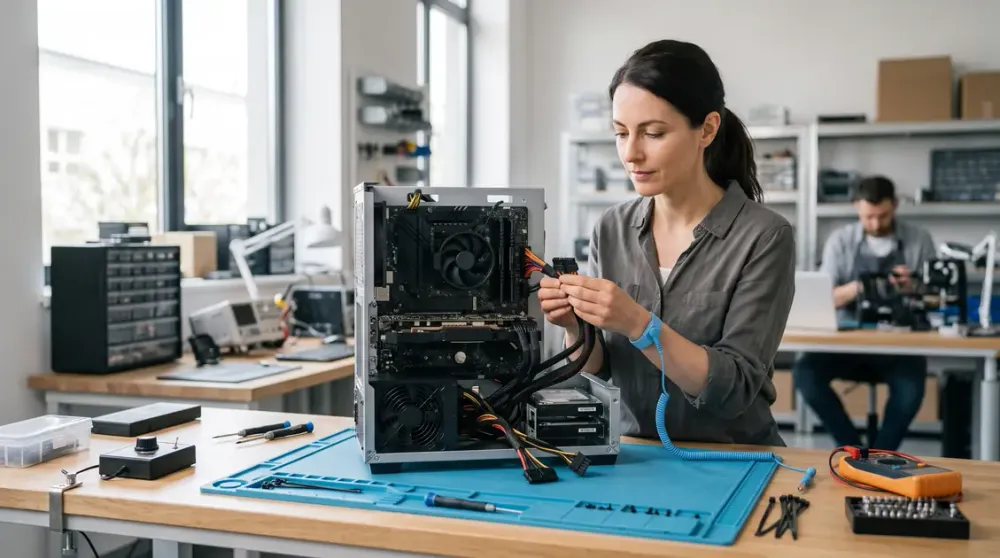
A desktop PC that suddenly shuts down, refuses to start or becomes unstable under load can have a power problem — but those symptoms do not prove the power supply unit (PSU) is faulty. Loose power connections, a failed motherboard, overheating, a graphics card problem or another component can look very similar.
The safest approach is to start with simple external checks, then use more specific PSU tests only if you are comfortable working around computer hardware. This guide explains what the common symptoms mean, which tests actually tell you something useful, and when replacement is the sensible next step.
Key takeaways
- A PC that will not start, restarts randomly or shuts down under load may have a PSU problem, but those symptoms can also come from other hardware.
- Start with the wall power, power lead, PSU switch and internal cable connections before buying a replacement.
- A paperclip or jumper test only shows that a compatible PSU can be commanded to start; it does not prove that the PSU is healthy under load.
- Voltage testing is more informative, but probing a live connector is an advanced task and should be skipped if you are not confident doing it safely.
- Never open a PSU enclosure. If there is a burning smell, smoke, visible scorching or electrical arcing, switch the computer off, unplug it and stop testing.
What a desktop power supply actually does
The PSU converts mains AC power into the regulated DC outputs used by the motherboard, processor, graphics card, storage and other components. On conventional multi-rail ATX desktop supplies, common outputs include +12 V, +5 V and +3.3 V. Intel's ATX design guidance specifies regulation limits for these rails, so a proper electrical test is about more than whether a fan spins: the outputs need to remain within specification under the conditions the PSU is designed to handle. Intel's ATX power-supply design guide documents these voltage ranges.
Some newer systems use different power-supply standards, including ATX12VO designs that rely primarily on 12 V from the PSU. That is one reason not to assume every connector, wire colour or expected reading is identical across every computer.
Signs that can point to a failing PSU
A failing or undersized PSU can show up in several ways:
- the PC does not respond when you press the power button;
- the computer starts and then immediately switches off;
- random shutdowns or restarts occur, especially when the CPU or graphics card is working hard;
- the system freezes or crashes when power demand rises;
- connected components intermittently lose power;
- lights or fans behave unusually at startup;
- the PSU produces persistent buzzing, clicking or abnormal fan noise;
- there is excessive heat, a burning smell, smoke or visible scorching.
These are clues rather than a diagnosis. A system that shuts down during gaming, for example, could also be overheating or have a graphics-card, motherboard, memory or driver problem.
Stop immediately if you smell burning, see smoke or scorching, or hear electrical arcing. Turn the PC off at the wall, unplug it and do not keep powering it on to reproduce the fault. Do not open the PSU casing: internal components can retain hazardous energy even after the unit is disconnected.
Start with the simple checks
Before disconnecting components or buying test equipment, rule out the easy causes.
- Shut the PC down and switch the power off.
- Check that the power lead is firmly seated at both the power point and the PSU.
- If the PSU has a rear rocker switch, confirm it is in the on position before the next startup attempt.
- If you are comfortable opening the computer case, disconnect mains power first and check that the motherboard 24-pin connector, CPU power connector and graphics-card power connectors are fully seated.
- If the computer was recently moved, cleaned or upgraded, pay particular attention to any cable or component that was disturbed.
- Look for damaged connectors, melted plastic or obvious scorching without opening the PSU itself.
If the PC begins working after reseating a loose cable, that is useful evidence. If the fault continues, move to testing rather than assuming the PSU is definitely bad.
Three ways to test a PSU
1. Use a dedicated PSU tester
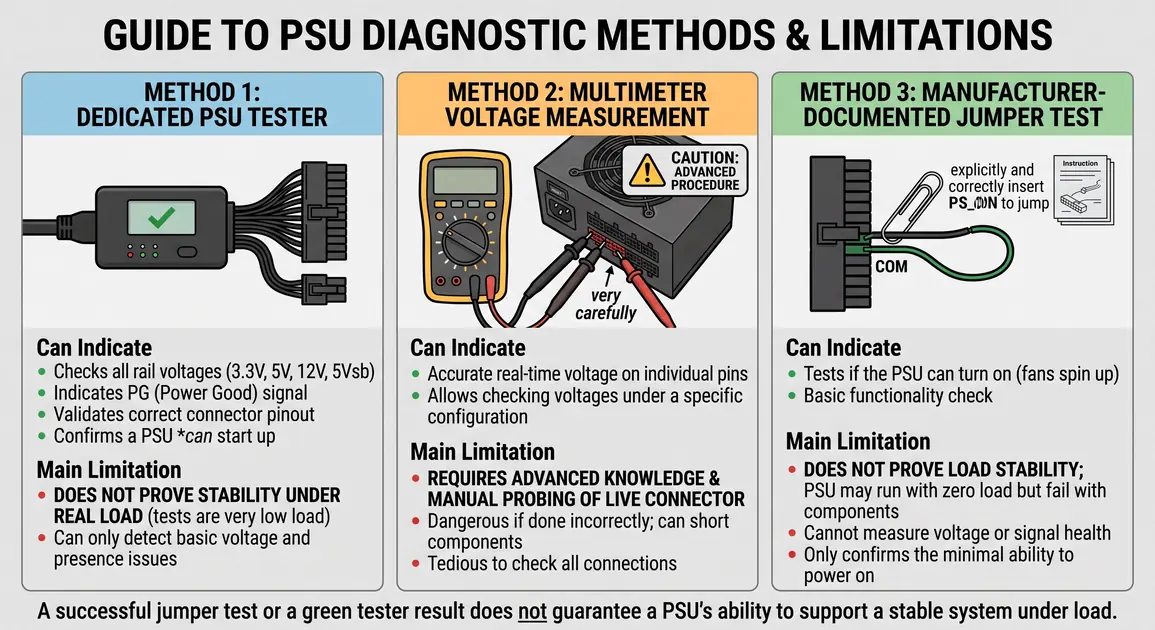
A dedicated PSU tester is usually the simplest hardware test for someone who wants more information than a basic startup check. Depending on the tester and PSU type, it can report the main output rails and sometimes the power-good signal.
Follow the tester manufacturer's instructions and connect only the plugs it is designed to accept. A tester can identify an obviously missing or out-of-range output, but it still may not reproduce the electrical load of a working gaming or high-performance PC. Passing a basic tester therefore does not rule out every intermittent or load-related PSU fault.
2. Use a multimeter — only if you know how to probe a live connector safely
A multimeter can measure the PSU's DC output directly. For a conventional ATX supply, the relevant nominal rails are commonly +12 V, +5 V and +3.3 V. Intel's ATX 3.0 multi-rail guide lists +12 V at 11.20–12.60 V, +5 V at 4.75–5.25 V and +3.3 V at 3.14–3.47 V for the design covered by that specification. Check the applicable ATX specification rather than relying on a generic number for every PSU.
This test involves an energised power supply and exposed connector contacts. If you are not already comfortable using a multimeter around live low-voltage electronics, skip it. A slipped probe or incorrect pin can cause a short or damage hardware.
3. Use the paperclip or jumper test as a limited startup check
For a standard 24-pin ATX PSU, a manufacturer-documented jumper test can show whether the PSU responds to its power-on signal. Corsair, for example, documents a procedure that bridges the specified pins on the 24-pin connector and explicitly warns that jumping the wrong pins can cause injury or damage. Corsair's PSU test instructions should be treated as an example for compatible hardware, not a universal pinout for every PSU.
The important limitation is what this test does not prove. A PSU that starts during a jumper test can still have poor voltage regulation, fail when loaded or have an intermittent fault. Also, some modern PSUs use zero-RPM fan modes, so fan movement alone is not a reliable universal pass/fail indicator.
If you cannot positively identify the connector and correct procedure for your exact PSU, do not improvise with a paperclip.
What if the PC only crashes under load?
A PSU can appear normal at idle yet fail when the graphics card and processor draw more power. This is particularly relevant after a GPU or other hardware upgrade.
Before blaming the PSU, check for overheating and confirm that required CPU and GPU power connectors are fitted correctly. Also consider whether the PSU has enough capacity and the right connectors for the installed hardware.
Repeatedly running heavy stress tests is not a good diagnostic strategy if the PC is already hard-shutting down, producing electrical smells or showing other signs of a power fault. A controlled known-good PSU substitution or professional load testing is usually more useful than repeatedly forcing the system to fail.
Why power supplies fail
The merged source posts identified several plausible causes that belong in the same diagnosis:
- Age and component wear: electronic components degrade over time, and an older PSU can become less stable.
- Heat and dust: restricted airflow and a failing fan can increase PSU temperature.
- Power demand after upgrades: a higher-power graphics card or other new hardware can expose a PSU that is undersized or no longer stable.
- Electrical events: surges and other power disturbances can damage electronics.
- Poor-quality or faulty hardware: build quality, design and component quality vary between PSU models.
None of these causes proves that a particular PSU has failed. They are useful context when combined with symptoms and test results.
When replacement makes sense
Replacement becomes the sensible option when testing shows missing or out-of-spec outputs, a known-good compatible PSU resolves the fault, or the existing unit has clear signs of electrical damage. Persistent shutdowns that have been narrowed to the PSU are another strong reason to replace it.
When choosing a replacement, check:
- the form factor and physical size;
- sufficient wattage for the CPU, graphics card and other hardware;
- the required motherboard, CPU and GPU power connectors;
- compatibility with the case and cable routing;
- the PSU manufacturer's requirements for modular cables.
Do not reuse modular PSU cables just because the plugs appear to fit. Modular cable pinouts are not universally interchangeable between PSU models. Use the cables supplied or explicitly approved for the replacement unit.
If you are already considering a graphics-card upgrade, major hardware change or replacement PSU, our custom PC builds and hardware upgrades service explains the type of component selection and compatibility work Perth Computer Experts can help with.
How to reduce the chance of another PSU problem
Keep the PC's vents clear, remove dust from accessible case filters and fans, and make sure the computer has reasonable airflow. Inspect external power leads and accessible connectors if you notice heat damage or looseness.
After a hardware upgrade, reassess power requirements rather than assuming the existing PSU is still suitable. For electrical surge protection, use equipment appropriate to your installation and follow the manufacturer's guidance; a surge protector can reduce some risks but is not a guarantee against every electrical event.
When to get professional help
Professional diagnosis makes sense when the PC is completely dead and the cause is unclear, shutdowns continue after basic checks, you do not have a known-good PSU for substitution, or you are not comfortable testing live connectors.
It is also the safer choice when there are signs of electrical damage. A technician can separate PSU faults from motherboard, graphics-card, cooling and cabling problems before parts are replaced unnecessarily.
If you are in Perth and would rather have the fault isolated before buying a new power supply, Perth Computer Experts can assess the computer and help determine whether the PSU or another component is responsible.