
Online Banking Security: How to Bank Safely and Avoid Malware
Learn safer online banking habits, malware warning signs and the right steps to protect your money and accounts after a suspected compromise.
Online banking is convenient, but a convincing bank message, a fake login page or a compromised computer can turn an ordinary payment into a security incident. The difficult part is knowing what deserves caution without becoming afraid to bank online.
Good online banking security is less about buying one “perfect” security product and more about using a clean, updated device, protecting your accounts properly, checking requests through official channels and acting in the right order when something seems wrong. This guide explains the practical habits that reduce risk, the warning signs that matter, and what Perth households and small businesses should do after suspected malware or fraud.
Key takeaways
- Use your bank’s official app or a saved, verified address on an updated device; never log in through an unexpected message or pop-up.
- Protect banking and email with unique passwords or passphrases, and turn on multi-factor authentication wherever it is offered.
- If money, credentials or remote access may be involved, stop using the affected device and contact your bank immediately from a trusted device.
- A VPN can reduce some public Wi-Fi risks, but it cannot stop phishing, malware or a scammer you have authorised to control the device.
- Removing malware does not reverse fraud, so account recovery and device cleanup must be treated as separate jobs.
What can put online banking at risk?
Criminals do not need to “hack the bank” to target your money. It is often easier to manipulate a customer, steal an account password, take over an email account or gain remote control of a computer.
Phishing messages imitate banks, government agencies, delivery companies and familiar businesses. They may link to a false sign-in page or ask you to call a number controlled by the scammer. Caller ID and message threads can also be spoofed, so a familiar-looking number is not proof that a contact is genuine. WA Consumer Protection advises people to verify requests using contact details found independently, not the number or link in the message (Consumer Protection WA).
Malware is software intended to steal information, damage files or give someone unauthorised access. The labels overlap, but common examples include:
- Information stealers and spyware, which can collect saved passwords, browser data and session information.
- Keyloggers, which record what is typed, potentially including usernames and passwords.
- Banking trojans, which may display false forms, interfere with browsing or capture account details.
- Remote-access tools, which are legitimate in many support settings but dangerous when installed at a scammer’s request. A scammer who controls the screen may watch banking activity, ask for security codes or move money while distracting the victim.
- Ransomware, which encrypts or blocks access to files. Its primary effect is disruption and data loss; it should not be described as automatically stealing bank credentials, although some attacks also deploy information-stealing malware.
The Australian Signals Directorate has warned that information-stealer malware can target usernames, passwords and browser session tokens. That is why changing a password alone may not be enough while the affected device remains untrusted (Australian Cyber Security Centre).
Set up safer online banking before there is a problem
Start with a device you can trust
Keep the operating system, web browser, banking app and other applications supported and up to date. Updates correct known security weaknesses; if a device no longer receives security updates, do not use it for sensitive work until it is upgraded or replaced. Turn on automatic updates where practical and obtain apps only from official app stores or vendor websites.
Use the security protection built into Windows, macOS, Android or iOS, or a reputable supported security product. Keep it enabled and updated. Security software is one layer, not a guarantee: it cannot reliably protect you if you approve a remote-control session, disclose a one-time code or enter details into a convincing phishing page.
Do not routinely bank from a shared computer, a public computer or a device that is behaving strangely. Unexpected pop-ups, browser redirects, unfamiliar remote-access software, security tools switching off, or programs appearing without explanation are stronger warning signs than slowness alone. A slow computer can have many harmless causes.
Protect both your bank account and your email
Use a different password or passphrase for every important account. Reuse is dangerous because credentials stolen from one service can be tried elsewhere. The ACSC recommends long, unpredictable and unique passphrases, and notes that a password manager can generate and store different credentials for each account (ACSC passphrase guidance).
Your email deserves the same level of protection as your bank account because it can receive security alerts and password-reset links. Give it a unique password and enable multi-factor authentication (MFA). MFA requires another proof of identity in addition to a password and makes unauthorised access harder. Use the strongest method your bank or email provider supports, such as a passkey, security key, authenticator app or banking-app approval; SMS is still better than password-only access when it is the available option (ACSC MFA guidance).
Never read an MFA code, banking PIN or password to a caller. Do not approve an unexpected sign-in prompt. A code is not a routine identity check for someone calling you; it may be the final step they need to enter your account.
Use the official route to your bank
Install your bank’s app from the official Apple or Google app store, or type the bank’s known address yourself. A bookmark created after verifying the address can also reduce typing mistakes. Avoid banking links in unsolicited emails, texts, search advertisements and pop-ups.
HTTPS and the padlock show that the connection to a site is encrypted, but they do not prove that the site belongs to your bank. Criminal sites can also use HTTPS. Check the full domain name and, when anything feels unusual, close the page and start again through the official app or independently verified website.
Turn on transaction and sign-in alerts offered by your bank. Alerts do not prevent every fraudulent transaction, but they can shorten the time before you notice one. Review the actual transaction list regularly rather than relying only on the account balance.
Treat unexpected contact as unverified
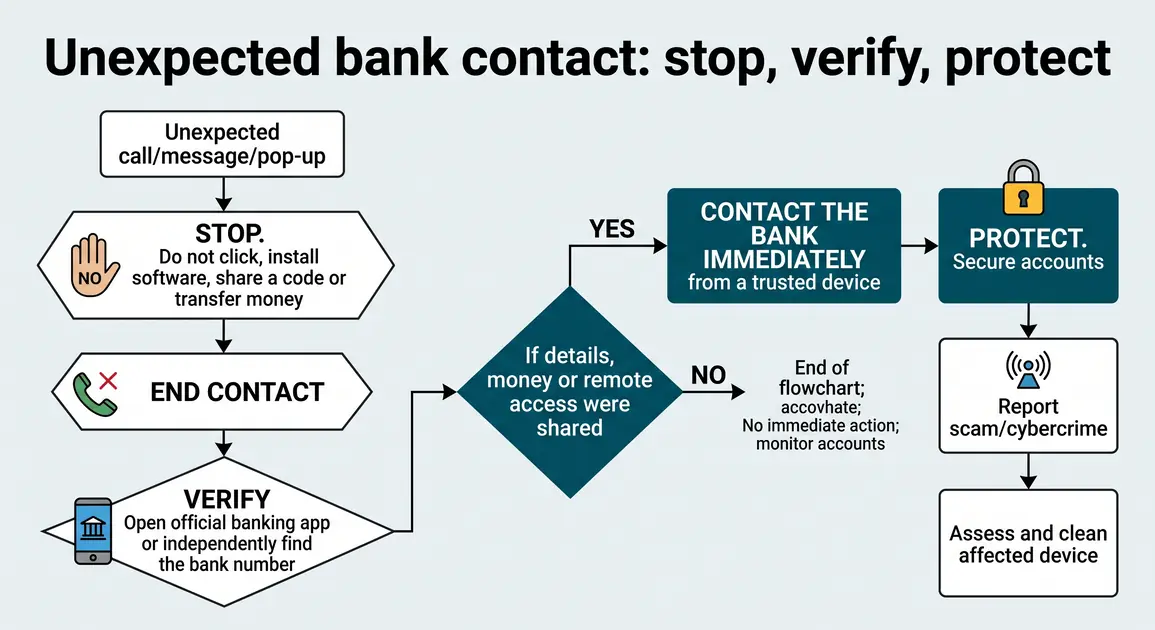
Urgency is a common warning sign: “your account is frozen”, “money must be moved to a safe account”, or “install this app so we can stop the hackers”. End the call or conversation. Contact the organisation through its official app, the number printed on your card, or a number you independently find on its genuine website.
Do not install AnyDesk, TeamViewer or another remote-access tool because an unsolicited caller asks you to. Do not move money to a supposedly “safe” account. In a 2024 warning, WA Consumer Protection reported that remote-access scammers used cold calls, emails and false pop-ups to obtain control of victims’ devices and online banking (WA remote-access scam warning).
Is public Wi-Fi safe for online banking?
The simplest choice is to postpone banking until you are on a trusted home or office network, or use your phone’s mobile data. Public hotspots can be imitated, misconfigured or monitored. The ACSC specifically recommends reconsidering access to sensitive information such as online banking on public Wi-Fi (ACSC public Wi-Fi guidance).
A reputable VPN encrypts traffic between your device and the VPN provider and can add protection on an untrusted network. It is not a cure-all. It does not clean an infected computer, identify a fake bank site, stop you disclosing a code or protect you from a remote-access scam. If you bank regularly, a trusted network plus the bank’s official app is a clearer and safer default than treating a VPN as mandatory.
At home, change the router’s default administration password, use the strongest supported Wi-Fi encryption, install router updates and disable remote management if it is not needed. These steps protect the local network, but account security and scam awareness are still necessary.
Warning signs that need action
An unfamiliar charge is the clearest sign, but do not wait for money to disappear. Act if you notice:
- a transaction, transfer, payee or card purchase you do not recognise, including a small test charge;
- a sign-in or new-device alert that does not match your activity;
- an unexpected password reset, account lockout or MFA prompt;
- changed contact details, transfer limits or notification settings;
- a bank page that looks different, redirects unexpectedly or repeatedly rejects correct details;
- an unsolicited caller who has seen your screen, controlled your device or asked you to open online banking;
- security software disabled without your action, unexplained browser extensions, or persistent pop-ups and redirects.
Device symptoms do not prove that banking details were stolen, and a normal-looking computer does not prove it is clean. Base your response on what the person or software could access, not only on whether the computer seems slow.
What to do if malware, a scam or fraud may be involved
The order matters. Secure the money and accounts before spending hours trying to clean the computer.
- Stop interacting with the suspected scammer. End the call, close the chat and do not send more money. If someone currently has remote control, disconnect the affected device from Wi-Fi or unplug its network cable. Do not keep using it for banking, email or password changes.
- Use a different, trusted device. A phone or computer that was not involved in the incident is preferable. If no trusted device is available, call the bank first rather than signing in again on the suspect device.
- Contact the bank immediately. Use the number on the back of the card, the official app or the bank’s independently verified website. Explain what happened, including any remote access, disclosed codes, suspicious transfers or malware warnings. Ask what should be blocked, recalled, replaced or monitored. Scamwatch advises contacting the bank or card provider immediately and asking it to stop transactions (Scamwatch recovery guidance).
- Review transactions and account changes. Check recent transfers, card activity, new payees, registered devices, contact details and security notifications. Take notes or screenshots on the clean device for the bank and reports, but do not delay the bank call to assemble perfect evidence.
- Change exposed credentials from the clean device. Follow the bank’s instructions. Change the email password as well if it was reused, entered on the affected device or accessible during remote control. Replace reused passwords on other important accounts, beginning with email, banking, cloud storage and mobile-provider accounts.
- Strengthen recovery settings. Turn on MFA where available, remove unknown devices or sessions, save fresh recovery codes securely and confirm that recovery email addresses and phone numbers are yours. Never log out every device blindly if doing so could lock you out; use the provider’s supported account-security process.
- Report the incident. Report cybercrime through ReportCyber. Scam-related incidents can also be reported to Scamwatch and WA ScamNet. If identity information was exposed, IDCARE offers free recovery planning for people in Australia and New Zealand.
If there is an immediate threat to personal safety, call 000. If the incident affects a small business, preserve invoices, emails, transaction details and relevant logs, and tell staff not to delete evidence or continue using the affected account until the response is coordinated.
Clean and recover the affected computer safely
Account recovery does not make the device clean, and a malware scan does not make a fraudulent transfer disappear. Treat these as separate workstreams.
Start with supported, reversible steps. Update the device’s security software from its official settings and run a full scan. Remove unrecognised browser extensions and remote-access programs only after recording their names if evidence may matter. Review installed applications and browser notification permissions. Avoid random “cleaner” downloads advertised in pop-ups; they may create another problem.
A second reputable on-demand scanner can be useful when concern remains, but repeated clean scans cannot provide absolute proof after a serious compromise. If an attacker had remote control, security tools keep being disabled, malware returns, or sensitive business data was exposed, stop using the computer for confidential work and arrange professional assessment.
Reinstalling or factory-resetting a device can erase programs, settings and personal files. Do not reset it until important data is backed up, the backup is checked, and you have required account credentials, software licences and any BitLocker or FileVault recovery key. Restore documents and photos cautiously rather than restoring unknown programs or an entire unverified system image. A reset is a last-resort recovery measure, not the first response.
Backups help recover files after ransomware, device failure or a destructive cleanup, but they do not prevent account fraud. Keep at least one backup isolated from the computer when it is not running so malware cannot easily alter it.
Long-term protection without false confidence
Build a small routine that is easy to maintain:
- allow automatic security updates on supported devices and browsers;
- keep built-in antivirus and firewall protection enabled;
- use unique passwords or passphrases through a reputable password manager;
- enable MFA for banking, email and other high-value accounts;
- verify payment-detail changes through a separate, trusted channel, especially in a small business;
- use transaction alerts and review statements;
- download software and drivers only from official sources;
- keep tested backups of important files;
- talk openly with family members or staff about urgent bank calls, remote-access requests and one-time codes.
Avoid rigid rules such as changing every password on a monthly schedule. A unique, strong credential should be changed promptly when it may have been exposed, when the provider directs you to, or when suspicious activity occurs. Constant arbitrary changes can encourage weaker, predictable passwords.
When professional help makes sense in Perth
You can handle many prevention steps yourself. Professional help is sensible when malware returns after removal, a scammer had remote access, security software will not stay enabled, the computer holds important data without a verified backup, or you cannot tell whether the device is safe to use again.
A technician can assess and clean the device, but only your bank can secure bank products, investigate transactions and advise on account-specific recovery. If you need help checking a Perth home or small-business computer after the urgent banking steps are complete, contact Perth Computer Experts for a device-security assessment. Do not send banking passwords, PINs or one-time codes to a technician.