
Monitor Calibration Software and Tools for Accurate Colour
Learn how monitor calibration software, colorimeters and ICC profiles work, which tools suit your workflow, and how to fix inconsistent colour.
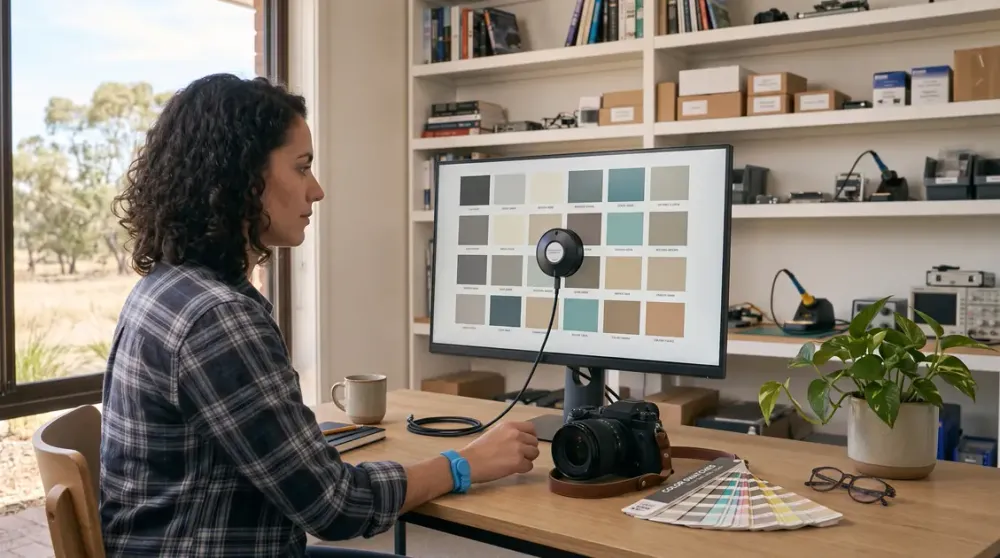
A photograph can look balanced on your monitor yet print too dark, while a brand colour approved on one screen can appear noticeably different on another. The file is not always at fault: the display used to judge it may be too bright, too cool or handling colour incorrectly.
Monitor calibration gives you a more dependable reference for editing photographs, video, artwork and design. This guide explains what calibration software can and cannot do, when a colorimeter is worth buying, how to choose current tools, and how to build a repeatable workflow without treating one target setting as correct for every room or output.
Key takeaways
- Visual calibration is useful for basic adjustment, but a colorimeter provides objective measurements for colour-critical work.
- Calibration changes display behaviour; profiling describes that behaviour so colour-managed software can reproduce colour correctly.
- Choose targets for the actual output and viewing conditions rather than copying universal brightness or white-point numbers.
- Calibrate the monitor before correcting or grading content, and keep ICC profiles enabled throughout the workflow.
- If colour remains uneven or a profile will not stay applied, investigate the display, cable, graphics driver and software colour management.
What monitor calibration actually does
A display is calibrated when its output is adjusted towards chosen targets such as luminance, white point and tone response. It is then profiled: measured colour characteristics are recorded in an ICC profile so the operating system and colour-managed applications can translate image colours for that particular display. The International Color Consortium explains calibration and profiling as related but distinct stages.
That distinction matters. Moving brightness and colour controls changes the monitor. An ICC profile does not magically expand the screen's gamut or repair an uneven panel; it describes the display and may include correction curves that supported software loads. Some professional monitors can store calibration in an internal hardware lookup table, while many ordinary displays rely on the graphics system and operating system to apply corrections.
Calibration can improve consistency, but it cannot guarantee that every uncalibrated phone, television or office monitor will match yours. Nor can it make a standard-gamut panel show colours outside its physical capability. The aim is a known, repeatable reference from which sensible colour decisions can be made.
Calibration is not colour correction
Monitor calibration changes or characterises the display. Colour correction changes the photograph, video or artwork. Correcting white balance, exposure or a colour cast in Lightroom, Photoshop, Premiere Pro or DaVinci Resolve edits the content; calibrating first helps ensure those edits are based on a trustworthy view.
The practical sequence is therefore: stabilise and calibrate the display, confirm the correct profile is active, then correct or grade the content. For print work, add soft proofing with the printer and paper profile supplied by the print provider. For video, use the colour space and monitoring standard required by the delivery specification.
Software-only calibration versus a colorimeter
Windows and macOS include visual tools. In Windows, search Settings for calibrate display colour and follow the wizard; Microsoft still documents this route for Windows 11 and Windows 10. On a Mac, System Settings > Displays > Colour profile > Customise can open Display Calibrator Assistant where supported. Apple notes that ordinary home or office use may not require extra calibration, and its reference-class displays use a separate Pro Display Calibrator workflow.
These tools can help you correct obvious gamma, brightness or neutral-balance problems. They depend on your eyes, however, and human perception adapts to surrounding light and colour. They also do not measure the display's actual output. That makes visual adjustment reasonable for general browsing, office work and casual gaming, but a weak foundation for client-approved colour, print matching or repeatable grading.
A colorimeter is a sensor placed against the screen while companion software displays known colour patches. The software compares measured output with the targets, adjusts the display or correction curves, and creates a display profile. A colorimeter is the practical choice for photographers, designers, illustrators and editors who need repeatable colour across sessions or multiple monitors.
When a spectrophotometer makes sense
A display colorimeter uses filtered sensors designed to measure emitted red, green and blue light efficiently. A spectrophotometer measures light across wavelength bands and can also profile reflective media such as printer, ink and paper combinations.
For one or two modern monitors, a supported colorimeter is usually the more economical and straightforward tool. Consider a spectrophotometer when printer profiling is part of the job, or when a specialist workflow explicitly requires spectral measurement. Do not assume it will automatically be better for every display: instrument suitability, correction data, software support and the display technology all matter.
Choosing current monitor calibration tools
Buy for the display and workflow you have, not for a discontinued model name in an old comparison. Check the manufacturer's current operating-system support, connection type, supported panel technologies and maximum measurable luminance before purchasing. OLED, QD-OLED, mini-LED and very bright HDR displays can require newer instruments or the correct technology setting in the software.
Current mainstream choices include:
- Datacolor SpyderExpress, Spyder and SpyderPro. Datacolor's current comparison separates the models by supported display technologies, measurement range and advanced functions. Spyder suits standard photo and design calibration; SpyderPro adds controls and analysis for more demanding multi-display and video work. Legacy SpyderX and Spyder5 devices may still operate with compatible archived software, but they should not be presented as the current range.
- Calibrite Display SL, Display Pro HL and Display Plus HL families. Check the exact regional range and software compatibility at purchase time. Calibrite positions Display Plus HL for modern high-luminance LCD, mini-LED, OLED, QD-OLED and Apple XDR-class displays, with its PROFILER software supporting calibration, profiling, validation and display matching.
- Portrait Displays Calman. This is specialist calibration software used for televisions, reference displays, projectors and professional video workflows. Its value comes with compatible meters, pattern sources and supported hardware; it is usually more than a photographer calibrating one desktop monitor needs.
- DisplayCAL with ArgyllCMS. This open-source route has historically offered deep control and broad instrument support. Its setup and platform compatibility are more involved than current vendor packages, so confirm the present status of both DisplayCAL and ArgyllCMS for your operating system and instrument before relying on it in production.
The old X-Rite i1Display Pro, SpyderX Pro and LightSpace names still appear in articles and second-hand listings. They are legacy references, not a reliable current shortlist. ColourSpace succeeded LightSpace in Light Illusion's professional ecosystem, while the i1Display-derived consumer range moved to Calibrite. A used meter can be economical only if its condition, filter stability, software licence and current OS compatibility are known.
Match the tool to the work
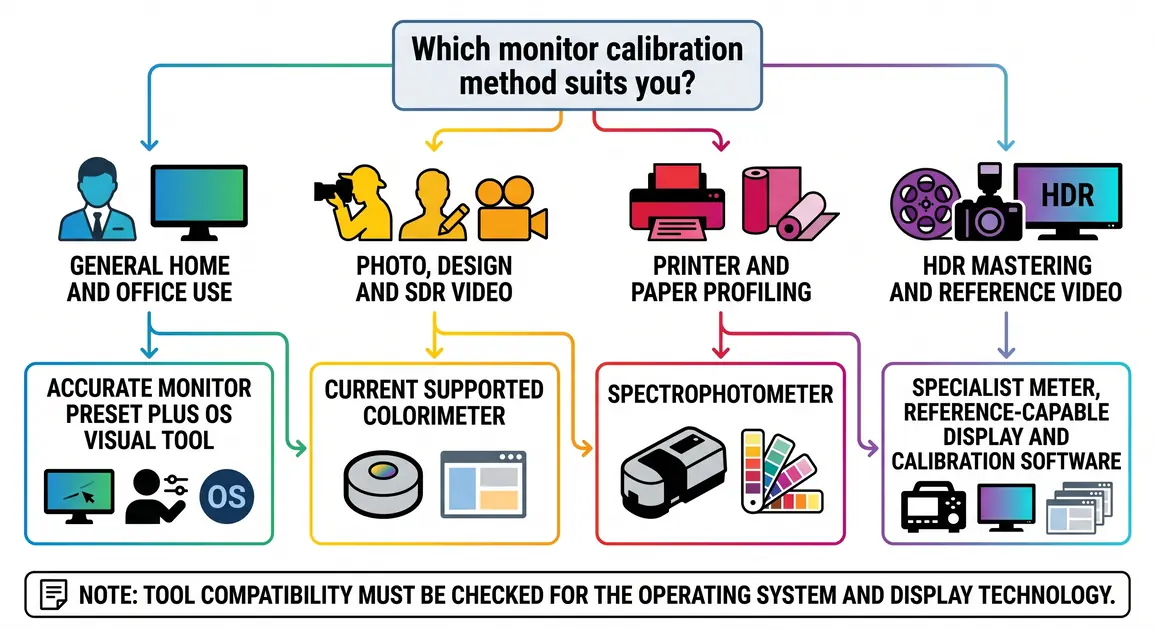
For general home use, begin with the display's accurate preset and the operating system's visual controls. For web design and photography on a conventional SDR monitor, a current entry or mid-tier colorimeter with validation is normally sufficient. Multi-monitor studios benefit from display matching, repeatable presets and uniformity checks. HDR grading is different again: it may require a high-luminance meter, a display capable of the delivery standard, suitable test patterns and specialist software. A Windows HDR gaming calibration is not the same as reference HDR mastering.
Windows 11's free Windows HDR Calibration app can tune darkest detail, brightest detail and maximum brightness for a supported HDR display. It is useful for HDR games and content presentation, but it does not replace instrument-based profiling for colour-critical production.
How to calibrate a monitor properly
The exact screens vary by tool and version, so follow the instrument and monitor manufacturers' current instructions. This process keeps the important decisions in the right order.
- Define the output. Decide whether the monitor is being prepared for web images, print soft proofing, SDR video, HDR viewing or another specified standard. Targets should follow that purpose.
- Stabilise the working conditions. Put the display in its normal position, minimise glare and direct sunlight, and use lighting you can reproduce. Perth's strong daylight is relevant when a desk sits near a large window: blinds and consistent room lighting are more useful than calibrating in bright afternoon sun and editing after dark.
- Let the display settle. Follow its manual and the instrument guidance. The ICC suggests around 15 minutes; Datacolor advises about 30 minutes for its current Spyder workflow. Avoid turning that into a universal rule for every panel.
- Disable changing display effects. Temporarily turn off night-light modes, automatic brightness, dynamic contrast and other adjustments that alter the screen during measurement. For an SDR calibration, do not leave HDR presentation mode changing the signal. Record normal settings so you can restore anything needed later.
- Choose an appropriate preset. Start with a neutral or accurate monitor preset rather than a vivid gaming or showroom mode. Factory default contrast is often a sensible starting point unless the calibration software or monitor documentation says otherwise.
- Connect and position the instrument. Select the correct display technology in the software, place the sensor flat over the indicated area, and keep stray light from reaching it. Do not press hard against a delicate panel.
- Set targets for the workflow. D65 and gamma 2.2 are common SDR starting points, and sRGB is practical for much web work, but print proofing, broadcast video and controlled studios can call for different targets. Luminance must suit the viewing environment and output; a fixed 120 cd/m² value is not automatically right for every room.
- Measure and create the profile. Let the patch sequence finish without changing lighting or controls. Give the profile a clear name containing the display and date, then allow the software to assign and load it.
- Validate rather than trusting appearance alone. Use the software's verification function where available. Check neutral greys, shadow detail and several familiar reference images in a colour-managed application, but expect the corrected screen to look unfamiliar at first if the previous setting was very cool or vivid.
- Keep the workflow consistent. Avoid changing brightness or picture modes after profiling. If a setting must change substantially, create a separate profile for that repeatable condition and confirm the application switches correctly.
Targets, colour spaces and profiles without guesswork
A target is not a badge of quality. It is a description of how the display should behave for a particular job. D65 is widely used for web, photography and many video workflows; D50 can be relevant to controlled graphic-arts proofing. Gamma 2.2 is common on Windows and macOS, while video delivery may specify another tone response. The ICC's display-calibration guidance gives examples but stresses that the intended use determines the approach.
Likewise, choosing Adobe RGB or Display P3 in software does not make a monitor capable of displaying that gamut. Use a working colour space appropriate to capture and delivery, embed the intended profile in exported images, and preview output through colour-managed software. For broadly compatible web delivery, converting an export to sRGB and embedding the profile remains a practical choice, while keeping a wider-gamut master can preserve editing flexibility.
Do not download a random ICC profile for a monitor model and assume it represents your unit. A manufacturer's generic profile can describe expected behaviour, but a measured profile accounts for the individual display, its current settings and ageing.
How often should you recalibrate?
There is no honest one-size-fits-all schedule. Displays drift at different rates, and the acceptable error depends on the work. The ICC says periodic calibration is needed and notes that roughly six-month intervals are often sufficient in some circumstances; calibration vendors may recommend much shorter intervals for demanding work.
A better approach is risk-based:
- validate before a colour-critical project or important print run;
- recalibrate when validation fails, room lighting or display settings change, a monitor or graphics component is replaced, or the profile stops loading;
- use reminders appropriate to the consequences of a mismatch; and
- keep dated profiles and validation results so the schedule follows measured drift rather than habit.
Weekly or monthly calibration may be reasonable in a busy colour-critical studio. It is unnecessary to claim that every home user must recalibrate monthly.
Troubleshooting colour that still looks wrong
First confirm that the problem appears in more than one colour-managed application. Some viewers, browsers, games and video players handle profiles differently, so one application can be the outlier. Then check these points in order:
- Wrong or missing profile: confirm the new ICC profile is assigned to the correct monitor and loaded after sign-in. Multi-monitor systems need the right profile associated with each display.
- Dynamic settings returned: night mode, HDR, automatic brightness, power-saving controls or monitor picture modes may have changed the output after calibration.
- Incorrect panel selection: choosing the wrong backlight or display technology in the calibration software can reduce measurement accuracy.
- Signal or driver problem: try a known-good cable and supported port, then check the graphics manufacturer's current driver. Avoid making several changes at once; otherwise you will not know which one fixed the issue.
- Uneven or failing display: calibration cannot remove blotchy backlighting, burn-in, tint that varies across the panel, flicker or a panel that drifts rapidly. Use a uniformity test if the software provides one.
- Print mismatch: compare under suitable, consistent light and use the correct printer/paper profile. A monitor that is far brighter than the print-viewing environment often encourages edits that make prints too dark.
Do not repeatedly install profiles or buy a new meter until you isolate whether the fault follows the monitor, computer, cable or application. Testing the display with a second known-good cable or computer can narrow the cause without opening any hardware. If there is physical damage, liquid exposure, smoke, sparks or a burning smell, switch the equipment off, disconnect power if safe, and arrange qualified help rather than continuing tests.
A dependable colour-managed workflow
Accurate colour is a chain, not a single calibration button. Use a suitable display in controlled light, calibrate and profile it for the intended output, keep profiles attached to source and exported files, and use colour-managed applications. Soft proof when preparing work for a specific printer. For client review, explain that unmanaged displays cannot be expected to match a reference monitor exactly.
A Perth freelancer or small studio does not necessarily need a broadcast calibration suite. It does need a repeatable environment and a tool appropriate to the consequences of a mismatch. Start with a supported colorimeter for regular photo, design or SDR video work; move to specialist hardware calibration or video software only when the display, delivery standard and workload justify it.
If a valid profile will not stay applied, two calibrated monitors refuse to match, or colour changes point to a display or graphics fault, professional computer troubleshooting and hardware advice can help separate a configuration issue from a component limitation before you replace equipment.