
Laptop Battery Failing? How to Test, Fix or Replace It
Learn the warning signs of laptop battery failure, how to check battery health safely, which fixes help, and when replacement is the right choice.

A laptop that drops from 40% charge to a sudden shutdown is not merely inconvenient—it can interrupt work and leave unsaved files at risk. Yet short runtime does not automatically mean the battery itself has failed. A power-hungry app, an unsuitable charger, heat or a charging limit can produce similar symptoms.
The useful approach is to separate a worn battery from a charging or software problem, starting with safe observations and built-in diagnostics. This guide explains the warning signs, how to check battery health on Windows 11 and macOS, which fixes are worth trying, and when replacement is the sensible and safe choice.
Key takeaways
- Stop using and charging a laptop immediately if its case is bulging, the battery is swollen, or you notice leaking, venting, smoke, sparks or a burning smell.
- Check Windows 11's battery report or macOS Battery Health before buying parts; runtime alone does not identify the fault.
- Power settings and correct charging equipment can improve runtime, but they cannot restore capacity lost through normal chemical ageing.
- DIY replacement is reasonable only when the manufacturer provides a supported procedure and you have the skill, tools and correct battery.
- Keep lithium-ion batteries cool, avoid frequent deep discharges and use the manufacturer's charging-management feature where available.
Is the laptop battery failing or is something else wrong?
Battery capacity gradually falls as lithium-ion cells age and complete charge cycles. A cycle is cumulative: using half the charge today and half tomorrow can add up to one full cycle. A worn battery therefore tends to show a pattern over time rather than a single bad afternoon.
Typical signs include:
- Runtime has fallen substantially under similar use. Compare like with like. Video calls, gaming, high screen brightness and background syncing consume more power than reading documents.
- The laptop shuts down while the indicator still shows charge. The battery may no longer supply stable power, or the displayed estimate may be inaccurate.
- The percentage drops quickly, jumps or behaves inconsistently.
- Windows or macOS reports degraded battery health or recommends service.
- The laptop works from its charger but turns off as soon as it is unplugged.
Slow or failed charging needs a broader diagnosis. A damaged cable, under-powered USB-C adapter, debris or damage in the charging port, a faulty power circuit, a manufacturer-set charge limit, or excessive temperature may be responsible. Microsoft also notes that Smart charging may intentionally hold a compatible Windows device below 100%; implementations vary by manufacturer. Apple similarly uses optimised charging and battery-health management, so a charge paused below 100% is not by itself proof of failure.
Before testing, save your work and make sure important files are backed up. Unexpected shutdowns can corrupt open files even when the storage drive is healthy.
Safety first: swollen or overheating batteries
A visibly swollen battery is not a troubleshooting project. Warning signs can include a raised or stiff trackpad, a keyboard or bottom cover lifting, a widening seam, or a laptop that no longer sits flat. The Australian Competition and Consumer Commission says not to use lithium-ion products showing swelling, overheating, leaking, venting gas or other damage.
If you see those signs:
- Stop using the laptop and disconnect it from power if you can do so without pressing or flexing the case.
- Do not charge, puncture, bend, compress or try to flatten the battery.
- Keep the device away from combustible materials and exits while arranging qualified help.
- If there is smoke, fire, hissing, sparks or a strong unusual odour, move away, warn others and call emergency services on 000.
Do not open a swollen laptop or post the battery through ordinary mail. A technician or appropriate e-waste facility can advise on safe handling. The ACCC lithium-ion battery safety guide provides current Australian precautions.
Unusual warmth is less specific: processors, graphics chips and chargers all create heat. Stop and seek assessment if the laptop is too hot to touch comfortably, repeatedly shuts down from heat, smells burnt, or becomes hot while idle. Otherwise, shut it down, let it cool on a hard surface, check that vents are clear and do not use it on bedding or a sofa that blocks airflow.
Check battery health in Windows 11
Windows 11 can generate an HTML report using its built-in powercfg command. This is a diagnostic report, not a repair.
- Select Start, type Command Prompt, right-click it and choose Run as administrator.
- Enter
powercfg /batteryreportand press Enter. - Note the saved file location shown in the window.
- Open that HTML file in your browser.
In Installed batteries, compare Design capacity with Full charge capacity. Design capacity is the original specification; full charge capacity is the present estimate. A sizeable gap confirms capacity loss, but there is no universal percentage at which every laptop must be replaced. Judge the result alongside runtime, shutdowns and whether the computer still meets your needs.
Review Recent usage, Battery usage and capacity history for a pattern. A sudden runtime change without a corresponding long-term capacity decline can point to a new app, update or workload rather than ordinary battery wear. Microsoft's current Windows battery-care guidance explains the report and lithium-ion care.
Some manufacturers also provide diagnostics in their support application or pre-boot tools. Use the utility for the exact laptop model and obtain it from the manufacturer's official support site. Avoid installing a random “battery repair” or driver-updater application.
Check battery health on a MacBook
On a current macOS version:
- Choose Apple menu > System Settings.
- Select Battery in the sidebar.
- Open Battery Health and check the condition.
Normal means macOS considers the battery to be functioning normally. Service Recommended means it holds less charge than when new or is not functioning normally. Apple says a Mac can generally continue to be used with that message if reduced capacity is the only symptom; physical swelling, overheating or damage still requires immediate stop-use precautions.
For cycle count, hold Option while choosing the Apple menu, open System Information, then select Power under Hardware. Maximum cycle counts vary by model, so compare yours with Apple's model-specific information rather than treating one number as universal. Apple also cautions that third-party battery-health apps may not be conclusive; prefer macOS's own status. See Apple's guidance for Service Recommended and Mac battery cycle counts.
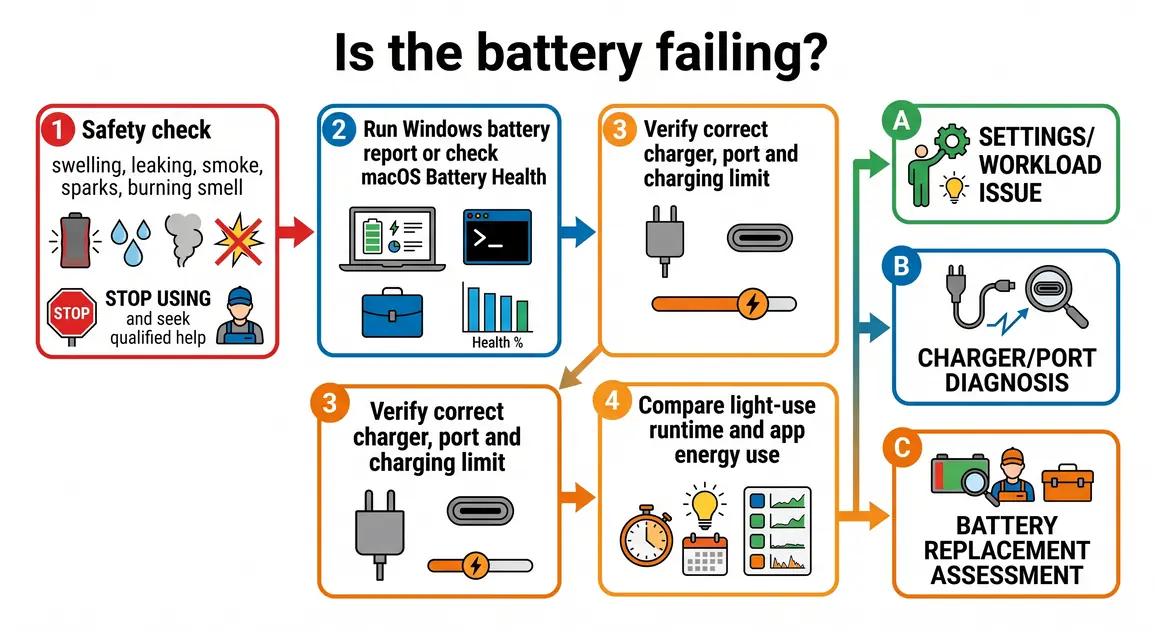
Safe checks when the laptop will not charge properly
Work from the outside in. These checks are reversible and help avoid buying a battery for what is actually a charger or port problem.
Confirm the power source and charger
Plug directly into a known-working wall power point rather than a questionable power board or dock. Inspect the cable and adapter for cuts, bent pins, looseness, scorch marks or excessive heat. Stop using damaged equipment.
Use the original charger or a reputable replacement that meets the laptop manufacturer's required voltage, connector and wattage. USB-C connectors look alike, but cables and adapters support different power levels. An under-powered adapter may charge slowly, only charge while the laptop sleeps, or fail under load.
Check whether the charging port feels loose or the plug must be held at an angle. Do not probe inside the port with metal. If the port is damaged, arrange repair.
Restart and install supported updates
Save your work, restart the laptop and install operating-system and manufacturer firmware updates through official update tools. Updates sometimes correct power-management faults, but they do not reverse chemical wear.
Generic advice to repeatedly uninstall or update the “battery driver” is often overstated. Windows normally manages the Microsoft ACPI battery component itself. If Device Manager shows an error or the problem began after a change, use the laptop manufacturer's troubleshooting instructions or obtain a proper diagnosis rather than installing third-party drivers.
Check for deliberate charging limits
If the battery stops at 60%, 80% or another consistent level, look for Smart charging, a charge threshold or a battery-care mode in Windows, the manufacturer's app or firmware utility. On a Mac, Optimised Battery Charging or battery-health management may delay charging beyond 80%. A deliberate limit protects long-term battery health and is not a fault.
Compare idle and active drain
Open Windows Settings > System > Power & battery > Battery usage, or macOS System Settings > Battery, to see which apps have been consuming energy. Close a runaway app, pause unnecessary syncing and retest under a normal workload. Also reduce screen brightness, disconnect unused accessories and use Windows Energy saver or macOS Low Power Mode when extra runtime matters.
If runtime improves, the battery may still be aged, but workload was part of the problem. If the health report shows low capacity and light use still drains it rapidly, replacement is more likely to help.
What battery “fixes” can and cannot do
A lithium-ion battery loses usable capacity through chemical ageing. No setting, driver, application or full discharge can put that capacity back. Software changes can reduce energy use or correct an inaccurate display; they cannot regenerate worn cells.
Do not routinely run a modern battery flat to “calibrate” it. Microsoft's current advice is to avoid frequent deep discharges and keep the level in a moderate range—roughly 20% to 80%—when practical. That is guidance for reducing future wear, not a rigid daily rule. Use the full charge when you need it.
Some manufacturers publish a specific gauge-reset or calibration procedure for particular models. Follow it only when the manufacturer recommends it for your exact device and only for an inaccurate charge reading. It will not improve the battery's physical capacity.
When battery replacement makes sense
Replacement becomes reasonable when verified capacity loss materially affects how you use the laptop, the manufacturer diagnostic calls for service, or shutdowns persist after charger and software causes have been excluded. Replace promptly if a qualified assessment finds physical damage or an unsafe battery.
The decision also depends on the rest of the computer:
- A sound laptop that still runs supported software can gain useful portable life from a battery replacement.
- If it also has a cracked chassis, failing storage, serious charging-circuit damage or poor performance for your work, ask for a full diagnosis before paying for one part.
- Check warranty, statutory consumer rights and any support plan before opening the case. Unauthorised damage during DIY work may not be covered.
- Back up important files before any hardware repair. Battery replacement should not normally erase data, but accidental damage or an unrelated storage fault can.
Avoid universal dollar estimates. Battery price, availability, adhesive, required disassembly and labour differ widely by model. Obtain a model-specific quote and compare it with the laptop's condition and replacement value.
DIY versus professional laptop battery replacement
A removable external battery with an official manufacturer procedure may be a manageable DIY job. An internal battery beneath a glued or delicate case is a different proposition.
DIY may be reasonable when all of these are true:
- the manufacturer supplies a service manual or supported self-repair procedure for the exact model;
- the battery is not swollen, leaking, overheated or damaged;
- you can identify a genuine or reputable compatible part using the full model or service tag;
- you have the specified tools, a clear workspace and experience with delicate connectors; and
- you accept the warranty and damage implications.
Professional replacement is the safer choice when the battery is internal or adhesive-mounted, the case is already bulging, disassembly crosses fragile cables or other components, the charging fault is uncertain, or the device contains important data without a verified backup. Apple says built-in Mac laptop batteries should be serviced by an Apple Store, Apple Authorised Service Provider, or an eligible repair provider using appropriate parts, while Self Service Repair is intended for people experienced with complex electronics and only covers eligible models and regions.
Do not choose a replacement by physical appearance alone. Match the exact laptop model, battery part number, electrical specification and manufacturer guidance. Avoid suspiciously cheap or untraceable batteries and chargers. The ACCC recommends buying replacements from the original or a reputable supplier and never using a battery intended for a different product.
A professional service should diagnose the battery and charging system, quote the correct part, install it without damaging the device, and test charging and runtime. Ask what part will be used, what warranty applies to the part and labour, how your data will be protected, and how the old battery will be recycled.
How to slow future battery wear
No routine prevents ageing, but a few habits can reduce unnecessary stress:
- Control heat. Use the laptop on a hard surface, keep vents clear and do not leave it in a parked car—especially during Perth's hotter weather.
- Avoid frequent deep discharge. Recharge before empty when convenient.
- Use smart or optimised charging. Keep the manufacturer feature enabled unless you need a full charge for travel or a long day away from power.
- Do not obsess over exact percentages. A moderate range is a practical habit, not a reason to interrupt work constantly.
- For long storage, follow the manufacturer's guidance. Microsoft suggests roughly 40% to 60% in a cool, dry place for Windows devices.
- Use suitable charging equipment. Correct wattage and reputable parts protect both charging performance and safety.
Battery runtime per charge and battery lifespan are different. Energy saver, lower brightness and fewer background apps extend today's runtime. Temperature and charging habits influence how quickly maximum capacity declines over months and years.
Recycle the old laptop battery safely in Perth
Laptop batteries and battery-powered devices do not belong in household rubbish or kerbside recycling because they can be crushed and start fires in collection vehicles or facilities. Do not leave a swollen or damaged battery at an unattended general-purpose drop-off.
B-cycle's current guidance says its collection points do not accept laptop or computer batteries; it directs people to the National Television and Computer Recycling Scheme (NTCRS). Use the official Recycling Near You computer drop-off finder or contact your local council or a qualified repairer before travelling, because acceptance rules can vary. Tell the facility in advance if the battery is damaged or swollen and follow its handling instructions.
A sensible next step
Start with the safety inspection, then run the built-in health check and test the correct charger and power settings. Those results should tell you whether you need better runtime settings, a charging-system diagnosis or a replacement battery.
If the diagnosis is unclear, the battery is internal, or you would rather not open the laptop, Perth Computer Experts can assess the fault and discuss a model-specific repair through its verified laptop battery replacement service. A swollen battery, burning smell, smoke, sparks or repeated thermal shutdowns should be treated as a stop-use issue rather than a booking to postpone.