
Keyboard and Trackpad Replacement: DIY or Call a Perth Pro?
DIY keyboard and trackpad replacement can work well on modular Windows laptops, but MacBooks and Australian consumer law change the equation.
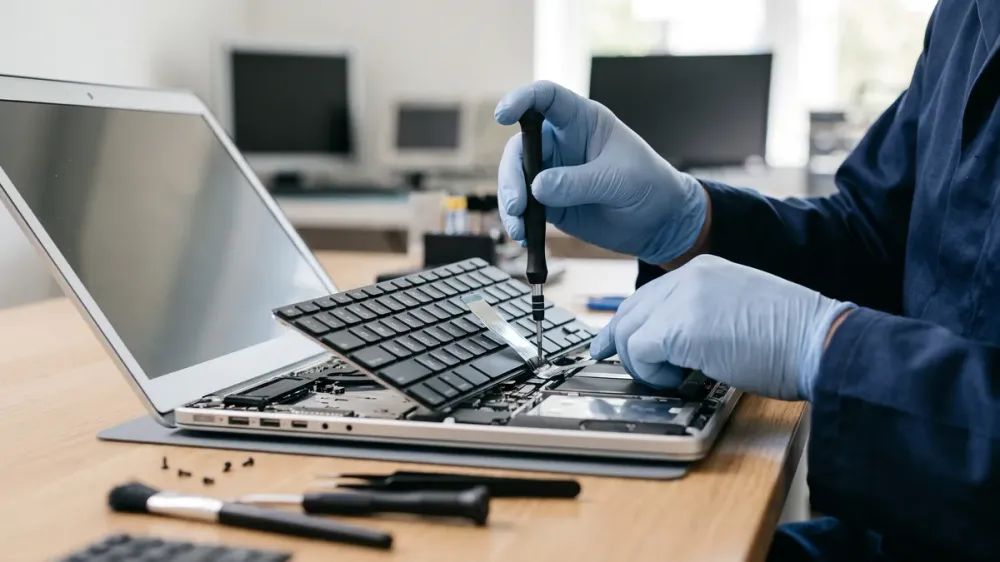
When your laptop's keyboard stops registering a key correctly, or the trackpad cursor jumps around while you're trying to type, cleaning it and restarting rarely fixes the problem for good. Once you've ruled out the easy things, the next decision is whether to open the laptop and replace the part yourself or have someone else do it, and that decision depends heavily on what kind of laptop you actually own.
Windows laptops and MacBooks are built very differently underneath the keys, and that difference changes how realistic a do-it-yourself repair is, what it can cost you if something goes wrong, and what happens to your consumer rights if it does. This guide walks through what a keyboard or trackpad replacement actually involves, when doing it yourself makes sense, when it's safer to book a technician, and how to get it done properly if you're in Perth.
Key takeaways
- A DIY keyboard swap is realistic on many modular Windows laptops, but far harder on unibody MacBooks, where the keyboard, trackpad and battery are one sealed top-case assembly.
- Under Australian Consumer Law, your statutory consumer guarantee rights exist separately from the manufacturer's warranty, even if you attempt a repair yourself.
- The biggest DIY risks are damaged ribbon cables, stripped screws and mismatched replacement parts, not the swap itself.
- Professional repair is usually the safer choice for high-value laptops, MacBooks with integrated top cases, or anyone without the time or confidence to do the job twice.
- Back up your data and fully power the laptop down, disconnecting the battery where the repair guide allows it, before opening the case.
Is it the keyboard, the trackpad, or something else?
Before deciding how to fix it, it's worth confirming what's actually broken. A handful of unresponsive keys or a trackpad that clicks unevenly can sometimes be a software or driver issue rather than a hardware fault:
- Check for pending Windows or macOS updates, since an update can occasionally reset touchpad settings or key mappings.
- Test the keyboard and trackpad in Windows Safe Mode or from macOS Recovery. If the fault disappears there, a driver or setting is more likely the cause than the hardware itself.
- Look for physical clues: a key that feels loose or "spongy", a trackpad that only misbehaves near one edge, or visible liquid residue all point to a genuine hardware fault.
- Plug in an external USB or Bluetooth keyboard and mouse. If those work perfectly, the fault is isolated to the laptop's built-in hardware.
If the problem is consistent, gets worse over time, or started after a spill or a drop, hardware replacement is the realistic next step.
How keyboard and trackpad replacement actually works
The physical repair looks quite different depending on the laptop.
Many modular Windows laptops, including a range of Dell, HP, Lenovo and ASUS models, use a keyboard that sits on its own removable tray or ribbon cable, held down by a small number of screws or clips accessible from the base of the laptop. On plenty of these models, the trackpad is a separate module too, connected by its own ribbon cable.
MacBooks from around 2016 onward, including current MacBook Air and MacBook Pro models, use a unibody "top case" that combines the keyboard, trackpad and internal battery into a single sealed assembly. You generally can't replace just the trackpad or just the keyboard on its own; the whole top case is treated as one part. Apple's official Self Service Repair programme now covers this for eligible 2020-and-later Mac notebooks, but it involves ordering genuine parts and tools directly from Apple and following Apple's own repair manual for your exact model. Modern MacBook trackpads also don't physically click; they use haptic (Taptic Engine) feedback instead, so a "trackpad that won't click" fault on these models points to a component or calibration issue rather than a worn mechanical switch.
DIY replacement: what it actually takes
On a modular Windows laptop, a confident DIYer with a good guide, a precision screwdriver set matched to the exact screw type, a plastic prying tool and an anti-static wrist strap can often complete a keyboard or trackpad swap in an afternoon. The main risks aren't the swap itself, but the details around it:
- Ordering a keyboard or trackpad that isn't an exact match for your model and region; layouts and connector types can vary even within the same model line.
- Tearing or dislodging a ribbon cable connector, which is thin, easily creased and not designed to be reseated repeatedly.
- Stripping small screws, which can make the next repair, including a professional one, harder and more expensive.
- Static discharge damaging sensitive components if anti-static precautions are skipped.
On a MacBook with an integrated top case, DIY replacement is a much bigger undertaking. Apple's Self Service Repair programme makes it technically possible, but it typically means removing most of the internal assembly to reach the top case, and the battery is part of the same unit, so battery handling precautions apply as well. This is realistic for an experienced, patient DIYer, but it's a poor choice for a first hardware repair.
Professional replacement: what you're paying for
A professional repair isn't only about someone else doing the physical work. A technician who regularly handles this repair will typically:
- Confirm the fault is genuinely hardware before ordering a part, avoiding an unnecessary replacement.
- Source a part confirmed compatible with your exact model and keyboard layout.
- Handle ribbon cables, adhesive and small fasteners with practised care, reducing the chance of a second fault appearing during reassembly.
- Complete the repair in a single visit in most cases, rather than the trial-and-error of a first attempt.
For a MacBook top-case replacement in particular, professional or Apple-authorised service also avoids buying a full tool and part kit for a repair you may only ever need once.
Warranty and consumer guarantees: what Australian law says
It's commonly assumed that opening a laptop automatically voids all your rights if something goes wrong later. In Australia, that's not the full picture. The Australian Consumer Law gives you statutory consumer guarantees, covering things like acceptable quality and fitness for purpose, that exist independently of the manufacturer's own warranty terms, and a business can't simply exclude them. Attempting your own repair can still affect the manufacturer's express warranty, and if a DIY repair causes new damage, that new damage is unlikely to be covered by either the manufacturer's warranty or a consumer guarantee claim. In practice, your original keyboard or trackpad fault may still be covered if the laptop is genuinely faulty, but damage you cause while repairing it yourself is a separate question.
DIY or professional? A quick way to decide
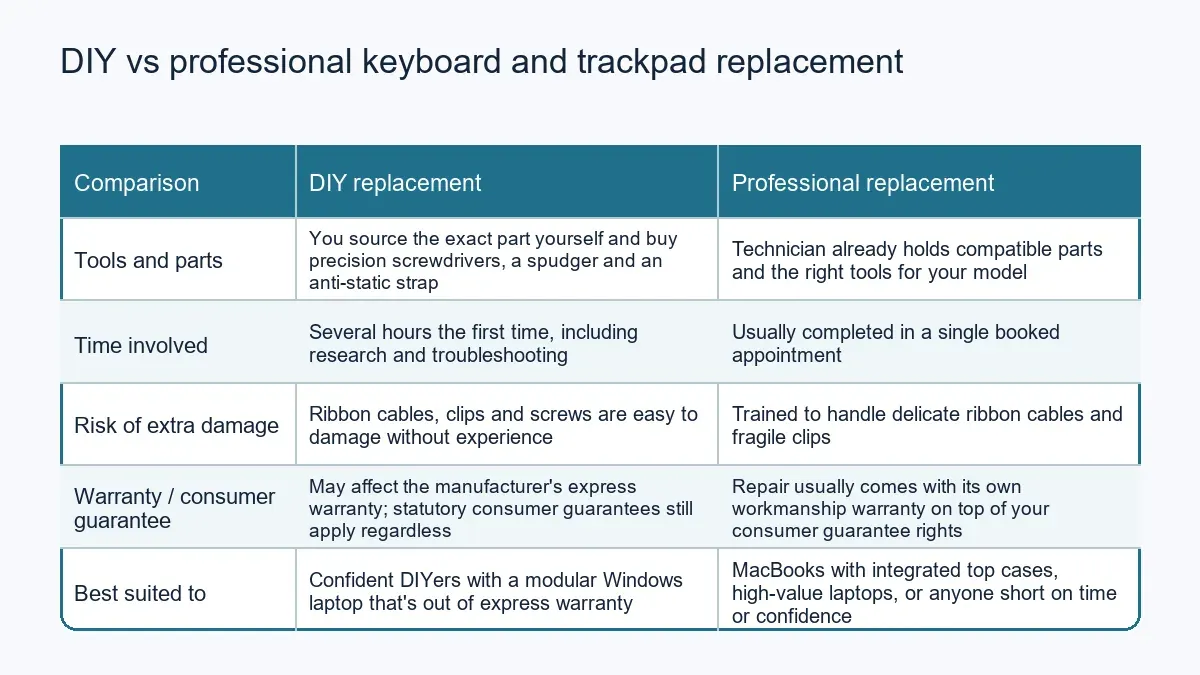
As a general guide:
- Choose DIY if you have a modular Windows laptop, it's out of any express warranty, you're comfortable following a detailed repair guide, and you're not relying on the laptop for work this week.
- Choose professional repair if you own a MacBook or any laptop with an integrated top case, the laptop is high-value or still under warranty, you're short on time, or this would be your first hardware repair of any kind.
Before you open the laptop
If you decide to attempt the repair yourself, take these steps first, regardless of which type of laptop you have:
- Back up your data. A repair that goes smoothly rarely causes data loss, but a slip that damages the logic board or storage connector can. Back up before you start, not after something goes wrong.
- Fully power down the laptop rather than just closing the lid, and unplug the charger.
- Disconnect the internal battery connector, where the repair guide instructs it, before working near the keyboard or trackpad ribbon cables. This reduces the risk of a short circuit if a cable is nicked.
- Work on a clean, static-safe surface, and use an anti-static wrist strap if you have one.
If a factory reset or software reinstall is ever suggested as a fix for a keyboard or trackpad fault, treat it as a last resort. It will erase your personal files unless they're backed up first, and it won't fix a genuine hardware problem regardless.
Getting it fixed in Perth
If the fault turns out to be genuine hardware, or you'd rather not risk a first attempt on your only laptop, Perth Computer Experts' keyboard and trackpad replacement service covers both Windows laptops and MacBooks. It's also worth reading ways to prevent keyboard and trackpad damage once the repair is done, and if the trackpad still feels a little off afterwards, this guide to trackpad sensitivity after a repair covers the most common settings to check before assuming the part itself is faulty.
Whichever way you go, book a repair once you're ready, and mention whether it's a Windows laptop or MacBook so the right part can be sourced in advance.