
How to Roll Back a BIOS Update Safely if Things Go Wrong
A safe, model-specific guide to diagnosing BIOS update problems, preparing for rollback or recovery, and knowing when to stop and get help.
A BIOS update can fix a serious security or compatibility problem, but a bad match for your particular computer can also leave you with crashes, missing devices or a machine that no longer starts normally. The difficult part is that “roll back the BIOS” is not one universal procedure. The safe recovery path depends on the exact computer or motherboard model, the update you installed and whether its manufacturer permits a downgrade.
This guide helps Perth home users and small businesses work out what changed, try the safest reversible fixes first, and decide whether a manufacturer-supported BIOS rollback or recovery is appropriate. It deliberately avoids generic flashing shortcuts: using the wrong firmware file or interrupting a flash can leave a motherboard unable to start.
Key takeaways
- Confirm that the BIOS update caused the problem before attempting another firmware change.
- Back up important files and locate the BitLocker recovery key before changing firmware or security settings.
- Use only the support page and documented recovery method for the exact computer or motherboard model and revision.
- A settings reset is safer than a downgrade and may fix problems caused by changed defaults.
- Stop if the PC has unstable power, important unbacked-up data, an uncertain recovery key or no manufacturer-supported rollback path.
BIOS rollback, recovery and reset are different
People often use “rollback” for three different actions. Knowing which one you need prevents an unnecessary flash.
Resetting BIOS or UEFI settings restores configuration defaults. It can undo changes to boot order, memory profiles, fan settings, Secure Boot or storage-controller modes, but it does not install an older firmware version. This is usually the safest first firmware-related step when the computer can still enter setup.
Downgrading or rolling back firmware installs an earlier BIOS or UEFI version. This may help when a specific new release causes a reproducible fault, but some releases cannot be downgraded. A manufacturer may block rollback because the update contains a security fix, changes another firmware component or depends on a newer internal structure. Dell, for example, says BIOS revisions addressing some Intel security advisories are locked against rollback, while ASUS says downgrade availability depends on the content of the update (Dell BIOS downgrade guidance, ASUS motherboard BIOS guidance).
BIOS recovery repairs corrupted firmware or restores a known-good image when a computer cannot complete its power-on checks. Recovery might use a protected copy, a special key combination, a dedicated USB port or a second BIOS chip. It is not automatically the same as choosing an earlier release. HP notes that many computers can recover the last known-good BIOS, while systems with HP Sure Start use their own automatic protection and do not support all manual recovery methods (HP desktop BIOS recovery).
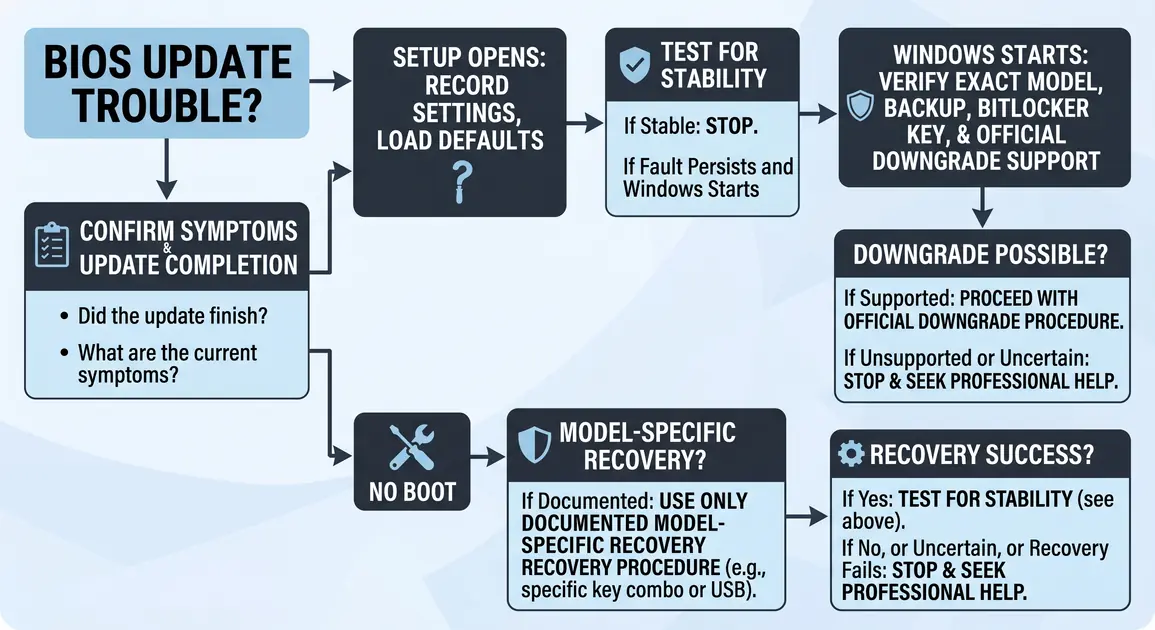
First confirm the BIOS update is the likely cause
A problem appearing after an update is evidence, but not proof. A Windows, driver or application update may have happened at the same time. A hardware fault can also choose an inconvenient moment to appear.
Write down the symptoms before changing anything:
- Did the update complete and show a success message, or was power lost?
- Can the computer reach the manufacturer logo, BIOS setup or Windows?
- Is there a blank screen, beep pattern, flashing diagnostic light or written error code?
- Are crashes limited to one application, or does the whole computer freeze or restart?
- Has a drive, network adapter, graphics card, USB device or other component disappeared?
- Did Secure Boot, TPM, boot order, storage mode, fan behaviour or memory speed change?
If Windows still starts, check the installed BIOS version in System Information: open Start, search for System Information, then note BIOS Version/Date, System Model and BaseBoard Product. For a branded laptop or desktop, also record the service tag, serial number or product number from the case or manufacturer utility. For a custom-built desktop, identify the motherboard’s full model and hardware revision. Similar model names are not interchangeable.
Then read the release notes for both the installed version and the proposed earlier version. Look for known issues, security restrictions, prerequisites and warnings about downgrading. A rollback is most defensible when the fault began immediately after the update, can be reproduced, other likely causes have been checked, and the manufacturer explicitly makes a compatible older version and downgrade method available.
Try the safest reversible checks before rolling back
Start with observation and settings, not another flash.
- Perform one normal shutdown and restart. Some firmware updates need more than one restart to finish device detection. If an update screen is still progressing, do not interrupt it.
- Disconnect non-essential external devices. Leave power, display, keyboard and mouse connected. A problematic USB device or dock can delay startup or confuse the diagnosis.
- Load BIOS or UEFI defaults if setup is accessible. The wording varies—often Load Setup Defaults, Load Optimised Defaults or Restore Defaults. Photograph or record important settings first. Loading defaults does not erase personal files, but it can change boot order, storage mode, Secure Boot, virtualisation, fan curves and memory profiles. A changed storage-controller mode may stop Windows booting, so do not save an unfamiliar change blindly.
- Restore only settings you understand and require. Confirm the Windows boot entry is first. Leave overclocking and XMP/EXPO memory profiles off while testing stability. If BitLocker or device encryption is in use, avoid changing TPM or Secure Boot settings until you have the recovery key.
- Test the original symptom. If the PC is now stable, the update may be fine and a changed default was the real problem.
Clearing CMOS is another settings reset, not a BIOS downgrade. On many desktops it requires opening the case and following the motherboard manual; laptops and compact systems vary greatly. Do not remove parts, bridge pins or open a device unless its official manual gives a procedure you are competent to follow. Disconnecting power does not make every internal component safe to handle, and a power supply unit must never be opened.
Prepare before any BIOS rollback or recovery
Firmware work can cause downtime and may make encrypted data temporarily inaccessible. Complete these checks while the computer still works, or use another trusted computer where necessary.
Protect files and encryption access
Back up irreplaceable files to a separate device or trusted cloud service, then confirm that several files can actually be opened from the backup. A BIOS flash normally does not write to personal files, but a failed boot, changed storage setting or recovery process can prevent access to them.
Check whether BitLocker or Windows device encryption protects the system drive and locate the recovery key before proceeding. Microsoft warns that some non-Microsoft UEFI/BIOS firmware changes require BitLocker protection to be suspended; otherwise the next restart can request the recovery key. Follow the computer manufacturer’s instructions and Microsoft’s supported Suspend protection process rather than decrypting the drive or disabling security permanently (Microsoft BitLocker guidance). Resume protection after the machine is stable.
Stop here if you cannot confirm the recovery key and important data is encrypted. Guessing can turn a repairable firmware problem into a data-access crisis.
Verify identity, firmware and power
Use the official support page for the exact product. Check all of the following:
- computer or motherboard model, including revision where shown;
- current BIOS version and the intended target version;
- whether the manufacturer explicitly supports downgrading between them;
- prerequisites, such as an intermediate BIOS or management-engine update;
- required file name, USB format, port and built-in flashing utility;
- AC adaptor and battery requirements for a laptop; and
- whether recovery is different from normal updating on that model.
Download firmware only from the computer or motherboard manufacturer. Do not use files from driver-download sites, forums, another model with a similar name or a motherboard vendor’s retail page for an OEM computer. Do not modify a BIOS image or use an unofficial tool to bypass a downgrade block.
Use stable power. Keep a laptop connected to its correct AC adaptor and ensure the battery meets the manufacturer’s requirement. For a desktop, avoid starting during a storm, outage or visibly unstable supply. Perth does not change the firmware procedure, but local power interruptions and summer electrical storms are sensible reasons to postpone a non-urgent flash.
Use the manufacturer-supported rollback path
There is no safe brand-neutral sequence beyond preparation because menus, file formats and protections vary. Use the method documented for the exact model, and treat the on-screen instructions as authoritative.
When Windows still starts
Some manufacturers provide a signed Windows installer for an older permitted BIOS. Dell’s current process, for example, begins by identifying the exact product on Drivers & Downloads, choosing the BIOS category, opening Other versions available, downloading the required version and following the installer. Dell also cautions that an unsuccessful downgrade can corrupt the BIOS and that some systems refuse older releases because of security or dependency restrictions (Dell’s official procedure).
Before running any Windows-based updater, close applications, connect stable power, follow the vendor’s BitLocker instruction and do not use the computer while the update runs. Never force shutdown because the display pauses or the fans change speed. Firmware updates may restart the computer several times.
When the computer reaches BIOS or UEFI setup
Many motherboards provide a built-in flash utility that reads a correctly prepared USB drive. Names include ASUS EZ Flash and MSI M-FLASH, but the correct file preparation is model-specific. MSI’s current desktop instructions, for example, require the exact BIOS file on a FAT32 USB drive and warn not to shut down, restart or disconnect devices while flashing (MSI BIOS update guidance). ASUS says an older version may or may not be accepted, depending on the update, so seeing an older download does not prove that it can be installed.
Use only the utility named in the product manual. Do not simply make a USB “bootable” unless the manufacturer specifically requires it; many modern built-in utilities need an ordinary FAT32 drive, while dedicated recovery features can require an exact file name and port.
When the computer will not complete startup
Use the manufacturer’s recovery procedure, not a general rollback tutorial. Depending on the model, this may be automatic recovery, a key combination, a dedicated BIOS FlashBack button or a recovery USB created on another computer.
HP documents automatic and manual recovery on supported systems, including a Windows+B key method and model-specific USB recovery creation, but notes that HP Sure Start systems behave differently. ASUS USB BIOS FlashBack is available only on supported models and requires the specified port, file name and USB layout; ASUS warns not to remove the drive, disconnect power, turn on the computer or clear CMOS while FlashBack is operating (ASUS USB BIOS FlashBack).
Those examples show why copying another model’s keystrokes or renaming rules is unsafe. If the exact manual does not document a no-boot recovery feature, stop and seek the manufacturer’s or a competent technician’s help.
What to do if the rollback is blocked or fails
A refusal message can be a safety control, not an error to defeat. Recheck the exact model, target version, release notes and prerequisites. If the manufacturer blocks the downgrade, keep the supported firmware and look for a later fixed release, updated drivers or a settings-based workaround. Report the reproducible problem to the manufacturer where support is available.
If a flash has started, do not assume it has frozen merely because the screen is blank or the progress indicator pauses. Wait for the duration stated in the model instructions. Do not repeatedly cut power and retry. Once the documented wait and recovery steps have been exhausted, further power cycling can complicate diagnosis.
After a successful rollback or recovery:
- Enter setup and confirm the reported BIOS version.
- Load the manufacturer’s recommended defaults if instructed.
- Restore only the required boot, security, virtualisation, fan or memory settings.
- Start Windows and check Device Manager, networking, storage and the original failing device.
- Run the manufacturer’s hardware diagnostics and test the original symptom under normal use.
- Resume BitLocker protection if it was suspended and confirm protection is active.
- Do not immediately reinstall the problematic update. Monitor the manufacturer’s support page for a replacement release or specific advice.
When to stop and arrange professional help
Stop before flashing if the computer contains important data without a verified backup, the BitLocker recovery key is uncertain, the firmware file does not match the full model and revision, the manufacturer offers no documented path, or power is unstable. Also stop if the device shows liquid exposure, a swollen battery, burning smells, smoke, sparks or repeated thermal shutdowns. Disconnect external power when safe and do not open a power supply or damaged battery enclosure.
Professional diagnosis is also sensible when the PC shows no display or power-on self-test after the documented recovery attempt, the motherboard needs chip-level reprogramming, or a small-business computer cannot tolerate extended downtime. These faults may require spare components, an external programmer or board repair rather than more repeated flashing.
For readers in Perth, computer repairs and troubleshooting can be a practical next step when the safe checks above do not restore a reliable startup. Bring the exact symptoms, model details, current and previous BIOS versions, and any error or diagnostic-light pattern; that evidence makes diagnosis more efficient without pretending a rollback is always the answer.