
How to Encrypt Data Before Uploading It to Cloud Backup
Learn how to encrypt files before cloud backup, choose the right tool, protect your recovery key and confirm that you can restore your data.

Uploading a file to the cloud does not necessarily mean that only you can decrypt it. Many services encrypt data while it travels and while it sits on their servers, but the provider may still control the keys. If you want an extra privacy boundary, encrypt the files on your computer before the cloud service receives them.
That extra control comes with a serious responsibility: if you lose the vault password, key or required recovery information, the cloud provider usually cannot recover the encrypted files for you. This guide explains the practical options for households, remote workers and small businesses, then walks through a safe setup and restore test.
Key takeaways
- Client-side encryption protects file contents before they leave your device, but it can reduce previews, searching, sharing and recovery assistance.
- A cloud-friendly encrypted vault is usually the easiest option for files that change often; an encrypted archive suits occasional snapshots.
- BitLocker and FileVault protect local drives, not ordinary cloud copies after a sync application reads the unlocked files.
- Keep recovery information separate from the encrypted backup, enable MFA on the cloud account and test a restore before relying on the system.
- Encryption improves confidentiality, but a resilient backup still needs version history or another offline or isolated copy.
What pre-upload encryption does
Encryption converts readable data into ciphertext that cannot be interpreted without the correct key. With client-side encryption, that conversion happens on your device. The cloud service receives encrypted file contents rather than the originals. Depending on the tool, file and folder names may also be concealed.
This is different from two common provider protections:
- Encryption in transit protects traffic between your device and the provider.
- Encryption at rest protects data on the provider's storage systems.
Those protections are valuable, but they do not answer every trust question. A provider-managed system may hold the decryption keys so that its service can generate previews, index content, scan files or help recover an account. Client-side encryption limits what the provider can read because you retain the secret needed to unlock the data.
It does not make an unsafe computer safe. Malware running while your vault is unlocked may be able to read or alter the same files you can. Nor does it protect an unlocked copy that you export elsewhere. Encryption is one layer in a wider backup and account-security plan.
Decide what you need to protect
Start with the data rather than a product list. Identify files that would cause real harm if exposed: identity documents, tax and financial records, password exports, family records, client material, business accounts and confidential working files. Avoid collecting or backing up sensitive data that you do not need.
Then decide how the backup will be used:
- Regularly edited files: choose a tool that encrypts individual files inside a cloud-synchronised vault. Small changes can then sync without rebuilding one enormous archive.
- Occasional snapshots: an encrypted archive can be simple for a dated collection that will rarely change.
- A complete computer backup: use backup software that explicitly offers client-side or private-key encryption, version history and tested restoration. A cloud storage sync folder is not automatically a full backup.
- Local device theft protection: use full-drive encryption as well, but treat it as a separate control.
For a Perth household, a straightforward plan might cover personal documents and photos while leaving replaceable downloads outside the encrypted set. A small business should also identify who needs access, how access will be removed when a person leaves, how long versions must be retained and who is responsible for restore testing. Legal or contractual requirements vary with the data and industry, so encryption alone should never be described as automatic compliance.
Choose the right encryption approach
Cloud-synchronised encrypted vault
A vault tool such as Cryptomator is designed to place encrypted data in a folder synchronised by a separate cloud application. Its current vault documentation explains that the vault appears as a virtual drive when unlocked, while encrypted data stays in the chosen cloud-synced directory. This is a practical choice when you edit files regularly and want the cloud client to upload encrypted versions.
Advantages include incremental synchronisation and normal file handling while the vault is open. Trade-offs include reliance on compatible software on each device, extra care during sync conflicts and limited cloud-side previews or search. The cloud provider may still see metadata such as the account, transfer timing and approximate storage use even when the tool conceals file contents and names.
Encrypted archive
7-Zip documents AES-256 encryption in the 7z format. An archive is useful for a small, stable batch of records or a periodic snapshot. When creating one, encrypt file names as well as contents if the interface offers that option; otherwise, names may reveal sensitive information.
An archive becomes awkward when files change frequently. A small edit can require a large archive to be rebuilt and uploaded again. A single damaged archive can also affect access to many files, so keep tested copies and avoid treating one large container as the only backup. Recipients also need compatible software and the password through a separate channel.
Encrypted container or volume
VeraCrypt creates an encrypted volume that behaves like a drive after it is mounted. Its official introduction states that file names, folder names, contents and file-system metadata inside the volume are encrypted. This can suit an advanced user who needs a portable container, but cloud synchronisation of a large container can be inefficient and conflicts can be difficult to resolve.
Do not open the same synchronised container for writing on two computers at once. Let the cloud application finish synchronising before opening it elsewhere, and test the actual workflow with non-critical data first. For files edited every day across several devices, a file-by-file vault is usually easier to manage.
Full-drive encryption is complementary
Microsoft describes BitLocker as drive encryption that protects data from offline access, especially if a device or drive is lost or stolen. Apple similarly describes FileVault as protection for the Mac startup disk. These are worthwhile controls, and their recovery keys must be stored safely.
However, when you sign in and a drive is unlocked, applications can read its files. A normal OneDrive, Dropbox or other sync client can therefore upload readable copies, which the cloud service then protects under its own encryption model. BitLocker or FileVault alone is not the same as encrypting a file for cloud storage. Use client-side file encryption when that is the protection you require.
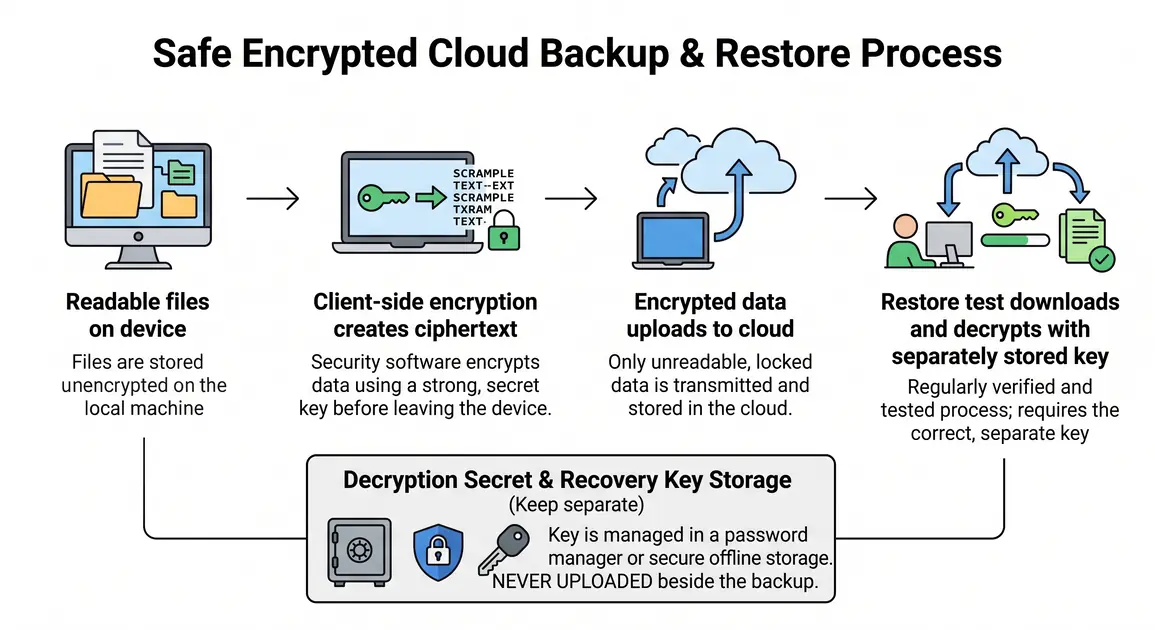
How to encrypt files before cloud backup
The precise buttons vary by tool and version, but the safe workflow is consistent. Complete the first setup with non-critical test files before moving important data.
1. Confirm the original data is healthy
Open a sample of the files you intend to protect. Check that they are readable and that you have enough local storage for temporary copies. If important data exists only on a failing drive, stop and address recovery first; encryption or bulk copying can place extra load on damaged storage.
2. Install a supported tool from its official source
Choose software that is actively maintained, works on every device needed for recovery and documents its encryption and recovery model. Download it from the developer's official site or a trusted operating-system store. Keep the application updated, but do not remove an older working version until you know a new version can open the existing vault.
For frequent cloud-synchronised work, create the encrypted vault inside the folder managed by your cloud application. Remember that the encryption tool and cloud synchronisation tool have separate jobs: one encrypts; the other uploads. For an archive, create it outside the sync folder first, confirm it opens, then copy the finished encrypted archive into the cloud folder.
3. Create a strong, unique vault password
Use a long, unique passphrase that is not reused for email, Microsoft, Google, Apple or the cloud provider. Store it in a reputable password manager. If the tool supplies a recovery key, record it exactly and follow the developer's instructions. A recovery key is effectively another way into the vault, so do not leave it in the same cloud folder as the encrypted data.
Lockout warning: do not delete the unencrypted source or make the encrypted copy your only backup until you have proved that the password and recovery information work on a second restore path. Providers and technicians cannot reconstruct strong encryption keys from memory or account ownership.
4. Add files and allow encryption to finish
Copy a small test set into the unlocked vault, or build a small encrypted archive. Close or lock the vault cleanly when finished. Allow the cloud client to complete its upload; do not shut down the computer or disconnect a drive while either encryption or synchronisation is still writing.
Inspect the cloud account through a browser. You should see encrypted vault data or the encrypted archive, not readable originals. Do not rename, reorganise or edit Cryptomator's encrypted internal files through the cloud website because those structures belong to the encryption tool.
5. Test a restore independently
A successful upload is not a successful backup until restoration works. Download the encrypted test data into a different folder or, preferably, onto another supported device. Install the required application from its official source, unlock the copy and open several restored files.
Record the recovery steps in plain language, including which application is required and where authorised people can find the password or recovery key. Do not put the secret itself in the procedure. For a small business, assign an owner and repeat the test after material software, provider or staff changes.
6. Move into normal use gradually
Once the test succeeds, add important files in manageable batches. Check that each upload completes and periodically restore a sample. Keep at least one independent copy while migrating. Only remove redundant unencrypted copies after you have confirmed they are no longer required and that doing so will not leave you with a single recoverable copy.
Secure the cloud account and encryption keys
Pre-upload encryption does not protect the availability of a backup if an attacker deletes it. Protect the cloud account with a unique passphrase and multi-factor authentication. The Australian Cyber Security Centre recommends MFA for cloud backup accounts and regular restore tests. Review recovery email addresses, signed-in devices and sharing links as well.
Keep these items separate:
- the encrypted backup data;
- the vault password in a password manager;
- any recovery key in another controlled location; and
- an offline or otherwise isolated backup where appropriate.
Do not follow a calendar rule that forces arbitrary password or key changes. Change a secret when it may have been exposed, when access responsibilities change, or when the product's documented process requires migration. Unplanned key changes can create lockouts or leave old backup sets unreadable.
If several people need access, do not share one password casually through email or chat. Use a product designed for controlled team access, document who can recover the data and remove access promptly when roles change. Larger or regulated environments need specialist governance beyond a household vault.
Keep the backup recoverable from ransomware and failure
Cloud encryption and backup resilience solve different problems. Synchronisation can faithfully copy an accidental deletion, damaged file or ransomware-encrypted version to the cloud. The ACSC advises keeping an offline backup or using a service with older versions and ransomware recovery, then checking that files can be restored.
A practical hybrid arrangement combines:
- working files on the computer;
- an encrypted cloud backup with useful version history; and
- a separate encrypted copy that is offline, disconnected or otherwise isolated from the everyday account.
This is the useful core of a hybrid backup for a household or small business. It does not require enterprise infrastructure. A NAS can be one local destination, but a continuously connected NAS may also be reachable by malware or a compromised account. Keep its software current, restrict access and do not count it as an offline copy unless it really is isolated. Perth Computer Experts' NAS setup and shared storage service explains the local storage option for households that need a central backup destination.
Set backup frequency from the amount of work you can afford to lose, not a generic daily or weekly rule. Also check retention, deletion protection, download charges, supported file sizes, device compatibility, account recovery and the provider's exact client-side or zero-knowledge claims. Product names and pricing change; requirements and a restore test are more durable than a ranked list.
Common mistakes that undermine encrypted backups
- Confusing sync with backup: a sync service may reproduce deletion or corruption. Confirm version history and restore behaviour.
- Assuming BitLocker or FileVault encrypts the cloud copy: it protects the drive while locked, not files read by a signed-in sync application.
- Uploading the password beside the data: keep secrets and recovery information separate.
- Keeping only one encrypted container: corruption, a forgotten password or a sync conflict can make that copy unusable.
- Never testing recovery: opening files inside the original vault does not prove a cloud download can be restored elsewhere.
- Encrypting everything without a plan: extra complexity can hide duplicates, consume storage and make family or staff access difficult. Protect data according to sensitivity and recovery needs.
- Changing encrypted structures in the web portal: editing a vault's internal ciphertext files outside its application can damage the vault.
- Leaving the vault unlocked: lock it when finished, especially on shared computers, and keep devices protected and updated.
What to do if access or security goes wrong
If you forget a password, stop guessing before any password-manager or account lockout limit is reached. Check the tool's official recovery process and your stored recovery key. Work on a copy if a vault appears damaged; do not run repair utilities or delete unfamiliar vault files until you understand the consequence.
If you see unknown sign-ins, unexpected sharing changes, mass file changes or a ransom demand, treat it as an active security incident. Disconnect the affected device from the network, avoid signing in from a possibly compromised computer and preserve logs or alerts. Use a known-clean device to secure the cloud and email accounts, revoke unfamiliar sessions and contact qualified help. Australian users can follow the ACSC's ransomware guidance and report a cybercrime through the official channels it identifies.
Do not overwrite the last known-good backup during investigation. Restoration should happen only after the affected environment is understood and clean enough not to encrypt or corrupt the restored data again.
Build a system you can actually recover
The right setup is not the one with the longest algorithm list. It is the one that encrypts sensitive files before upload, keeps the keys available to authorised people, protects the cloud account and survives a realistic restore test. Start with a small test vault, document the recovery path and add an independent backup before trusting it with irreplaceable data.
If you are unsure whether a current cloud folder is a true backup, or need help designing a manageable encrypted backup for a Perth home or small business, Perth Computer Experts can help assess the existing setup and configure a recovery process without turning the article's general guidance into a one-size-fits-all plan.