
How Hackers Use Malware to Steal Your Banking Information
Learn how banking malware steals financial details, which warning signs matter, and the safe steps Australians should take if an account may be compromised.
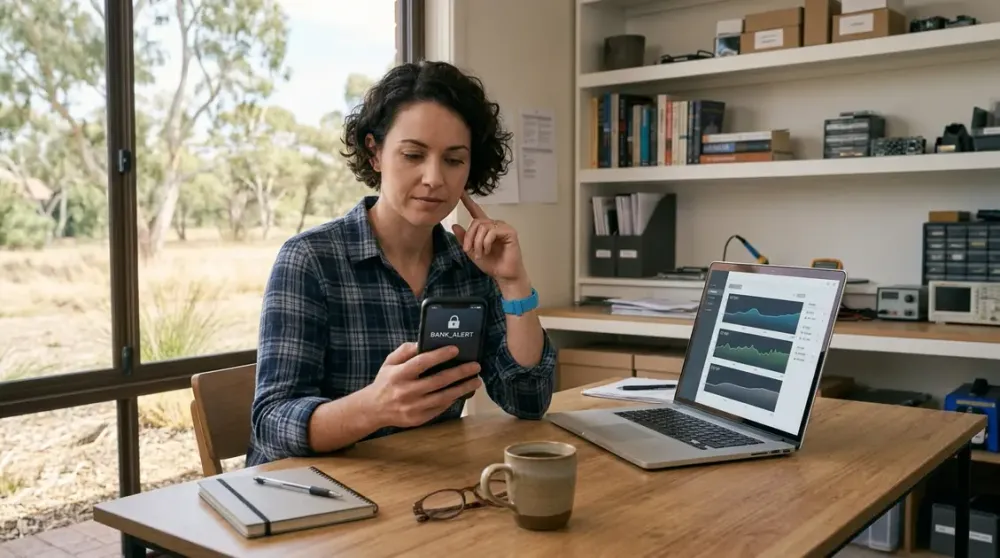
A banking login can look completely normal while malicious software records what you type, alters what your browser shows, or steals an active session in the background. That is why banking malware is more serious than an annoying pop-up—and why a slow computer alone is never proof that your bank account has been breached.
This guide explains how banking malware works, the warning signs that matter, how to reduce your risk, and what to do if money or account access may already be at risk. The response steps are written for Australian home users, remote workers and small businesses, with the urgent actions placed first.
Key takeaways
- Banking malware may steal passwords, record keystrokes, show fake login overlays or interfere with an authenticated banking session.
- Unrecognised transactions or bank security alerts are stronger evidence of compromise than general computer slowness.
- If money may be at risk, contact your bank immediately using an independently verified number—do not wait for a malware scan.
- Change important passwords from a known-clean device, enable multi-factor authentication and secure the affected computer before using it for banking again.
- Report cybercrime through ReportCyber and scam-related incidents to Scamwatch.
How malware can steal banking information
Malware is software designed to perform an unwanted or harmful action. “Banking malware” is a useful umbrella term for malicious programs that target financial credentials, payment details or banking sessions. It is not one single product or technique.
The theft can happen at several points in the banking journey:
- Before you sign in: a fake message or page collects your username, password and personal information. Phishing is a social-engineering method rather than malware itself, but phishing links and attachments are common delivery routes.
- While you type: a keylogger records keystrokes. More capable spyware may capture clipboard contents, browser data or screenshots.
- On the screen: malicious software on a computer or mobile can display a convincing fake form over a genuine app or page. The victim enters details into the attacker’s overlay.
- Inside the browser session: a banking Trojan can monitor or manipulate browser activity. Some malware targets session cookies or an already authenticated session, so a stolen password is not the only concern.
- Through remote control: malware or scam-installed remote-access software can let another person observe the screen and operate the device. A scammer may persuade the victim to approve a transfer while hiding or misrepresenting what is happening.
- Through stolen identity data: names, addresses, identity documents, email access and saved payment details can support account recovery fraud or identity crime even when the banking password itself was not captured.
Ransomware belongs in the broader malware picture, but its primary effect is usually encrypting files or stealing data for extortion. It should not be described as a typical method for “holding a bank account hostage”. If ransomware appears, stop using the affected device and follow specialist incident-recovery advice.
How banking malware reaches a device
Most infections need either a user action, an exploited vulnerability or abuse of existing access. Common routes include:
- opening an unexpected attachment or enabling content in a malicious document;
- installing cracked software, fake updates, browser extensions or apps from untrusted sources;
- following a link in an email, text message, social post or advertisement to a fake download or login page;
- using software with an unpatched security flaw;
- connecting an unknown or infected removable drive; and
- granting remote access to someone who called or messaged unexpectedly.
A padlock or HTTPS does not prove that a site is genuine. It only indicates that the connection to that site is encrypted; criminals can also obtain certificates for deceptive domains. For banking, open the official app yourself or type a known address rather than following a link in a message. Check the whole domain carefully, not just a familiar word or logo.
Phones deserve the same attention as laptops. Mobile banking malware can arrive through malicious apps, sideloaded packages, accessibility-service abuse or fake overlays. Install apps from the official store, but still check the developer, reviews, permissions and whether the app was reached through an unsolicited message. Do not approve an unexpected MFA prompt just because it appears on your own phone.
Warning signs: device trouble versus account compromise
Malware is designed to hide, and many symptoms have innocent explanations. A slow or crashing computer may have failing storage, low free space, too many startup programs or an ordinary software fault. Pop-ups may come from browser notification permissions rather than a deep infection. Treat these as reasons to investigate, not proof of banking theft.
Possible device warning signs include:
- security software is unexpectedly disabled or cannot update;
- browser searches redirect, the home page changes, or unfamiliar extensions appear;
- unknown programs, apps or administrator accounts appear;
- repeated fake security warnings or pop-ups occur outside the expected website;
- the mouse moves, windows open or settings change without your input; or
- the device behaves unusually soon after an attachment, download or remote-support session.
Financial and identity warning signs are more urgent:
- transactions, payees or card purchases you do not recognise;
- an unexpected password reset, MFA prompt or new-device notification;
- a bank alert about a login, location or device that is not yours;
- being locked out despite using the correct details;
- changes to contact information or transaction limits; or
- messages from contacts saying your email or social account is sending scams.
The Australian Cyber Security Centre lists unrecognised activity, unexpected password resets, unfamiliar login details and provider alerts among the signs of a compromised financial account. Even without visible transactions, leaked login details should be treated as a compromise.
What to do if your money or banking account may be at risk
Do not spend an hour scanning the computer before calling the bank. If there is an unrecognised transaction, a suspicious login, disclosed credentials, remote-access scam or reason to think a transfer is underway, use this order.
1. Stop banking on the affected device
Close the banking session if you can do so without entering more credentials. Disconnect the suspect computer from Wi-Fi or unplug its network cable. If a scammer has remote access, end the call and disconnect immediately. Do not reconnect merely to download a tool.
Disconnecting can interrupt malicious communication, but it does not reverse theft or prove the device is clean. Leave the device powered on if important volatile evidence may matter to a business investigation; a small business with a serious incident should obtain professional advice before making broad changes.
2. Contact the bank immediately
Use the number printed on your card, shown in the bank’s official app, or published on a website you navigate to independently. Do not use contact details from the suspicious message or caller. Tell the bank what happened, when it happened, whether you installed software or allowed remote access, and which transactions are disputed. Follow its instructions about freezing cards or accounts.
If an online payment service is linked to a card or bank account, contact both the payment provider and the relevant financial institution. Keep reference numbers, screenshots or message details where safe, but do not delay the call while collecting evidence.
3. Secure your accounts from a known-clean device
Use a different, trusted phone or computer. Start with the email account connected to banking and password resets, then the bank and other high-value accounts. Go directly to each official app or website rather than using password-reset links in messages.
Change reused or exposed passwords to unique passwords or long passphrases. A password manager can generate and store different credentials for each service. Enable the strongest multi-factor authentication method each service supports. MFA reduces risk, but it is not absolute protection: never share a one-time code, approve an unexplained prompt or follow a caller’s instructions to move money.
Review account recovery email addresses, phone numbers, logged-in devices, forwarding rules and authorised apps. Sign out unknown sessions where the provider offers that control. Ask the bank before changing anything that could interfere with its investigation.
4. Preserve details and report the incident
Write down the timeline, caller numbers, message addresses, links, payment details and actions taken. Avoid repeatedly opening malicious files or revisiting suspect sites to gather evidence.
Report cybercrime through ReportCyber and report scams to Scamwatch. If identity documents or personal details were exposed, consider contacting IDCARE for identity and cyber support. Be wary of anyone who promises to recover stolen money for an upfront fee; recovery scams often target people after an initial loss.
How to clean and recover the affected computer safely
Account containment and device clean-up are related but separate jobs. A scan can remove known malware, but it cannot tell you whether credentials were already copied or whether the bank has stopped a payment.
On a Windows 10 or Windows 11 PC, Microsoft says Windows Security provides quick, full, custom and Microsoft Defender Offline scans. Update security intelligence when it is safe to reconnect, run a full scan, and consider the offline scan if you are concerned about persistent malware. Save open work first: an offline scan restarts the computer. Review Protection history and follow the product’s quarantine or removal guidance.
If another reputable security product is installed, follow its official instructions rather than running multiple real-time antivirus products together. Never disable protection or add an exclusion because a caller, pop-up or unknown program tells you to do so.
Seek professional help if security tools will not run, malware returns, remote access was granted, administrator accounts changed, important business data is involved, or you cannot establish a trustworthy clean state. Do not return the computer to online banking simply because one scan reports no threats.
A reset or operating-system reinstall may be appropriate for a seriously compromised machine, but it is a destructive last resort—not the first response. Before any reset or reinstall, verify backups, software licences, account access and BitLocker or other recovery keys. The process may remove applications, settings and files. If those items are uncertain, stop and get help.
Backups used for recovery should pre-date the infection and be scanned before restoration. Restoring every executable or unknown installer can reintroduce the problem. A business should also check other devices and accounts that shared credentials, files or remote-management access.
How to reduce the chance of banking malware
No single product prevents every incident. Use layers that make infection, account takeover and fraudulent transfers harder:
- Install updates promptly. Keep the operating system, browser, apps, security software and phone current. Remove software that is no longer supported.
- Keep real-time protection and the firewall enabled. Windows Security is built into supported Windows versions; another reputable security suite may be appropriate, but avoid unknown “cleaner” tools promoted by pop-ups.
- Use unique credentials. Store long, unique passwords or passphrases in a reputable password manager. Reuse turns one stolen password into access to several accounts.
- Turn on MFA. Protect email, banking, cloud storage and business administration accounts. Prefer phishing-resistant options when the service provides them.
- Open banking independently. Use a bookmarked official page or the official app. Do not sign in through a link supplied by an unexpected email, text, search advertisement or caller.
- Treat requests for secrecy or urgency as warning signs. A legitimate organisation will not require you to transfer money to a “safe account”, reveal a password, or install remote-control software to stop fraud.
- Limit app and browser permissions. Remove extensions you do not recognise and question accessibility, screen-sharing, device-administrator and notification permissions.
- Back up important files. Keep at least one protected backup that is not continuously writable from the computer. Test that important files can be restored.
- Turn on transaction and login alerts. Alerts do not prevent theft, but they can shorten the time before you notice and respond.
Public Wi-Fi is not automatically a direct route into a bank account, and a VPN is not a cure for malware or phishing. Modern banking connections use encryption, but a hostile network, fake hotspot or compromised device can still create risk. For a sensitive transaction, use a trusted network or mobile connection, confirm the destination carefully and avoid proceeding if the device shows certificate warnings or unexpected login behaviour.
When professional help makes sense
For a Perth household or small business, professional support is sensible when the device cannot be trusted, the infection persists, a scammer had remote control, or a safe reinstall and recovery would be difficult. Perth Computer Experts’ verified home computer repairs and support page includes help for virus, malware and strange computer behaviour.
Technical clean-up cannot freeze a transfer or investigate bank fraud, so contact the bank and Australian reporting services first. Once the urgent financial steps are underway, a technician can help assess the computer, remove malicious software and plan a safe recovery without making unsupported promises about recovering money or data.