
DIY Hard Drive Data Recovery: What Perth Users Can Safely Try
A Perth guide to telling logical from physical hard drive damage, trying safe DIY recovery steps, and knowing when to call in a professional.
Your laptop refuses to boot the morning an assignment is due, or a small business hard drive that held two years of invoices suddenly disappears from File Explorer — the panic is the same either way. Before you assume everything is gone, it helps to know that a lot of hard drive data loss is recoverable, and some of it you can genuinely attempt yourself with the right approach.
Not every hard drive problem needs professional intervention, but not every one is safe to attempt at home either. Get the diagnosis wrong — for example, by continuing to use a failing drive, or running a disk-repair tool before you've recovered your files — and a recoverable situation can become a permanent loss.
This guide walks Perth home users and small businesses through how to tell logical damage from physical damage, the tools worth trying for straightforward cases, the order to do things in, and when the safest and cheapest option is actually to stop and call a professional.
Key takeaways
- Whether DIY recovery is realistic depends on whether the damage is logical (file system or software) or physical (mechanical) — the wrong approach on a physically damaged drive can destroy the data for good.
- If a hard drive is clicking, grinding, or not spinning up, stop using it immediately and get professional help rather than attempting DIY recovery.
- For logical damage, recovering files means connecting the drive as a secondary drive, running data recovery software, and saving anything you find to a different drive.
- Disk-repair tools such as chkdsk and Disk Utility fix the file system — they are not data recovery tools, and running them before you've recovered your files can overwrite the data you're trying to save.
- Regular, disconnected backups are the most reliable way to avoid being in this position again.
What actually causes a hard drive to fail
"Hard drive" in this guide means a traditional mechanical hard disk drive (HDD) — a sealed unit with spinning magnetic platters and a moving read/write head, commonly found in desktop PCs, older laptops, external drives, and NAS units. If your device actually uses a solid-state drive (SSD), the general order of operations below still applies, but some of the physical failure symptoms don't — see the FAQ for more on that difference.
A hard drive can stop giving up its data for a few different reasons:
- Accidental deletion or formatting — the files are gone from view, but often still physically present on the disk until something else overwrites them.
- Logical or file-system damage — the drive's internal index of where files live becomes corrupted or unreadable, while the physical drive itself is undamaged.
- Physical damage — drops, knocks, water exposure, power surges, or a component such as the motor or read/write head wearing out or failing outright.
- Malware or ransomware — malicious software can corrupt, encrypt, or delete files, and ransomware in particular can target any backup drive left connected at the time. If you suspect malware is involved, get the device checked by our malware and virus removal team before you trust it with anything else.
Is this a DIY job, or time to call a professional?
The single most useful thing you can do before attempting anything is work out whether you're dealing with logical damage or physical damage.
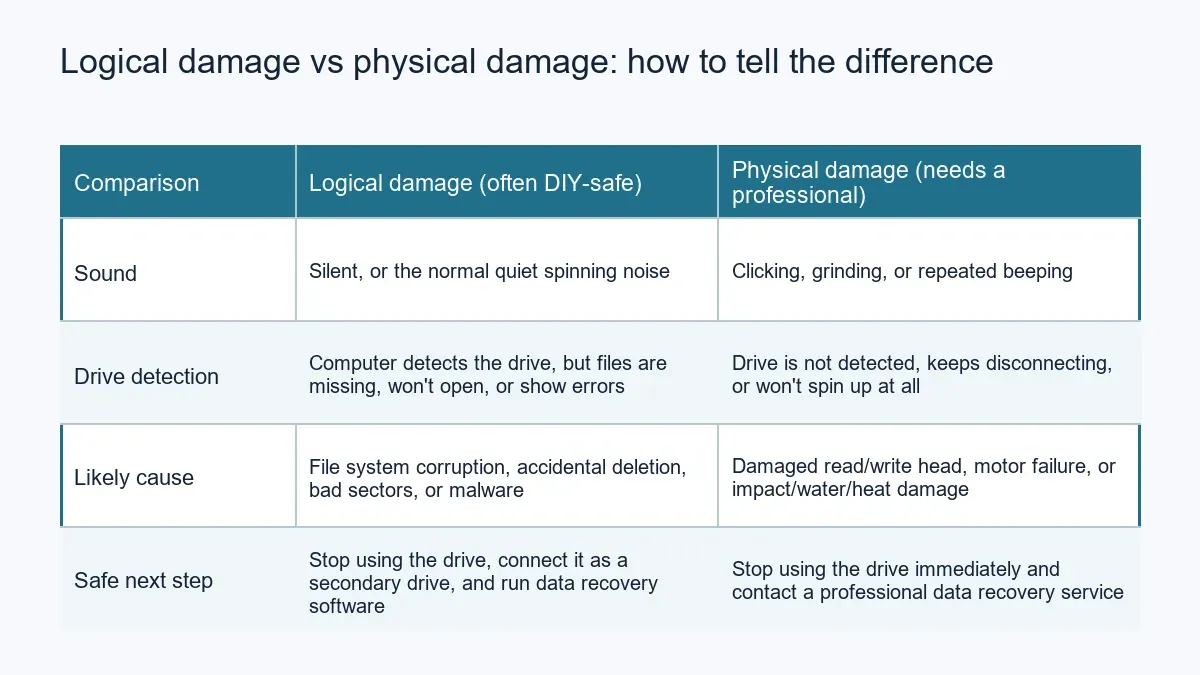
If the drive spins up, is detected by your computer, and the real problem is that files are missing, won't open, or the drive asks to be formatted, that's usually logical damage — a reasonable candidate for the steps below. If the drive makes clicking, grinding, or repeated beeping noises, doesn't spin up at all, keeps disconnecting, or has visible damage from a drop, knock, or water exposure, stop using it immediately. Every extra power-on cycle on a mechanically failing drive risks making the damage worse and reducing what a professional can ultimately recover.
What you need before you start
- A second, working computer to run the recovery from — never attempt recovery software on the same drive you're trying to recover.
- A USB-to-SATA/IDE adapter or an external hard drive enclosure, so the affected drive can be connected as a secondary drive rather than booted as the main one.
- Enough free space on a different drive or external storage to hold everything you recover.
- A block of uninterrupted time — scanning a large or failing drive can take several hours.
- A plan to stop immediately if anything gets worse: new noises, overheating, or the drive dropping out partway through.
Step-by-step: recovering files from a hard drive with logical damage
- Stop using the affected drive immediately. The moment you suspect a problem, avoid saving new files, installing anything, or even browsing on it — new writes can overwrite the deleted or damaged data you're trying to recover.
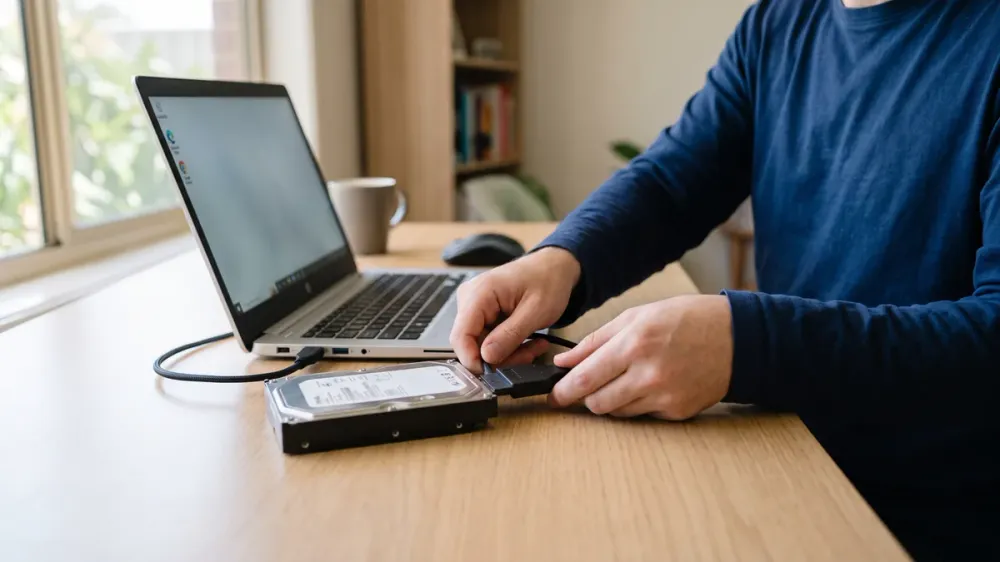
- Connect it to a different, healthy computer. Using a USB-to-SATA/IDE adapter or an external enclosure, connect the affected drive to a working computer so it's treated as a secondary drive, not the system drive.
- Run a scan with data recovery software. Install the software on the healthy computer — never on the drive you're recovering — then point it at the affected drive and let it complete a full scan. Recuva is a free, well-known option that handles straightforward cases, such as an accidentally deleted file on an otherwise healthy drive, reasonably well. For more extensive corruption or larger amounts of data, a paid tool with deeper scanning may find more; look for one that lets you preview recoverable files before you pay, so you can confirm it has actually found what you need.
- Save anything recoverable to a different drive. Never save recovered files back onto the drive you're recovering from — you risk overwriting data you haven't found yet.
- Only then, consider a disk-repair tool — and only on a drive that's purely logically damaged. Windows' chkdsk (with the
/for/roptions) and macOS's Disk Utility First Aid can fix file-system errors, but they repair or rewrite the file system rather than recover files. On a drive with bad sectors, they can permanently erase whatever was stored there. Run this step only after you've already recovered what you can, and never on a drive that's clicking, grinding, or otherwise showing signs of physical damage.
Mistakes that can turn a recoverable drive into a lost cause
- Continuing to use the drive normally, hoping the problem sorts itself out.
- Saving recovered files back onto the same drive you're recovering from.
- Reformatting the drive as a first step. Formatting rewrites the file system and can make recovery far harder or impossible — it is not a recovery method.
- Running chkdsk, Disk Utility, or similar repair tools before attempting recovery, especially on a drive with any physical symptoms.
- Relying on a recovery tool with no way to preview files before paying, since there's no way to confirm it actually found anything.
- Opening the drive's casing at home. Hard drive internals need a dust-controlled environment; opening the case outside one usually causes more damage than it fixes.
Preventing the next data loss
The most effective protection against hard drive data loss is a backup you never have to think about. The Australian Cyber Security Centre recommends keeping regular backups and disconnecting the backup drive once it's finished, so that a ransomware infection or other malware on your main device can't spread to it. In practice, that means:
- Backing up important files automatically to a separate drive, a NAS, or a cloud storage service, rather than relying on remembering to do it manually.
- Keeping at least one backup disconnected from your network or computer when it's not actively backing up.
- Testing occasionally that a backup can actually be restored, not just that it exists.
If you'd like help setting up backups that run in the background without you having to manage them, our team can talk you through backup options for home and small-business use.
Getting professional help in Perth
If your drive is showing any signs of physical damage, or a couple of DIY attempts haven't turned up what you need, it's time to stop rather than keep experimenting. Continuing to try fixes on a mechanically failing drive is one of the easiest ways to turn a recoverable situation into an unrecoverable one.
Perth Computer Experts offers data recovery and backup services for home users and small businesses across Perth. If you're not sure which category your drive falls into, or DIY recovery hasn't worked, get in touch and we can talk through what's realistic before anything else happens to the drive.