
External Hard Drive Failure: Causes, Safe Fixes and Recovery
Learn why external HDDs and SSDs fail, what is safe to check, when recovery software can help, and when to stop before data loss gets worse.

When an external drive stops appearing, asks to be formatted or starts making an unfamiliar noise, the most important decision is not which repair button to click. It is whether the fault is safe to investigate at all. A sensible first step can preserve recoverable files; repeated scans, repairs or power cycles can make a failing drive harder to recover.
This guide explains the common causes of external hard drive failure, the signs that separate a connection problem from a serious hardware fault, and the safest order for troubleshooting. It also covers when recovery software is appropriate, why CHKDSK and formatting should not be your first response, and how Perth home users and small businesses can prevent one failed drive from becoming a data-loss emergency.
Key takeaways
- Stop using the drive if it clicks, grinds, overheats, smells burnt, has liquid damage or contains irreplaceable files with no other copy.
- Rule out a cable, USB port or power issue before assuming the storage device itself has failed.
- Recover or copy important files before attempting repairs; CHKDSK, First Aid and formatting are not data-recovery tools.
- Recovery software suits a stable, readable drive with logical data loss, not a drive with physical or electrical symptoms.
- An external drive is not a backup when it holds the only copy of the files.
First, identify the drive and the value of the data
“External hard drive” is often used for both a hard disk drive (HDD) and a portable solid-state drive (SSD). An HDD stores data on spinning magnetic platters and has moving read/write heads. It may normally make a faint spinning or seeking sound, but new clicking, repeated spin-up attempts, scraping or grinding can indicate a mechanical problem. An SSD has no moving parts, so it cannot suffer a head crash, but its controller, flash memory, USB bridge or connector can fail without an audible warning.
Check the label or model number if you are unsure which type you have. Then decide how important the missing data is. If the drive holds the only copy of family photos, business records or active work, treat it as a recovery case rather than a repair experiment. Stop before any action that writes to the drive. If the files also exist in a verified backup, you can troubleshoot more freely because replacing or reformatting the faulty drive will not destroy the only copy.
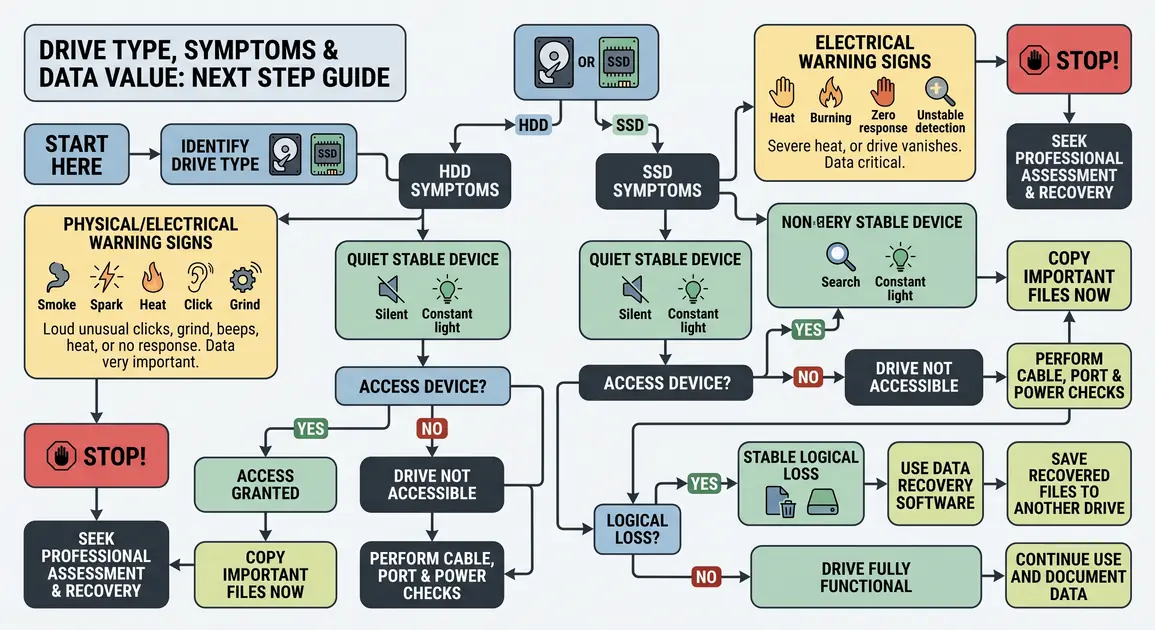
Disconnect the drive and seek qualified data-recovery advice if you notice any of the following:
- clicking, grinding, scraping or repeated spin-up and spin-down from an HDD;
- a burning smell, smoke, sparks, melted plastic or unusual heat;
- liquid exposure, a severe drop or visible connector damage;
- a drive that repeatedly disconnects during reads or causes the computer to freeze;
- important data with no verified second copy; or
- an encrypted drive when you are unsure of the BitLocker password or recovery key.
Do not repeatedly power-cycle a mechanically failing drive, open its sealed enclosure, swap circuit boards, put it in a freezer or strike it. Household dust can contaminate the internal surfaces of an HDD, and donor parts may require device-specific adaptation. A burning or sparking device is also an electrical hazard: unplug it only if that can be done safely, keep it disconnected and do not test it again.
If a drive was exposed to liquid, do not plug it in “to see if it still works”. Power can turn contamination into further electrical damage. Note what happened, keep the device unpowered and obtain advice.
Common causes of external hard drive failure
Cable, port and power problems
A failed USB cable, loose connector, underpowered hub or unsuitable power adaptor can make a healthy drive look dead. Portable drives normally draw power through USB; larger desktop drives generally use a separate adaptor. A damaged socket or USB-to-storage bridge inside the enclosure can also stop the computer seeing the disk even when the media itself remains intact.
These faults often produce no drive letter or intermittent disconnections without clicking or grinding. They are worth ruling out with low-risk connection checks, but only while the drive remains cool, quiet and stable.
Physical shock and mechanical wear
An operating HDD is especially vulnerable to a fall or hard knock because its heads work extremely close to spinning platters. Bearings, motors and head assemblies also wear. A dropped SSD has no heads or platters, but its connector, circuit board or solder joints can still be damaged.
Mechanical symptoms cannot be repaired by software. A utility that happens to read some sectors does not prove continued scanning is safe; every additional read may consume the limited operating time of a deteriorating HDD.
File-system or partition corruption
The file system is the structure that records where files and folders are stored. An interrupted write, unsafe disconnection, software crash or failing media can damage that structure. Symptoms include a prompt to format the disk, a volume shown as RAW in Windows, missing folders, unreadable files or a disk that appears in a management tool but not in File Explorer or Finder.
Corruption is a logical problem, but it may be the result of underlying hardware trouble. Do not assume that repairing the file system fixes the cause. If the drive is unstable or the files are valuable, recovery should come first.
Bad sectors, flash wear and controller failure
HDDs can develop areas that are difficult or impossible to read. SSD flash cells have finite endurance, while the controller and its mapping data are also potential failure points. Slow reads, freezes, I/O errors and files that copy only part-way can occur, but these symptoms overlap with cable, power and file-system faults.
Consumer “health” readings can add context but are not a guarantee. A drive that reports healthy status can still fail, and an unreadable USB device may not expose useful health information through its enclosure.
Heat, electrical damage and environmental exposure
Poor ventilation, an incorrect adaptor or a surge can damage electronics. Heat can also worsen an already marginal drive. In Perth’s hotter months, do not leave a portable drive in a parked car or run it buried under papers or soft furnishings. This is practical heat management, not a promise that cool storage prevents every failure.
Accidental deletion, formatting and malware
Sometimes the hardware has not failed at all. Files may have been deleted, a volume may have been formatted, or malicious software may have encrypted or removed accessible data. Stop writing new data to the affected drive because new files can overwrite space that still contains recoverable information. If ransomware or another active compromise is suspected, disconnect affected storage and the computer from the network and seek incident-response guidance rather than attaching backup drives.
Safe checks for a drive that is not detected
Use the following order only if the drive has no physical or electrical warning signs. Stop if it becomes hot, noisy or increasingly unstable.
- Pause and record the symptom. Note any message, sound, light behaviour and whether the problem followed a drop, outage or unsafe removal. Do not initialise or format the disk when prompted.
- Check the connection. Reseat the cable at both ends. For a detachable cable, try a known-good cable of the correct type. Connect directly to the computer instead of through a hub or dock.
- Try another USB port. A different port can rule out a damaged socket or a power limitation. Avoid forcing a connector that feels loose or bent.
- Check external power. For a desktop drive, confirm the correct manufacturer-specified adaptor and a working power point. Do not substitute an adaptor merely because the plug fits; incorrect voltage or polarity can destroy the electronics.
- Try one other computer. This can separate a host driver or operating-system problem from a device fault. Do not keep moving a failing drive among computers or repeatedly reconnect it.
- Look without changing anything. In Windows 10 or 11, right-click Start and open Disk Management. In macOS, open Disk Utility and choose View > Show All Devices. Seeing the physical disk but not a usable volume suggests a partition or file-system issue. Seeing it as unallocated, RAW or uninitialised is not permission to create or format a volume.
Microsoft describes Disk Management as the built-in tool for viewing and managing disks and volumes, but warns that formatting destroys the data on a volume. Use it here only to observe the disk, capacity and volume status.
If the drive opens normally after a cable or port change, copy the most important files to a different healthy device first. Do not keep using an intermittently disconnecting drive as the destination for new backups.
Recover files before attempting repairs
There are three different goals that people often call “fixing” a drive:
- accessing files long enough to copy them elsewhere;
- recovering deleted or inaccessible data to another disk; and
- repairing or reformatting the file system so the device can be reused.
Keep that order. Repairing metadata can change what recovery software sees, while reformatting creates a new file-system structure. Neither proves that the hardware is trustworthy afterwards.
When data-recovery software is reasonable
Software recovery may be a reasonable DIY option when the drive powers up quietly, stays connected, is visible to the operating system with the correct approximate capacity, and the loss is logical—for example, recently deleted files or a quick format. The data should not be irreplaceable, and you should be prepared for the scan to fail.
Use software from a reputable publisher, download and install it on the computer’s healthy internal drive, and save recovered files to a separate healthy drive. Never install the program on the affected disk or recover files back onto it, because either action can overwrite data you are trying to retrieve. Start with the most important folders and open a sample of recovered files to verify that they are usable.
Stop the scan if the drive begins disconnecting, becomes unusually slow, develops a new sound or makes the computer freeze. Software cannot repair damaged heads, motors, flash chips or controller electronics.
Why cloning is an advanced recovery step
A sector-by-sector image or clone lets a technician work from a copy rather than repeatedly reading the original. That is valuable when a disk is marginal, but imaging an unstable device requires suitable hardware, error handling and a destination at least as large as the source. A normal drag-and-drop copy, a backup program and a forensic clone are not interchangeable. If the drive contains irreplaceable data or develops read errors, do not learn cloning procedures on the only copy.
CHKDSK, First Aid and formatting: what they actually do
Windows CHKDSK
CHKDSK checks file-system metadata. Microsoft’s current command reference says that running it without repair parameters reports status, while /f, /r, /x and related options make changes; Microsoft also notes that file-system repairs can sometimes involve data loss. See the current CHKDSK reference.
Do not begin with chkdsk /f or chkdsk /r on a drive containing missing or irreplaceable data. Recover the files or obtain a competent image first. Once the data is safe and the hardware appears stable, a file-system repair may be appropriate—but a drive that produced bad-sector errors or repeated corruption should be replaced, not trusted with the next backup.
macOS Disk Utility First Aid
Apple says Disk Utility First Aid checks and repairs formatting and directory-structure errors, but it cannot detect or repair every disk problem. Apple also advises having a current backup before using it. On a stable drive whose important files are already safe, follow Apple’s current Disk Utility First Aid instructions, which run First Aid through each volume and container before the device.
If Disk Utility cannot see the device, or the drive has physical warning signs, First Aid is not the answer. If it says the disk is about to fail, copy what remains accessible and replace it.
Initialising or formatting the drive
Initialising creates disk-management structures; formatting creates a new file system. Both are setup or reuse operations, not recovery methods. Formatting can make existing data harder to recover and, as Microsoft explicitly warns, destroys data on the selected volume.
Only initialise or format after the required files have been recovered or verified elsewhere, you are certain the correct disk is selected, and you accept that the present contents will be lost. If the device failed unexpectedly, passed no trustworthy diagnostic check or repeatedly corrupts data, replacement is usually safer than reuse.
When professional data recovery is the safer choice
Professional assessment makes sense when the data is unique or commercially important; the drive has been dropped, wet, burnt or electrically damaged; an HDD clicks or grinds; the device is not detected with its correct capacity; encryption complicates access; or a careful software attempt has failed.
A responsible provider should first clarify the symptoms, the value of the data and any previous recovery attempts. Depending on the fault, the next stage may involve non-invasive diagnosis, controlled imaging, logical reconstruction or referral to a specialist laboratory for internal HDD work. Not every case requires opening a drive, and opening an HDD should not be presented as a routine step.
Before authorising work, ask:
- Is diagnosis separate from recovery, and will you provide a written quote?
- What actions will be taken before I approve chargeable work?
- Will recovered data be returned on a separate device?
- How will my data be stored, accessed and securely removed afterwards?
- Will the original drive be modified or opened?
- What happens if the data cannot be recovered?
Recovery outcomes and costs depend on the fault and prior damage. Treat guaranteed success, unexplained “high success rate” claims or a promise made before diagnosis with caution.
Preventing the next external-drive failure from causing data loss
The strongest protection is redundancy, not a supposedly failure-proof drive. An external disk that holds the only copy is primary storage, even if you call it a backup.
For important files, keep the working copy plus at least two backups on different storage, with one copy off-site or otherwise isolated. The Australian Cyber Security Centre recommends offline backups and a tested restoration process because connected backups can be damaged by ransomware, destructive malware, mistakes or hardware failure; its mitigation guidance also stresses that restore procedures must be proven.
For a Perth household, that might mean photos on the computer, an automated copy to a local external drive, and a separate encrypted cloud or off-site copy. A small business may need automated, versioned backups, restricted access, encryption and routine test restores. The right schedule depends on how much work you can afford to recreate: files that change daily need more frequent protection than an archive that changes once a year.
Build these habits into the system:
- eject removable storage through the operating system before disconnecting it when writes may still be pending;
- keep drives on a stable surface with airflow and protect them during transport;
- use only correct power adaptors and replace damaged cables;
- disconnect or logically isolate at least one backup so malware or mistakes cannot reach every copy;
- enable encryption for portable drives holding sensitive data, and store recovery keys separately;
- monitor backup results rather than assuming an automated job succeeded; and
- test a sample restore periodically, including the files and credentials needed to resume work.
Replace a drive that has shown repeated errors, unstable connections, bad sectors or a failure warning. Copying data off successfully does not reset its reliability.
A calm decision path
If the drive is quiet, cool and stable, start with the cable, port, correct power supply and one alternate computer. If it becomes accessible, copy important files immediately. If it remains visible and stable but the loss is logical, carefully chosen recovery software may help, provided it is installed elsewhere and recovered files go to another disk.
If the drive is noisy, hot, physically damaged, electrically suspect, repeatedly disconnecting or holding the only copy of important data, stop. Avoid repairs, formatting and repeated scans. For Perth households and small businesses, professional assessment at that point is less about convenience than preserving the remaining recovery options. Once the files are safe—or the recovery decision is complete—replace the unreliable device and set up a backup arrangement with a second, isolated copy.