
USB and SD Card Data Recovery: A Safe, Complete Guide
Learn the safest order for recovering deleted, corrupted or inaccessible files from USB drives and SD cards—and when to stop and seek help.

A USB drive or SD card can go from normal to unreadable in seconds. You may see a format prompt, find an empty folder, or discover that a camera card is no longer recognised. The files may still be recoverable, but what you do next matters.
This guide explains how to assess the symptoms, protect the remaining data and choose a recovery method without accidentally making the problem worse. It covers USB flash drives, SD and microSD cards for Perth home users, photographers, remote workers and small businesses.
Key takeaways
- Stop using the device immediately; new writes can overwrite recoverable data.
- Recover files to a different physical drive before attempting CHKDSK, formatting or other repairs.
- Software may help with deletion and logical corruption, but not with broken connectors, liquid damage or an electrically unstable device.
- A card or drive that is not detected anywhere needs a different response from one that appears as RAW or asks to be formatted.
- Keep at least one separate backup so portable flash media is never the only copy of an important file.
First response: stop and protect the original
Do not click Format, initialise the device, create a new partition or save anything to it. Do not install recovery software on the affected USB drive or card. When a file is deleted, its storage space may be marked as available even though some content remains; further use can overwrite that space. Microsoft therefore advises minimising computer use after data loss, and PhotoRec gives the same warning for the source media (Microsoft Support, CGSecurity).
If the files are irreplaceable or business-critical, pause before experimenting. Every extra scan or reconnect adds stress to unstable hardware, and a repair command can change file-system structures. Professional assessment is the lower-risk choice when the value of the data outweighs the cost of recovery.
For ordinary accidental deletion from a healthy, consistently detected device, a careful read-focused software scan is reasonable. Keep the source connected only as long as needed, and have another drive ready for recovered files.
Work out what kind of failure you have
The symptom determines the safest next step. USB drives and memory cards use NAND flash memory controlled by electronics that translate between the computer and the stored data. A problem can be logical—such as deleted directory entries or a damaged file system—or physical, such as a cracked connector or failed controller.
Deleted files or an accidentally formatted card
If the device is detected reliably and reports a plausible capacity, recovery software may be able to find deleted files. Success is not guaranteed. Results depend on what has been overwritten, the type of format, the file system, fragmentation and how the device manages flash memory. Stop taking photos or copying files to the card as soon as the loss is noticed.
A format prompt, RAW volume or unreadable folders
A message such as “You need to format the disk” usually means the operating system cannot interpret the file system. It is not proof that the files are gone, and accepting the prompt writes new file-system information. Cancel it and attempt recovery before repair.
On Windows, Disk Management can help distinguish a recognised device from one that is absent at the hardware level. Open it by right-clicking Start and selecting Disk Management. A device shown with the expected approximate capacity but marked RAW or unallocated may still be a software-recovery candidate. Do not initialise it or create a volume.
Not detected, wrong capacity or repeated disconnects
Try one known-good port without a hub. For an SD or microSD card, try a different compatible reader; for microSD, the adapter itself may be faulty. You can also test once on another computer. If the device remains absent, shows an implausible capacity, becomes unusually hot, or repeatedly connects and disconnects, stop. Consumer recovery software cannot scan storage the computer cannot access reliably.
Physical damage or liquid exposure
Stop immediately if the connector is bent or loose, the casing is cracked, contacts are damaged, the device has been wet, or there is heat, smoke, sparking or a burnt smell. Do not force a connector, open the casing, apply power repeatedly, use rice, heat the device or attempt soldering. Isolate it from power and arrange qualified assessment. DIY physical work can destroy chips or the remaining electrical connection.
A possible malware or ransomware incident
If files have unfamiliar extensions, ransom notes appear, or the problem began after using an untrusted computer, disconnect the media and treat the host as potentially compromised. Do not open recovered files on an important computer. Seek incident-response help if business systems are involved, and follow the Australian Cyber Security Centre’s ransomware guidance (cyber.gov.au). Recovery and security containment are separate tasks.
The safest recovery workflow
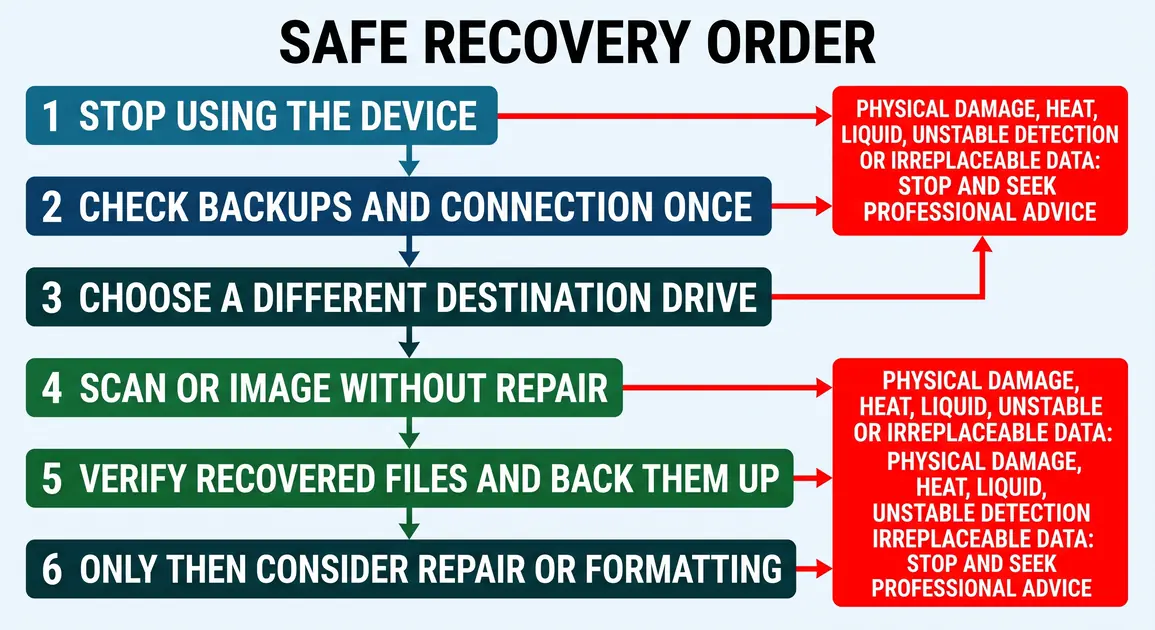
Use this order for a healthy, stable device with logical data loss. If it becomes hot, drops offline, produces read errors continuously or contains irreplaceable data, stop and obtain professional advice.
- Check for another copy. Look in cloud storage, backups, email attachments, another camera card, the Recycle Bin or Trash, and shared folders. A verified copy is safer than recovery.
- Rule out the connection once. Try a direct USB port or a known-good card reader. Check a full-size SD card’s physical lock switch; the switch makes it read-only and can be mistaken for a fault. A microSD card has no switch, although its SD adapter may have one.
- Choose a separate destination. The destination must have enough free space and must not be the affected device. Microsoft’s Windows File Recovery requires different source and destination drives, while PhotoRec warns that saving to the source can permanently overwrite lost data (Microsoft Support, PhotoRec documentation).
- Scan without repairing first. Start with a recovery tool suited to the operating system and file system. Avoid CHKDSK, First Aid, formatting and partition creation until the wanted files are safely copied elsewhere.
- Preview and recover selectively. Check that important photos, documents and videos open correctly. A file name in a result list does not prove its contents are intact.
- Save recovered files elsewhere. Use the computer’s internal storage or another external drive, never the source. Scan recovered files with current security software before opening them if malware is possible.
- Make a second copy and verify it. Open a representative sample, compare expected folder contents and back up the recovered data before doing anything to the original media.
For unstable but still readable hardware, an experienced technician may create a sector-by-sector image and work from the image. Imaging a failing device is not a risk-free beginner step: repeated read attempts, incorrect device selection and insufficient destination space can all cause problems.
Choosing recovery software
A trustworthy tool should support the source file system, recover to another drive and let you limit or preview results. Download software only from its official publisher. “Free scan” does not always mean free recovery, so check current limits before committing money. No tool can guarantee recovery, and changing tools repeatedly will not fix physical failure.
Windows File Recovery
Microsoft’s command-line Windows File Recovery supports Windows 11 and Windows 10, although normal Windows 10 support ended on 14 October 2025. Microsoft documents Regular mode for recently deleted files on a healthy NTFS volume and Extensive mode for corrupted disks, formatted disks and non-NTFS file systems such as FAT and exFAT (Microsoft Support).
The general syntax is winfr source-drive: destination-drive: /mode /switches. A typical extensive scan might use winfr E: D: /extensive, where E: is the affected media and D: is a different destination. Drive letters vary, so confirm them carefully in File Explorer and Disk Management before running any command. Selecting the wrong source or destination can put other data at risk.
PhotoRec and TestDisk
PhotoRec is free, open-source and available for Windows, macOS and Linux. It uses read-only access to the source and searches for known file signatures, so it can work when the file system is severely damaged or reformatted. The trade-off is that original file names and folder structure may not be preserved. Its companion TestDisk can recover partitions and repair some file-system structures, but repair functions should come after recovery or imaging, not before (CGSecurity).
Graphical paid tools may be easier for non-technical users, but compare supported file systems, preview capability, recovery limits, privacy and the publisher’s current documentation. Avoid claims that one product is universally “best”; the right choice depends on the failure and the value of the data.
Why CHKDSK and formatting come later
CHKDSK is a Windows file-system repair tool, not a first-line file-recovery tool. Options such as /f write corrections to the volume. Those changes may make a drive mount again, but they may also alter or discard damaged directory information that another recovery method could have used. If files matter, recover or image first. Only consider repair after verified copies exist or after accepting that remaining files may be lost.
Formatting is more destructive from a recovery perspective because it creates a new file system. The SD Association says to copy wanted data elsewhere before formatting and notes that the selected format may remove data. If an SD card is to be reused after recovery, the Association recommends its current SD Memory Card Formatter rather than a generic operating-system formatter for standards-compliant formatting (SD Association FAQ).
Formatting does not recover files and does not prove damaged media is trustworthy. Retire a card or USB drive that has behaved unpredictably, reports errors or disconnects. Replacement media is cheaper than repeating a preventable data-loss event.
SD card details that can change the diagnosis
Check that the card standard and capacity are supported by the camera, phone or reader. SD, SDHC, SDXC and SDUC are not interchangeable with every older host device; an unsupported card may appear faulty even when it is not. Consult the device manual and the SD Association’s compatibility guidance before formatting (SD Association).
If the files are from a camera, do not put the card back and take “test” photos. New images are writes. Raw file carving can also recover fragments or files without meaningful names, and fragmented videos may need specialist reconstruction. Confirm recovered media by playing videos through and opening full-resolution photos, not just thumbnails.
A phone that used a card as encrypted or adopted internal storage may tie it to that device. Do not reset the phone, clear encryption keys or reformat the card while recovery is being assessed. If the phone is still working, seek device-specific help before changing settings.
When professional data recovery is the safer choice
Arrange an assessment before DIY recovery when:
- the device is physically damaged, wet, hot, burnt or electrically unstable;
- it is not detected in more than one known-good reader or computer;
- it reports the wrong capacity or disconnects during reads;
- the files are irreplaceable, legally important or essential to a small business;
- encryption, ransomware or another security incident is involved;
- a repair, format or unsuccessful recovery attempt has already changed the media; or
- you are not confident about identifying the correct source and destination drives.
For local help, Perth Computer Experts can discuss the symptoms and help determine whether the next step is ordinary troubleshooting or specialist recovery. Use the contact page and avoid powering or testing damaged media while waiting for advice.
Preventing the next loss
Portable flash media is convenient working or transfer storage, but it should not hold the only copy of valuable data. Copy photos and documents to primary storage promptly, then maintain another independent backup. A cloud copy can help with theft or local damage, while a disconnected external copy can reduce exposure to malware; the appropriate mix depends on the data and how quickly it changes.
Use Eject or Safely Remove Hardware and wait for the device to finish writing. Keep cards in a protective case, protect connectors from pressure and moisture, and use reputable readers. Replace media after recurring errors rather than trusting a format to cure a hardware problem. For households or small businesses that want centralised storage and automated backups, PCE’s NAS setup and shared storage service explains one available backup destination.
If files have already disappeared, the best next step is restraint: stop writing to the device, decide whether the data justifies professional assessment, and recover to separate storage before attempting any repair.