
5 Common Laptop Problems and How to Fix Them Safely
Laptop slow, hot, not charging, losing Wi-Fi or crashing? Try these safe checks, protect your files and learn when to call a technician.
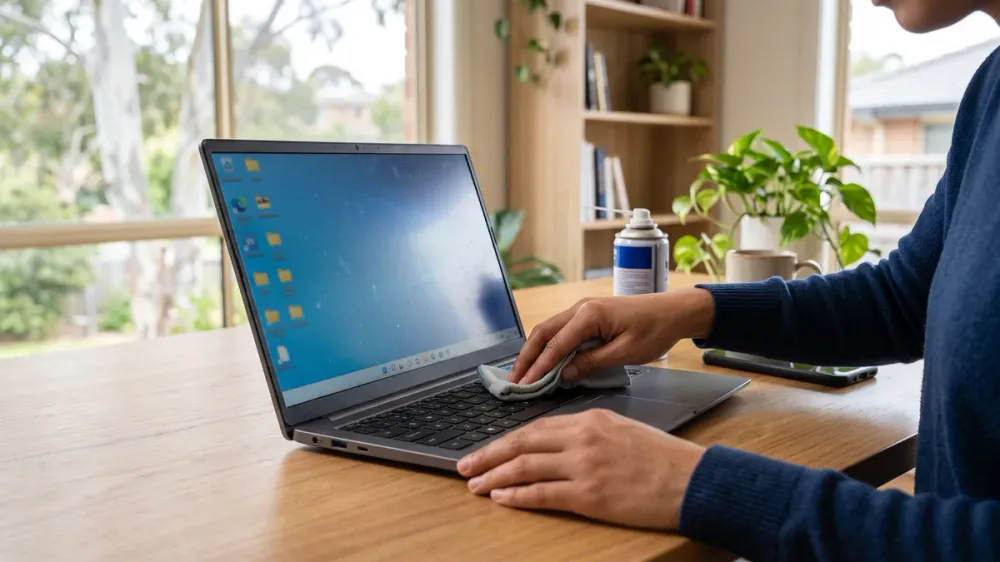
When a laptop slows to a crawl, runs unusually hot or drops off Wi-Fi halfway through a call, the visible symptom does not always reveal the real fault. A software conflict, failing storage and malware can all make a computer feel slow, yet each needs a different response.
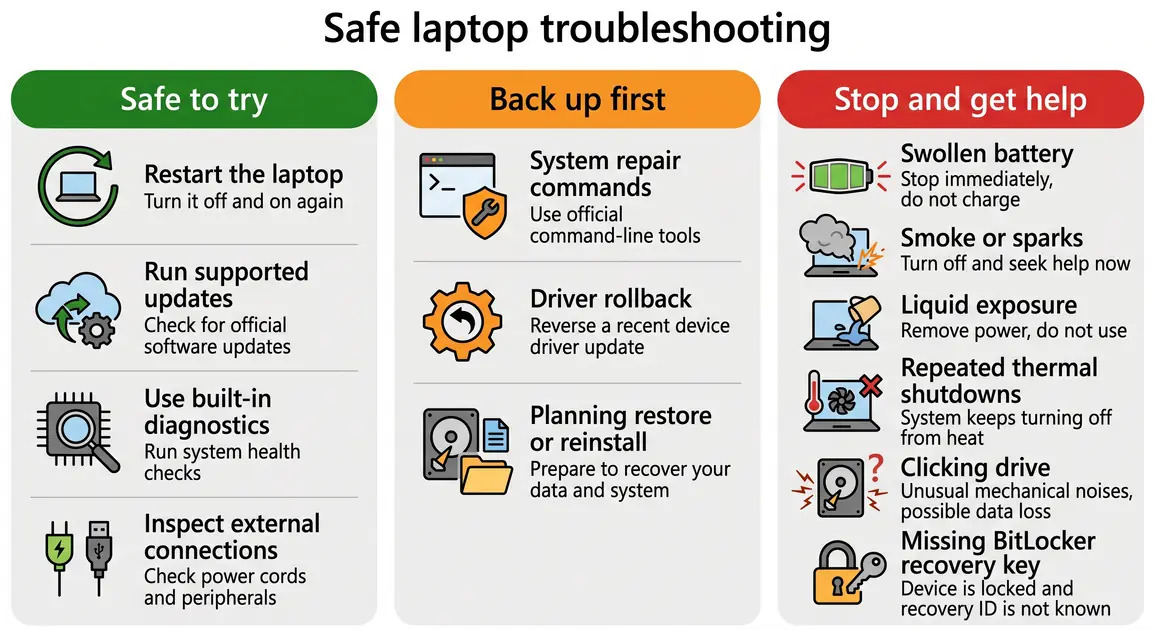
The safest approach is to start with reversible checks, protect important files before repair work, and stop when the warning signs point to battery, electrical or storage danger. This guide covers five common laptop problems, what Windows users can safely try, and when a Perth home user, remote worker or small business should move from DIY troubleshooting to professional diagnosis. MacBooks can show similar symptoms, but their menus and repair procedures differ.
Key takeaways
- Start with simple checks: restart, install supported updates, inspect connections and compare the laptop with another device.
- Back up important files before resets, reinstalls, drive work or repeated troubleshooting on an unstable computer.
- Stop using a laptop with a swollen battery, smoke, sparks, a burning smell, liquid exposure or repeated thermal shutdowns.
- A recurring fault matters more than a one-off glitch; record error messages and what happened immediately beforehand.
- Onsite help suits faults involving hardware or the local network, while many software problems can be assessed remotely.
Before you troubleshoot: protect your files and note the symptoms
Write down when the problem began, what changed beforehand and whether it happens on battery power, mains power or both. Photograph an error code with your phone. For an intermittent fault, note the time, application and connected devices. This gives you a baseline and helps prevent random changes that obscure the cause.
Create a backup while the laptop is stable enough to do so. Copy irreplaceable documents, photos and business records to an external drive or a genuine backup service, then open several files from the backup to confirm they are readable. Cloud synchronisation is useful, but it is not automatically the same as an independent backup: deletion, corruption or ransomware can sometimes synchronise too. The Australian Cyber Security Centre recommends regular backups and notes that an external backup should be disconnected when not in use; an offline copy can remain available after malware or ransomware (ACSC backup guidance).
If the laptop will not start, the drive makes repeated clicking or grinding noises, or important data exists without a verified copy, stop. Repeated power cycles and repair attempts can reduce the chance of recovery from failing storage. Treat data recovery as a separate priority from getting Windows to boot.
1. A slow laptop
Likely causes
Too many startup apps, low free space, pending updates and resource-heavy programs are common software causes. Malware can consume processor, memory or disk resources. On older laptops, limited RAM or a mechanical hard disk can make current applications feel unresponsive even when nothing is technically broken.
Microsoft lists limited storage, excessive startup apps, outdated software and older hardware among the causes of poor Windows performance. It also confirms that Windows 10 stopped receiving normal free security updates and technical support on 14 October 2025, so a Windows 10 laptop needs a supported upgrade path or a replacement plan rather than endless optimisation (Microsoft performance guidance).
Safe fixes to try
- Restart the laptop, then open only the program you need. A proper restart clears stuck background processes more effectively than closing the lid.
- Press
Ctrl+Shift+Escto open Task Manager. Check Processes for unusually high CPU, memory or disk use, but do not end a process you cannot identify. Under Startup apps, disable only non-essential programs you recognise. - In Windows 11, open Settings > System > Storage. Review Cleanup recommendations or Temporary files carefully before removing anything. Do not delete Downloads or personal files merely to gain space.
- Open Settings > Windows Update, install supported updates and restart when prompted. For hardware drivers, prefer Windows Update or the laptop manufacturer's support page for the exact model.
- Open Windows Security > Virus & threat protection and run a scan. Windows includes built-in antivirus, and the ACSC advises keeping antivirus enabled and current (ACSC malware guidance). Do not install an unfamiliar cleaner from a pop-up or search advertisement.
If Task Manager shows the drive pinned near full activity, Windows takes much longer to start, files produce errors or the problem rapidly worsens, back up first and arrange a drive-health assessment. An SSD or RAM upgrade can help a sound, compatible laptop, but the decision should consider its age, condition, Windows 11 compatibility and the cost of other repairs.
2. A laptop that overheats or shuts down
Likely causes
Blocked vents, dust, a failing fan and demanding workloads can all raise temperature. Soft furnishings obstruct many laptops' underside air intakes. Warm rooms, direct sun and a laptop left in a parked car add heat before the cooling system begins its work—especially relevant during Perth's hotter months.
Safe fixes to try
- Shut down and unplug the laptop. Move it to a hard, flat surface and make sure no vent is covered.
- Once cool, inspect the external vents with a torch. Follow the manufacturer's model-specific cleaning guidance; use only short, controlled bursts of suitable compressed air from outside. Do not force a fan to spin at high speed and do not open the case if that would breach warranty or exceed your experience.
- Close an unexpectedly demanding application in Task Manager. If heat appears only during gaming, video editing or other sustained work, reduce the workload and allow the machine to cool.
- Install supported firmware and driver updates from the manufacturer, because thermal control can depend on them. Do not change BIOS/UEFI settings as an experiment.
Stop immediately if there is smoke, a burning smell, sparks, liquid exposure, a bulging case or repeated heat-related shutdowns. Disconnect mains power if it is safe to do so, do not charge the laptop again, and arrange qualified help. Internal cleaning, fan replacement and thermal-paste work require disassembly and are technician jobs for most laptop owners.
3. A battery that drains quickly or will not charge
Work out whether the battery, charger or port is at fault
Look for visible cable damage, a loose connector, debris in the port and whether the charging indicator changes when the plug moves. Use only a charger that the laptop manufacturer specifies as compatible; matching the connector alone does not prove that voltage, power delivery or quality is suitable.
Windows can create a battery history report. Open Terminal (Admin), run powercfg /batteryreport, then open the HTML file at the location Windows reports. Compare Design capacity with Full charge capacity, but treat the numbers as evidence rather than a pass/fail threshold. Microsoft documents the command as a report of battery usage and characteristics (Microsoft powercfg documentation).
Safe fixes to try
- Shut down, unplug and inspect the charger and cable. Do not use them if insulation is split, pins are bent or the power brick smells burnt.
- Try a known-compatible charger if one is available. Do not probe the port with metal or conduct live electrical tests.
- In Windows 11, review Settings > System > Power & battery. Check which applications use battery and choose a balanced power mode when maximum performance is unnecessary.
- Install manufacturer-provided firmware and power-management updates for the exact laptop model.
A battery is not a safe DIY project when it is swollen, leaking, unusually hot or pushing the case apart. Stop using and charging the device, keep pressure away from the battery, and seek professional advice. If a known-compatible charger does not work, diagnosis should distinguish the charger, DC/USB-C port, battery and mainboard before parts are purchased.
4. Wi-Fi drops out or will not connect
First isolate the fault
Test another phone or laptop on the same network. If every device disconnects, investigate the router, nbn connection or internet provider. If only this laptop fails, focus on its saved network, Windows troubleshooter, Wi-Fi adapter and driver. If the laptop works near the router but not in the usual room, coverage or interference is more likely than a broken adapter.
For an address-specific service problem, use the official nbn network status checker. nbn notes that a clear result does not rule out a fault affecting an individual provider service, so contact your internet provider when the connection remains down.
Safe fixes to try
- Turn Wi-Fi off and on, then restart the laptop.
- Restart the router or connection equipment using the manufacturer's or provider's instructions. Allow it time to reconnect fully; avoid repeated rapid power cycling.
- On Windows 11, run the Network and Internet troubleshooter in the Get Help app. Microsoft identifies this as the current starting point (Microsoft Wi-Fi troubleshooting).
- Forget the saved Wi-Fi network and reconnect only if you know the password. This removes that saved profile and requires its credentials again.
- Check Windows Update and the laptop manufacturer's site for the correct Wi-Fi driver. Avoid third-party driver-download sites.
Onsite diagnosis becomes useful when the fault changes by room, several devices are affected, the router's placement needs assessing or network hardware and cabling must be tested in their real environment. A remote session can suit a laptop-only software fault while it still has a usable connection.
5. Blue screens, black screens, freezes or startup failures
Separate a display fault from a Windows crash
A blank screen with a working external monitor may indicate the laptop display, cable or backlight. A Windows stop error usually displays a stop code and restarts to protect the system. Microsoft says these crashes can be caused by hardware, a driver or software; record the stop code because it can narrow the diagnosis (Microsoft blue-screen guidance).
Safe fixes to try
- Disconnect recently added non-essential hardware, then restart once.
- If Windows loads, install supported Windows and manufacturer updates. If the fault began after a specific driver or application change, use that vendor's supported rollback or removal process.
- Search for Windows Memory Diagnostic, save your work and run it. A reported memory error needs hardware diagnosis.
- If Windows features are malfunctioning but the laptop remains stable and backed up, open Terminal (Admin) and run
DISM.exe /Online /Cleanup-image /Restorehealth. After it completes successfully, runsfc /scannow. Microsoft specifies DISM before System File Checker (Microsoft SFC guidance). - Test an external display only with a cable and monitor you already know are safe. Do not open the laptop to reseat a screen cable.
Recurring crashes, storage errors, failed memory tests or a laptop that cannot stay on long enough to back up need professional diagnosis. A Windows reset or clean installation can remove applications, settings and—depending on the option—files. Treat it as a last resort only after a verified backup, recovery keys and account access are confirmed. If BitLocker asks for a recovery key you do not have, stop rather than attempting destructive workarounds.
When DIY troubleshooting should stop
Low-risk DIY work is observation, restarts, supported updates, built-in diagnostics and connection checks. Stop and seek help when:
- the fault returns after a seemingly successful fix;
- the laptop contains irreplaceable data without a tested backup;
- the next proposed step is a reset, reinstall, firmware change or internal repair;
- there are signs of battery swelling, liquid damage, burning, sparking or repeated thermal shutdown;
- the storage drive makes unusual mechanical noises or disappears intermittently;
- malware may have exposed passwords, banking details or business information; or
- you are unsure whether an online instruction matches your exact model and Windows version.
If malware or account compromise is suspected, disconnect the affected laptop from networks where practical. Use a known-clean device to change important passwords and enable multi-factor authentication, then follow current ACSC recovery advice. Do not disable security software merely to make an application run.
Choosing remote or onsite laptop help in Perth
Remote support can be efficient for a stable laptop with a working internet connection when the likely cause is software, settings, updates or an application. Onsite support is usually more appropriate for charging faults, physical damage, overheating, failing hardware, local Wi-Fi coverage, routers, printers or a computer that cannot connect reliably.
Before authorising repair, explain the symptoms and ask how your data will be protected, whether diagnosis comes before parts are ordered, what the estimate includes, and what happens if the diagnosis changes. Confirm the technician supports your operating system and laptop model. Reviews and qualifications can be useful signals, but clear scope, consent, data handling and written cost expectations are more useful than a generic claim that every technician must hold one particular certificate.
If these checks do not isolate the fault, Perth Computer Experts' computer repairs and troubleshooting service covers slow or freezing computers, malware symptoms and hardware faults for Perth home users. Take your symptom notes and backup status with you; they make the next diagnosis safer and more efficient.